
When using Starlink to connect to the Internet, the most important thing is to get fast and reliable connectivity. Speedify's proven channel bonding technology helps achieve that by combining Starlink with other Internet connections, like another Starlink, 4G, 5G cellular or even your old DSL.
This guide shows how the Speedify app keeps you online by combining Starlink with another internet connection, such as 4G/5G cellular, Wi-Fi, or wired Ethernet.

Troubleshoot Starlink Issues and Combine Starlink with 5G, 4G, DSL and Other Connections with Speedify for Better Starlink Internet
Quick answer
Should you get a backup connection for Starlink?
Yes. Starlink goes down every day — an always-on dish averages about 34 minutes of downtime daily from routine satellite handoffs. A second connection keeps you online when Starlink drops.
What’s the best backup connection for Starlink?
A 4G/5G cellular hotspot or SIM is the most practical backup for most Starlink users — it works anywhere Starlink works, requires no installation, and uses a different network so outages rarely overlap. Cable or DSL broadband is a strong option if you have it at a fixed location. A second Starlink dish is also possible if you need maximum throughput.
How do you use two internet connections at once with Starlink?
Speedify combines Starlink with any other connection — cellular, cable, Wi-Fi, or a second dish — into one bonded connection. Speedify runs on your phone, laptop, or router. When Starlink drops, Speedify moves your traffic to the backup instantly, so calls don’t cut out and downloads don’t stall. Speedify is free to try.
71% of Speedify’s Starlink users already run a second connection. The data below shows why.
Try Speedify free →Speedify Starlink Index — real-world performance from 6,209 Starlink users: 2.4% downtime, about 34 minutes a day for always-on connections
Starlink goes down every day.
Here’s what that actually looks like.
Speedify passively monitors every connection it bonds. These figures come from 6,209 Starlink users over 14 days — compared in real time against the other connections on the same devices. No speed tests, no lab conditions.
Daily downtime
~34 min
2.4% of connected time unreachable
Median latency
60 ms
p90 spikes to 257 ms
Avg packet loss
0.17%
vs 0.08% on T-Mobile
71% ran at least one other connection simultaneously — 4,381 of 6,209 users. Cellular is the most common backup.
Use Speedify to stay online during satellite handoffs every 15 seconds
Research confirms Starlink switches between satellites every 15 seconds on a fixed schedule. Each satellite handoff is a potential dropout, and on a congested network or with any obstruction, those Starlink dropouts become real interruptions.
Speedify fixes Starlink connection drops by combining your Starlink internet connection with another satellite dish, Wi-Fi, 4G/5G cellular, or wired Ethernet at the same time. When Starlink drops, Speedify keeps your traffic moving on the backup internet connection instantly.
Speedify alerts you about your Starlink dish status
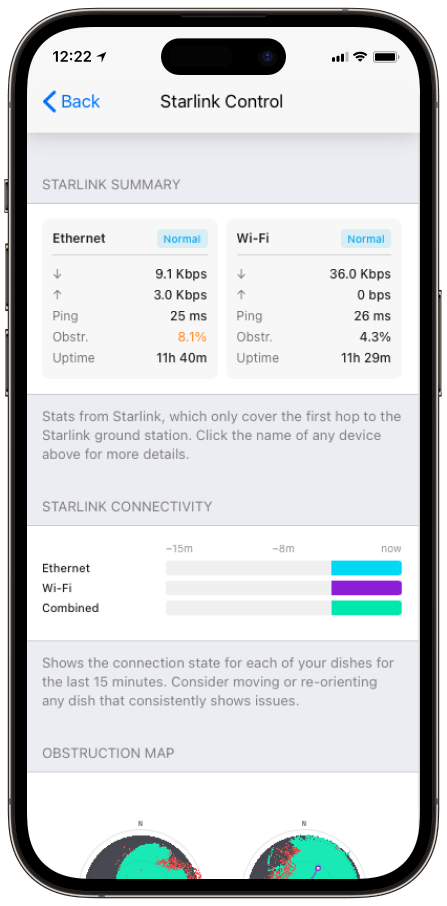
Speedify software alerts you about your Starlink dish status as soon as your dish experiences an issue - e.g. when your actuator motor is stuck, the mast is not vertical or there's a thermal throttle.
Speedify's Starlink Control Center helps you monitor all your Starlink dishes, read obstruction maps, and align multiple dishes all in the Speedify app. Get a real-time view of each dish's health and optimize the position of each Starlink dish, so you get the best possible performance out of your Starlink connections.
Speedify
Speedify gives you faster, steadier internet by combining Wi-Fi, cellular, and Starlink
Speedify bonds Wi-Fi, 4G/5G cellular, Ethernet, and Starlink into one connection at the same time, giving you more speed, automatic failover when one drops, and AES-256 encryption on every link.
Download Speedify ›More speed
Upload and download speeds combine across every active connection on your device.
Automatic failover
If a connection drops, Speedify moves your traffic to another in milliseconds. Calls stay connected.
Always encrypted
Every link runs through an encrypted tunnel, including public Wi-Fi, cellular, and Starlink.
Speedify Feature · Pair & Share
Speedify Pair & Share: share cellular between your devices, both ways
Most hotspots give. Speedify's Pair & Share gives and takes. Two devices running Speedify pair up and each uses the other's cellular connection simultaneously, so you both get faster uploads, faster downloads, and a steadier connection. No extra hardware, no new data plans, no setup beyond a tap.
Learn how Speedify's Pair & Share works ›More speed
Every device you pair with adds its cellular to yours, and yours to theirs.
Stays connected
If a paired device drops out, Speedify keeps you online on the remaining links.
Always private
Every shared connection runs through AES-256 encryption. Your traffic is yours.
No new gear
Runs on devices already running Speedify, over your local network. Pair once, reconnects automatically.
How to Troubleshoot Your Internet Connection Using the Starlink Dish Alerts
When monitoring your Starlink dish status, you may encounter various alert messages that indicate different operational conditions or issues. Understanding these alerts can help you troubleshoot problems and ensure optimal performance of your Starlink internet service.
The Starlink dish alerts can be grouped into several categories:
- Operational status alerts
- Temperature-related alerts
- Positioning and movement alerts
- Connection and performance alerts
- Maintenance alerts
- Performance metrics to monitor
You can get a full description of all the Starlink dish alerts from our dedicated knowledge base article.
What You Should Do When Getting Starlink Dish Alerts
Depending on the type of Starlink dish alerts, there are things you could do to fix the situation:
- Monitor the situation before taking action, as some alerts are temporary and resolve on their own.
- Address the environmental factors if possible, for such alerts.
- Focus on addressing the most critical alerts (like thermal shutdown or motors being stuck) before moving to performance-related issues.
- Reboot your Starlink system - unplug power for 20 seconds, then reconnect.
- Contact Starlink support for assistance, if alerts persist for more than 24 hours.
Here's a recent feedback from one of the Speedify customers related to this new functionality:
"Hey, just like to say the new reporting on a Starlink connection is great. Trying to debug Starlink issues when they have the Wi-Fi bypassed is a a real pain. First time today i saw the "waiting for sw update" on the link status. Godsend, as we turn our connectivity off at night and so it misses the 2-4am window to install. And doesn't seem to install on reboot unless you go into the Starlink web portal and click the reboot button from there, so something that would have driven me around the houses for few hours fixed pronto!"
Speedify Helps You Fix Slow and Unreliable Starlink
Get started with Speedify today!
With Speedify you can combine Wi-Fi, 4G / 5G cellular, Ethernet, Starlink and other satellites into one bonded super-connection to improve livestreaming, video calling, gaming, web browsing, and everything else you do online.
Speed
Stability
Security
Speedify engineers love talking tech on YouTube, Tiktok, and Instagram!
Alex Gizis and the Speedify engineers discuss and explain technology including Starlink satellites, Wi-Fi 7 routers, Apple networking features, fiber optics, broadband internet, 5G mobile networks, AI, networking protocols, and much more. Follow Speedify on YouTube, TikTok, Instagram, and LinkedIn!
Alex and the Speedify team are always exploring the latest in networking and security technology—like 5G, 6G, WiFi 7, laser and satellite internet—and sharing it in new discussion content across YouTube, TikTok, Instagram, and LinkedIn every week.
Got a tech question? Let's go deeper! Pop into Speedify Office Hours live every Wednesday at 10 AM Eastern. Speedify CEO Alex Gizis and our network engineers are standing by to break down your questions about networks, tech updates, and Speedify features.


