


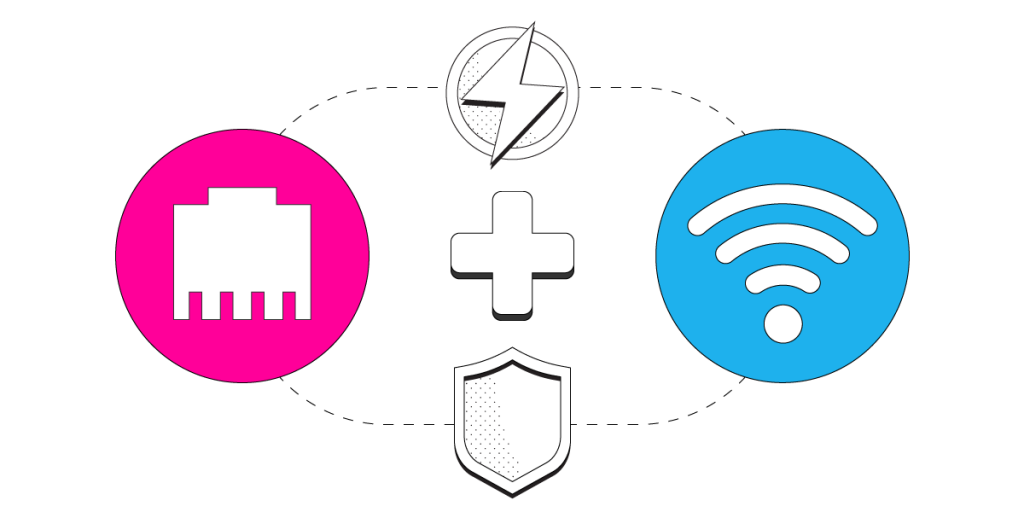
Mac: Use a Secondary Cable / DSL Wi-Fi Connection Together with Your Starlink Ethernet Link
When you’re using Starlink as your main Internet connection, it’s recommended you combine it with another Internet source, for more reliable connectivity.
Do you have access to both wired Ethernet and Wi-Fi on your Mac? All you need is a channel bonding (or link aggregation) software app like Speedify. In this guide we’ll show you how you can use your Starlink satellite Internet connection via wired Ethernet together with another Wi-Fi network (that can be your old cable / DSL connection, for example) and then use Speedify to combine them on your Mac.
Most Starlink users already run a second connection.
From a sample of 6,228 Starlink users on Speedify, 71% ran at least one other internet connection while using Starlink. Cellular is the most common choice of backup connection.
What they pair with
3 Steps to Combine Starlink via Wired Ethernet with Cable / DSL via Wi-Fi on a Mac
Step 1: Connect to Your Starlink Internet via Wired Ethernet
As of January 2023, Starlink comes in the box with the Wi-Fi router only. But you can get a Starlink Ethernet adapter you mount between the dish and the Wi-Fi router. This will provide a wired Ethernet port you can input into your Mac.
Connect an Ethernet cable between Starlink Ethernet adapter and the Ethernet port on your Mac. In most cases, you’ll automatically connect to the internet. If your computer doesn’t have a built-in Ethernet port, try using a USB to Ethernet adapter, or a Thunderbolt to Gigabit Ethernet adapter.
Step 2: Connect to Your Cable or DSL Internet via Wi-Fi
Click the Wi-Fi icon in the menu bar. (If Wi-Fi is off, choose “Turn Wi-Fi on.”) Select your cable / DSL Wi-Fi network from the list. Keep in mind, private networks may require you to enter a password before connecting.
Step 3: Download and Install Speedify
Last but certainly not least, download and install Speedify. Once running, Speedify will automatically detect any available Internet connections and combine them for increased speed, security, and stability. This means you should see both your Starlink wired Ethernet connection as well as your cable / DSL Wi-Fi connection in the app’s user interface.
You can manage settings, view statistics, and even apply limits to individual connections by either clicking/tapping on them from the Dashboard or by navigating to the desired connection through the main Settings menu.
Speedify will work quietly in the background to optimize performance including prioritizing streaming web traffic to avoid stuttering, buffering and disconnects.
Whether at home, work, or on-the-go, Speedify is the only VPN that makes your online experiences faster, more reliable, and more secure.
Alex and the Speedify team are always exploring the latest in networking and security technology—like 5G, 6G, WiFi 7, laser and satellite internet—and sharing it in new discussion content across YouTube, TikTok, Instagram, and LinkedIn every week.
Got a tech question? Let's go deeper! Pop into Speedify Office Hours live every Wednesday at 10 AM Eastern. Speedify CEO Alex Gizis and our network engineers are standing by to break down your questions about networks, tech updates, and Speedify features.


Speedify
Get started with Speedify today.
Combine Wi-Fi, 4G/5G cellular, Ethernet, Starlink, and more into one faster, steadier connection. Free to try — no credit card required.
🚀 Speed
Faster uploads and downloads by bonding all your connections at once.
📶 Stability
Automatic failover in under a second when any connection drops.
🔒 Security
AES-256 encryption on every connection, on every network you join.





15M+ downloads worldwide. 75K+ five-star reviews on iOS and Android.