



After several beta releases, we’re proud to announce that Speedify 3 is here. The new release reflects major changes to both the client software for Mac & PC as well as the worldwide server infrastructure that Speedify relies on. Current users will immediately notice key improvements to the user interface, including a new dashboard with real-time usage statistics and an awesome, new interactive server selection map.
By far the biggest change for new users is the introduction of the Speedify free tier. We’re excited for even more of you to finally see how Speedify can be a lifesaver, whether you’re at home, work, or on-the-road. Now, when you sign up for the Speedify free tier, you get 1 GB each and every month absolutely free. (2019 update: the free tier now includes 2 GB of data each month) That way you can see how Speedify fits into every aspect of your life before making the decision to upgrade. With the introduction of the free tier and the major new improvements for usability and stability in Speedify 3, there’s never been a better time to tell your friends and family to try Speedify for OS X & PC.
Speedify 3 Release Notes
-
Updates in Speedify 3.0.3
- Support for fragmented UDP Packets
- Increased reliability on links with high packet loss
- Support for longer passwords
- Better support for certain 3G/4G cards on Windows
- Improve reconnect behavior when resuming from sleep
Updates in Speedify 3.0.2
- Improved Resilience – In the case that connectivity is lost on all available networks, Speedify keeps the tunnel open and spends 30 seconds attempting to reconnect to the same Speed Server session before considering use of another server. This gives Speedify the potential to continue data transfer even if all Internet connections briefly go out
- Persistent Login – If Speedify attempts to log in without Internet connectivity, the client software will automatically attempt to log in again when the Internet becomes available
- Mac Crash Fix – Resolved an issue that could crash Speedify on OS X
- Improved messaging – Fixed a number of messages, in which free tier users were incorrectly told they had a “trial”
- User Interface Improvements – Removed the onboarding guide, as it wasn’t as helpful as we had hoped, and changed the “Usage Limit” slider into a checkbox for clarity
- Better Mobile Device Support – Fix for handling some USB mobile devices on Windows.
Speedify 3 includes a brand new free tier, redesigned user interface, and powerful new capabilities under the covers:
Speed Server Selection
-
The new Server Selection map lets you see where Speed Servers are located around the world. Click anywhere on the map to find the three closest sets of servers. This lets you connect to a server in a specific area.
By default, instead of showing all of the servers in each city, Speedify only shows the city name, and picks the least busy server in that particular city to connect to. If you want to see each server, there is a “Show Individual Servers” option in the ‘Settings’ screen.

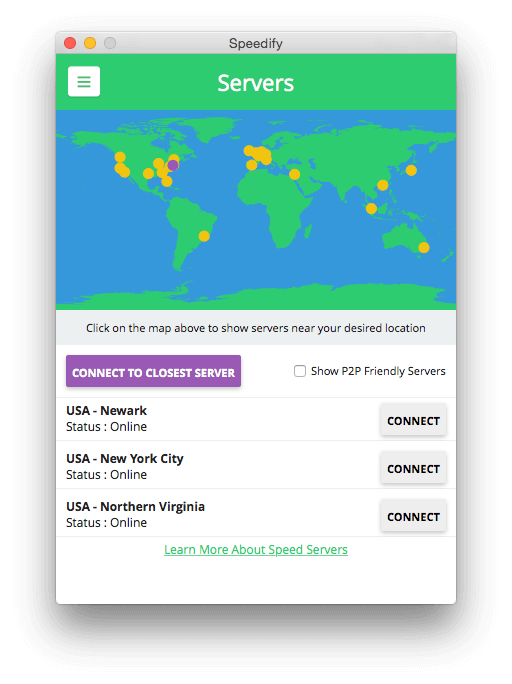
When you pick ‘Connect To Closest Server,’ Speedify 3 now picks servers faster, and no longer speed tests each Internet connection when it first connects. This lets Speedify connect faster and avoids using extra data. Instead, Speedify quickly discovers the speeds as soon as you start sending and receiving significant amounts of data. Each user has their own isolated software container on the Speed Server. This has a number of benefits, including improved security, stability, and resource allocation.
The Dashboard
The all new Dashboard shows you a graph of what each of your adapters are doing. Each adapter gets a line on the chart of how much data it is currently sending and receiving. The colored fill on the graph represents the total data across all of your combined connections.
While you’re connected you should notice better speeds – in many situations Speedify is now up to 20% faster than it was in earlier releases:
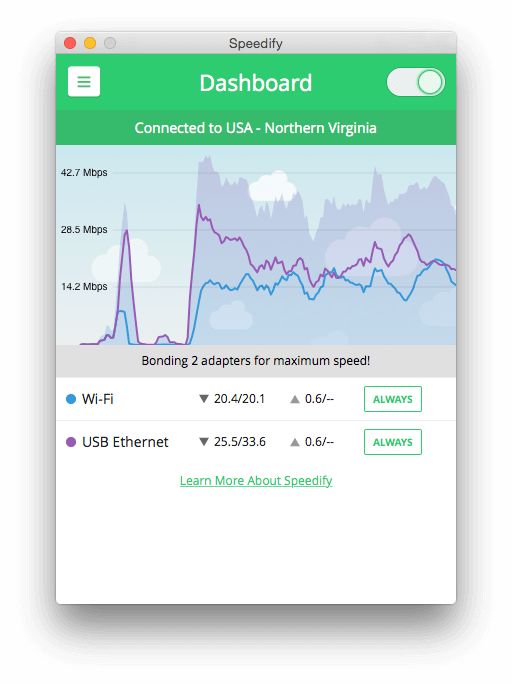
Because Speedify no longer tests speeds immediately upon connecting, it will not know the actual speeds of your connections until you transfer some real data. If you’re in a hurry to know, you can always visit, speedtest.net to run a quick speed test, giving Speedify enough information to get accurate speeds on each connection.
If you’re new to the service, Speedify’s ‘Getting Started’ guide now appears across the bottom of the screen to get you up-and-running:

Note that the option to use ‘Redundant Mode’ is no longer right on the ‘Dashboard.’ It can now be found on the ‘Settings’ screen in the menu.
Adapters
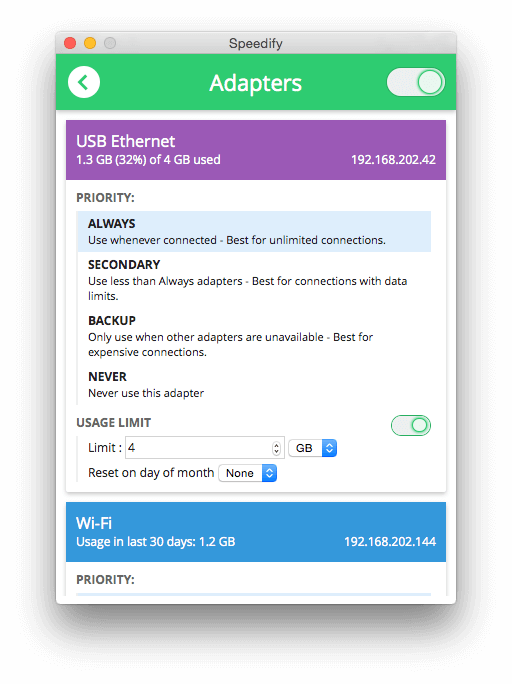
The old “Network Settings” screen is now called the ‘Adapters’ menu. It shows each active adapter’s current IP address, data usage in the last month, and now supports ‘Usage Limits.’ You can set a monthly limit on each Adapter, and set which day of the month it resets on. For devices that have a monthly data cap, this can help you prevent accidentally going over your limit. Note that the limit only applies to data sent and received via Speedify.
Advanced
The Advanced View is back and better than ever! Multiple graphs let you explore bandwidth, latency, and loss.

Account/ Help
All of the options around your account and support have be consolidated into the new ‘Account/Help’ screen. Options for Support, Generate Logs, and Software Version Number can be found there.

Update Speedify Now
Speedify is the only app that seamlessly combines all of your connections, including WiFi, 4G, 5G, Ethernet, and Starlink, into one stronger connection to keep you online and secure with increased bandwidth, reduced latency, and failover protection.
You can easily share and combine LTE, 4G and 5G cellular connections between devices to create a faster, more reliable connection for everyone using Speedify’s cellular sharing feature, Pair & Share
Make sure you update Speedify on all your devices, including computers, mobile devices and supported routers!




Should you have a backup 4G, 5G, Starlink, or cable internet connection?
Yes — every internet connection goes down, including Starlink, which drops for ~34 minutes a day on average. A backup connection from a different provider means one outage never takes you fully offline. The most common options are a 4G/5G cellular hotspot, a cable or DSL line, or a second satellite dish.
4G/5G cellular
Works anywhere. Just a SIM or hotspot — no installation needed.
Learn more →Cable / DSL
Best for fixed locations. Different network, so outages rarely overlap.
Learn more →Second Starlink
Adds redundancy and throughput for remote sites or heavy usage.
Learn more →Speedify bonds any two connections into one — automatic failover, more speed, no dropped calls.
Try Speedify free →