



The Starlink Summary Card in Speedify’s Starlink Control Center Shows Every Dish’s Key Stats at a Glance
Starlink disconnects all the time for ALL Starlink users. The Speedify Starlink Index report found that Starlink connections are down for an average of ~33 min per day. Plus, all Starlink dishes experience small drops and packet loss every 15 seconds, when the moving Starlink satellites hand off the connection to the next satellite overhead.
The best way to fix Starlink's connection drops is to combine your Starlink connection with another internet connection, such as 4G/5G cellular, cable, fiber, DSL, or another Starlink connection. Speedify makes this possible with channel bonding.

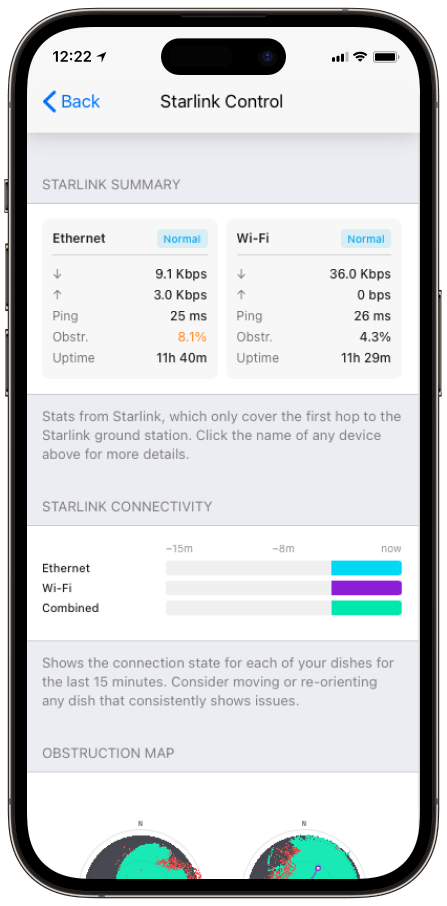
Monitor your Starlink dish performance inside Speedify.
Speedify’s built-in Starlink Control Center gives you real-time visibility into your dish’s health — without opening a separate app.
What Speedify’s Starlink Summary Card Reports
- Download and upload throughput. Current speeds in Mbps for each dish, measured at the dish itself.
- Ping. Round-trip time in milliseconds to the Starlink ground station, not to a public test server.
- Obstruction percentage. How much of the dish’s sky view is blocked.
- Uptime. How long the dish has held a connection since its last drop.
- Status. The dish’s reported state: Normal, Searching, or another condition.
These stats cover only the first hop to the Starlink ground station, so they describe satellite link quality on its own, separate from the rest of your internet path. Click a dish name to open its full detail view.
How to Read Each Stat from Speedify’s Starlink Control Center
A high obstruction percentage is the number that explains most problems. Starlink’s phased-array antenna tracks satellites across a wide cone of sky, so anything in that cone, a tree, a mast, a roofline, interrupts the link.
Starlink documents this in its Obstructions Explained guide. Ping to the ground station normally sits in the 20-60 ms range and rises during satellite handoffs. Throughput swings with congestion and obstruction. For the same metrics inside Starlink’s own tools, see Starlink’s usage statistics documentation.
How Speedify Acts on the Summary Card Data
Speedify does more than display these stats. Speedify’s channel bonding technology watches each dish’s live performance and distributes your traffic across every healthy connection at the packet level.
When the Summary card shows one dish climbing in obstruction or dropping in throughput, Speedify shifts traffic to your other connections, a second Starlink dish, 4G/5G cellular, Wi-Fi, or Ethernet, without dropping the session.
Who Gets the Most from Speedify’s Starlink Summary Card
- Anyone diagnosing slow Starlink. The Summary card separates a satellite-side problem (high obstruction, low throughput at the dish) from a problem further along the path.
- Operators running two or more dishes. Speedify lists every dish in one view, so you can compare them side by side instead of switching between them.
- Remote-site managers. Uptime and status give a quick read on dish health without a site visit.
Speedify and Starlink: Turning Dish Stats Into Action
The Starlink Summary card tells you what each dish is doing right now. Speedify’s channel bonding technology decides what to do about it, combining your dishes and other connections so a dip on one of them doesn’t reach your applications. For the full tour of the dashboard, see how to use Speedify’s Starlink Control Center, or learn more about Speedify’s channel bonding technology.
Alex and the Speedify team are always exploring the latest in networking and security technology—like 5G, 6G, WiFi 7, laser and satellite internet—and sharing it in new discussion content across YouTube, TikTok, Instagram, and LinkedIn every week.
Got a tech question? Let's go deeper! Pop into Speedify Office Hours live every Wednesday at 10 AM Eastern. Speedify CEO Alex Gizis and our network engineers are standing by to break down your questions about networks, tech updates, and Speedify features.


Speedify
Get started with Speedify today.
Combine Wi-Fi, 4G/5G cellular, Ethernet, Starlink, and more into one faster, steadier connection. Free to try — no credit card required.
🚀 Speed
Faster uploads and downloads by bonding all your connections at once.
📶 Stability
Automatic failover in under a second when any connection drops.
🔒 Security
AES-256 encryption on every connection, on every network you join.





15M+ downloads worldwide. 75K+ five-star reviews on iOS and Android.