


You Can Combine Multiple Internet Connections Together – Like Starlink, Wi-Fi, 4G, 5G, and DSL – with Speedify, to Fix Google Meet Issues
Google Meet is in the top 3 of video conferencing software worldwide. Most of the companies and individuals who use G Suite also use Meet for business meetings. One of the most important aspects of a successful conference call is being able to hear and see everyone. It’s annoying (and a waste of time!) to see the video / audio interrupted every few seconds. But unfortunately these kinds of Google Meet issues come up much too often.
The Internet is not always as you’d like it to be: fast and stable. This causes serious problems for people using Google Meet to discuss important matters. The video and audio stutters, goes into buffering or even disconnects, and this might lead to unwanted miscommunication. So what can you do for that?
When you’re having Google Meet issues, it’s most likely a poor connection to the Internet. You can fix Google Meet problems by joining your main Internet connection with another Internet source like a Starlink or DSL, 4G, 5G. Whether at home, work, or on-the-go, Speedify works with all live streaming software and social platforms to get you faster, more reliable and secure Internet.
In this article we’ll show you how you can solve Google Meet issues for better productivity.
Should you have a backup 4G, 5G, Starlink, or cable internet connection?
Yes — every internet connection goes down, including Starlink, which drops for ~34 minutes a day on average. A backup connection from a different provider means one outage never takes you fully offline. The most common options are a 4G/5G cellular hotspot, a cable or DSL line, or a second satellite dish.
4G/5G cellular
Works anywhere. Just a SIM or hotspot — no installation needed.
Learn more →Cable / DSL
Best for fixed locations. Different network, so outages rarely overlap.
Learn more →Second Starlink
Adds redundancy and throughput for remote sites or heavy usage.
Learn more →Speedify bonds any two connections into one — automatic failover, more speed, no dropped calls.
Try Speedify free →Testing Speedify Streaming Mode with Google Meet
Unless Google is having issues, we all know Meet performs well when you’re backed by a fast and stable Internet. But what about the real world, where most likely you don’t get that luxury?
The testing procedure consists of 2 series of tests for Google Meet conferences:
- Without Speedify;
- Speedify on with Streaming Mode enabled.
In terms of devices and operating systems, we tested it on an Android smartphone and a Macbook. We combined Wi-Fi and cellular on the smartphone / Wi-Fi and the USB tethered phone connection on the PC.
The evaluation is done both subjectively and objectively as follows:
- We screen capture and analyze the Google Meet video quality;
- We walk towards the edge of the Wi-Fi network. This helps us simulate:
- insufficient bandwidth conditions, as we get away from the Wi-Fi router;
- unreliable connectivity at the edge of Wi-Fi with dead spots and packet loss;
- disconnecting Wi-Fi internet and how quick it switches to cellular.
For the Speedify tests, we looked at the bandwidth, latency and packet loss. And, of course, how they are affected by our “course” away from Wi-Fi.
Solving Google Meet Connectivity Issues: Tests Are in for Streaming Mode
First off – we did the test with no Speedify running. As you can imagine, once we get near the edge of Wi-Fi, the image starts stuttering. Then it drops the video feed and it’s only transmitting audio for a while. Until we couldn’t hear anything from the test device. After a long while, it manages to switch to the cellular connection.
The video was similar on both tested platforms – macOS and Android.
Testing Streaming Mode with Google Meet on a Macbook
We then tested on a macOS laptop. The video itself didn’t even stutter for one bit. Although there was a slight drop in image quality due to a lack of consistent upload bandwidth for the cellular connection at the time of testing. Here’s how the bandwidth distribution looks like:

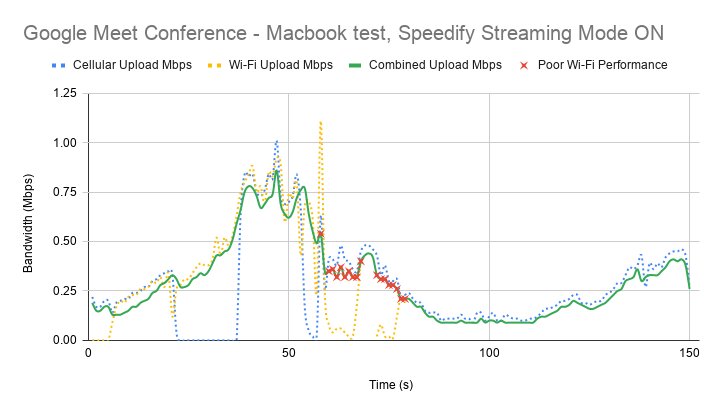
First of all, Speedify makes it possible to use both Wi-Fi and cellular at the same time. That’s why you see both connections being used together on the graph above. When Wi-Fi starts failing, you notice that with the help of Speedify cellular takes over.
The little red x-es above symbolize the moments when packet loss over the Wi-Fi connection was very high – over 5%. If Speedify would not have been running, then you would have ended up like in the first case – buffering and even dropping from the Google Meet call.
Solving Google Meet Connectivity Issues: Tests Are in for Streaming Mode
The Android test with Speedify Streaming Mode was similar to the one with the Macbook – video was perfect in the sense that quality was good and it didn’t break.

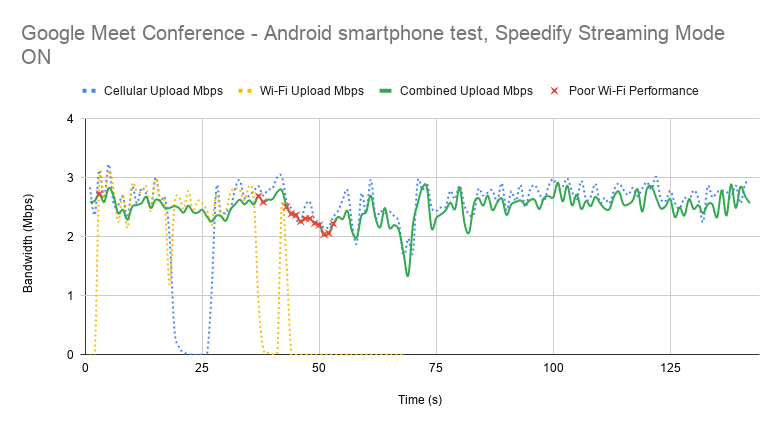
When Wi-Fi is good and strong enough, cellular stops being used. However, cellular kicks back in as soon as Speedify detects that Wi-Fi is flaky. Notice the steady bandwidth around 2.5 Mbps that’s being preserved by Speedify. Again – the red x-es symbolize the high Wi-Fi packet loss rate.
Here’s the average data from testing on both platforms:
|
macOS |
Android |
|||||
|
Bandwidth (Mbps) |
Average |
Minimum |
Maximum |
Average |
Minimum |
Maximum |
|
Overall |
0.40 |
0.09 |
1.07 |
2.12 |
0.71 |
3.28 |
Test Conclusion: Speedify Streaming Mode Eliminates Google Meet Issues Related to Your Connectivity. Enjoy Your Video Conference Calls
There you have it – when looking at how to improve your Google Meet conference quality, one of the must-haves is to use Speedify. Speedify’s Streaming Mode makes a huge difference for your Meet calls.
To put it in context, here’s what happens under the hood of Streaming Mode. Speedify monitors statistics in real-time about how each of your Internet connections is performing. As connections change, and other apps start or stop sending data, Speedify adjusts its strategies on the fly. So, if you’re IRL streaming, you’re no longer chained around your router. Or that good public Wi-Fi hotspot you know in the city. You can walk around without dropping the stream. You don’t need to worry about it. Just start streaming: Speedify will make it happen.
To learn more about Streaming Mode and how to enable it check out the Speedify Knowledge Base article.
Still wondering how to fix Google Meet Internet issues? Get Speedify!
Alex and the Speedify team are always exploring the latest in networking and security technology—like 5G, 6G, WiFi 7, laser and satellite internet—and sharing it in new discussion content across YouTube, TikTok, Instagram, and LinkedIn every week.
Got a tech question? Let's go deeper! Pop into Speedify Office Hours live every Wednesday at 10 AM Eastern. Speedify CEO Alex Gizis and our network engineers are standing by to break down your questions about networks, tech updates, and Speedify features.


Speedify
Get started with Speedify today.
Combine Wi-Fi, 4G/5G cellular, Ethernet, Starlink, and more into one faster, steadier connection. Free to try — no credit card required.
🚀 Speed
Faster uploads and downloads by bonding all your connections at once.
📶 Stability
Automatic failover in under a second when any connection drops.
🔒 Security
AES-256 encryption on every connection, on every network you join.





15M+ downloads worldwide. 75K+ five-star reviews on iOS and Android.