


Speedify Pulls Each Starlink Dish’s Obstruction Map Into One View
Starlink disconnects all the time for ALL Starlink users. The Speedify Starlink Index report found that Starlink connections are down for an average of ~33 min per day. Plus, all Starlink dishes experience small drops and packet loss every 15 seconds, when the moving Starlink satellites hand off the connection to the next satellite overhead.
The best way to fix Starlink's connection drops is to combine your Starlink connection with another internet connection, such as 4G/5G cellular, cable, fiber, DSL, or another Starlink connection. Speedify makes this possible with channel bonding.

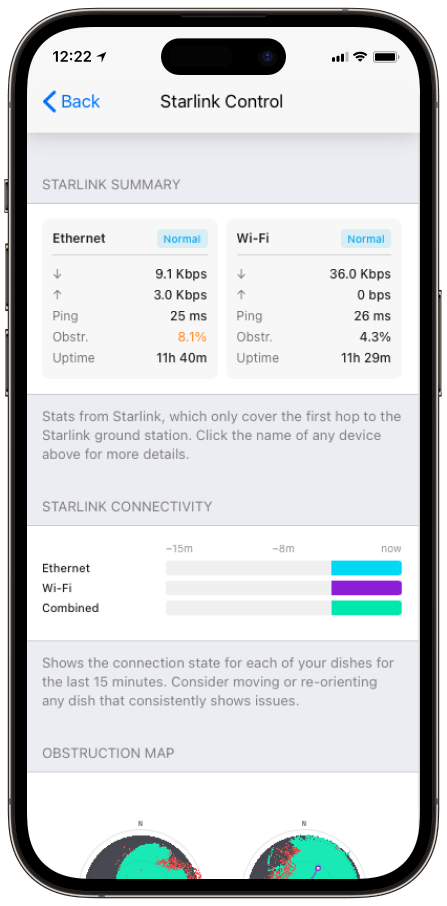
Monitor your Starlink dish performance inside Speedify.
Speedify’s built-in Starlink Control Center gives you real-time visibility into your dish’s health — without opening a separate app.
What the Colors and the Dot Mean in the Starlink Obstruction Map
- Green. Clear sky with an unobstructed line of sight to passing satellites.
- Red. Sky where the dish’s signal has been blocked by a tree, a mast, a roofline, or another structure.
- Gray. Sky the dish hasn’t mapped yet. Give a freshly installed dish several hours to fill this in.
- The dot. Where the dish is currently pointed, so you can see your aim against the obstructions around it.
Starlink covers the same concept from the hardware side in its Obstructions Explained and how to check for obstructions articles.
Turning a Starlink Red Zone Into a Fix
A clustered red patch in one direction is the signature of a fixed obstruction, usually a tree or building. When the obstruction has a clear directional pattern, Speedify suggests a specific rotation to reduce it, for example, “most of the obstruction is to the south, try rotating the dish 30° north.”
Following that suggestion is faster than guessing. If rotation alone can’t clear it, Starlink’s own fix is to raise or relocate the dish, covered in how to fix obstructions.
Reading Two Starlink Obstruction Maps Side by Side
With two dishes, the side-by-side maps answer one question quickly: are the dishes covering the same sky or different sky? Two maps with red in the same spot mean both dishes are blocked by the same obstacle and you’re carrying redundant coverage. Re-aiming one of them, using Speedify’s Dish Orientation card, spreads the coverage and gives the bonded connection more usable capacity.
Who Benefits from Speedify’s Starlink Obstruction Map
- Anyone troubleshooting dropouts. The map shows the cause of a recurring stutter that throughput numbers alone won’t explain.
- Installers choosing a mounting spot. The map confirms whether a planned location actually has a clear view before the mount goes up.
- Multi-dish operators. Comparing maps reveals overlapping coverage at a glance.
Speedify and Starlink: a Clear View, then a Bonded Connection
The Starlink Obstruction Map in Speedify’s Control Center shows you what’s blocking each Starlink dish and where to point it. Once the dishes see different sky, Speedify’s channel bonding technology combines them into one connection and fails over instantly if one gets blocked again. For dish placement specifics, see Starlink antenna placement with Speedify, or learn more about Speedify’s channel bonding technology.
Alex and the Speedify team are always exploring the latest in networking and security technology—like 5G, 6G, WiFi 7, laser and satellite internet—and sharing it in new discussion content across YouTube, TikTok, Instagram, and LinkedIn every week.
Got a tech question? Let's go deeper! Pop into Speedify Office Hours live every Wednesday at 10 AM Eastern. Speedify CEO Alex Gizis and our network engineers are standing by to break down your questions about networks, tech updates, and Speedify features.


Speedify
Get started with Speedify today.
Combine Wi-Fi, 4G/5G cellular, Ethernet, Starlink, and more into one faster, steadier connection. Free to try — no credit card required.
🚀 Speed
Faster uploads and downloads by bonding all your connections at once.
📶 Stability
Automatic failover in under a second when any connection drops.
🔒 Security
AES-256 encryption on every connection, on every network you join.





15M+ downloads worldwide. 75K+ five-star reviews on iOS and Android.