



Speedify Lets You Use 2 Starlink Connections on a Windows PC for Faster Uploads and Downloads
Yes. Speedify bonds two or more Starlink dishes on Windows PC into one connection, so you get their combined upload and download speed and stay online if either dish drops.
This guide shows how the Speedify app makes Starlink faster and steadier by combining it with another connection, such as 4G/5G cellular, Wi-Fi, or wired Ethernet.
Starlink disconnects all the time for ALL Starlink users. The Speedify Starlink Index report found that Starlink connections are down for an average of ~33 min per day. Plus, all Starlink dishes experience small drops and packet loss every 15 seconds, when the moving Starlink satellites hand off the connection to the next satellite overhead.
The best way to fix Starlink's connection drops is to combine your Starlink connection with another internet connection, such as 4G/5G cellular, cable, fiber, DSL, or another Starlink connection. Speedify makes this possible with channel bonding.

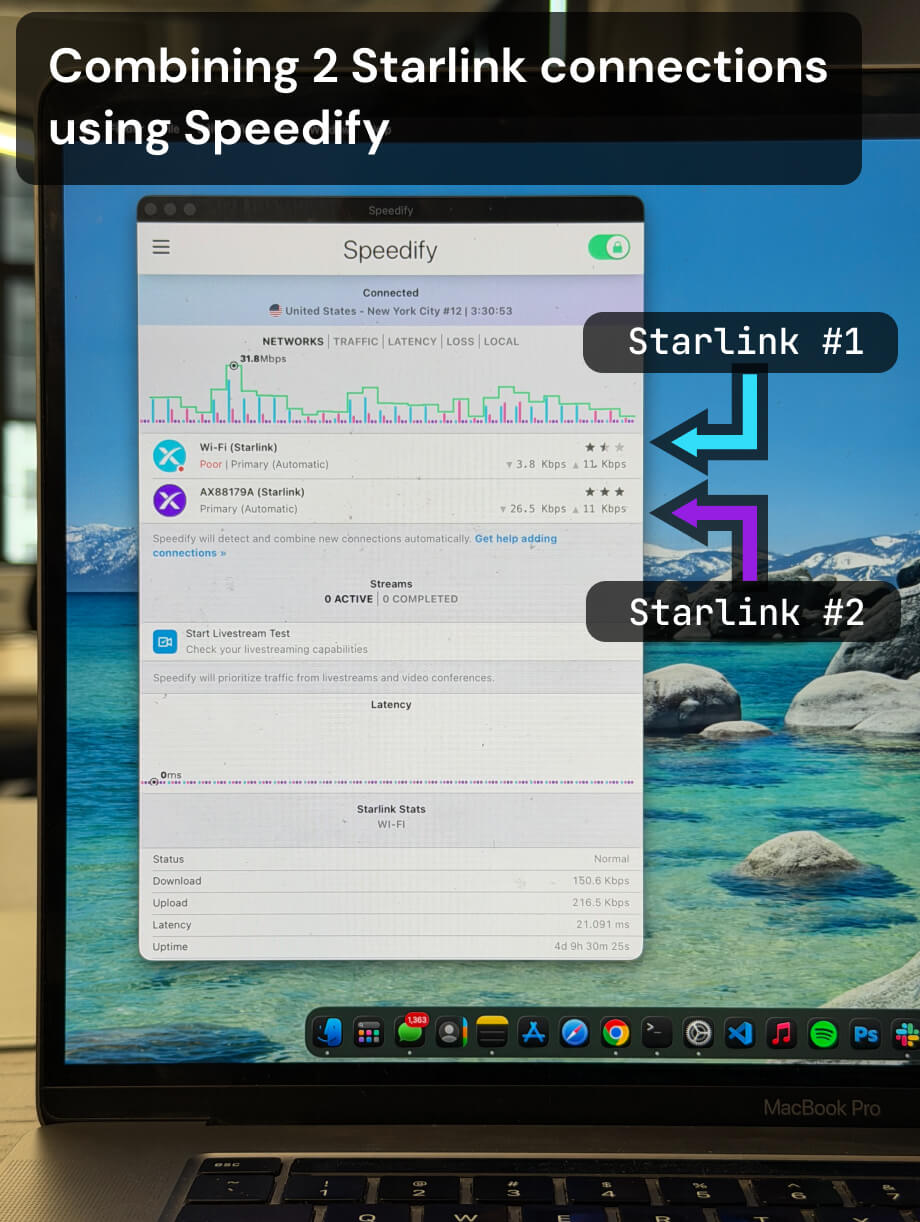
Multiple Starlink dishes, one faster and more reliable connection.
Speedify bonds all your Starlink dishes simultaneously — so you get the combined bandwidth of all your Starlink dishes, and stay online when any one drops.




Why Windows Cannot Use Two Starlink Connections at Once Natively
Windows supports multiple network interfaces — Ethernet, Wi-Fi, USB adapters — but the operating system only routes active traffic through one interface at a time. The network adapter metric in Control Panel → Network and Internet → Network Connections determines which connection Windows prefers, and the others sit idle as backups.
This means that even if two Starlink dishes are connected to a Windows PC — one via Ethernet and one via Wi-Fi from a second Starlink router — Windows will only use one. The second connection carries zero traffic until the first one fails. That is switching, not bonding. Switching leaves speed and redundancy on the table.
The following hardware-only approaches also fall short:
- Starlink’s built-in bypass/passthrough mode: Passes a single connection through to another router but does not combine two dishes into one faster pipe.
- Dual-WAN routers (e.g. Peplink, Firewalla): Can load-balance two Starlink connections across multiple devices on a network, but per-device bonding on a Windows PC requires additional software. These are also expensive hardware solutions.
- Windows NIC Teaming / Link Aggregation: Only works with multiple Ethernet ports on the same switch — not applicable to two separate Starlink connections with different IP addresses.
How Speedify Bonds Two Starlink Connections on a Windows PC
Speedify uses channel bonding technology to combine two Starlink connections — or any combination of Starlink, Wi-Fi, 4G/5G cellular, and wired Ethernet — into a single faster and more reliable connection on a Windows PC. Speedify splits traffic intelligently across both connections at the packet level, so both dishes carry active data simultaneously.
Speedify Combines the Download and Upload Speeds of Both Starlink Dishes: Instead of being capped by one Starlink connection, a Windows PC running Speedify gets the combined throughput of both. Two Starlink Standard dishes averaging 150 Mbps down each can deliver close to 300 Mbps of usable download speed. Upload speeds — often the bottleneck for video calls, live streaming, and large file transfers — see the same improvement.
Speedify Provides Automatic Failover Between Two Starlink Connections: Starlink dishes lose connectivity briefly during satellite handoffs, firmware updates, or physical obstructions like trees, snow, or buildings. With two dishes bonded via Speedify, if one Starlink connection drops, Speedify’s automatic failover technology shifts all traffic to the second dish instantly — without dropping a video call, interrupting a live stream, or pausing a download. No manual intervention required.
Speedify Reduces the Impact of Starlink Latency Spikes: Starlink latency typically ranges from 20ms to 60ms but can spike during congestion or satellite transitions. When two Starlink connections are bonded, Speedify’s proprietary protocol routes packets across whichever connection has lower latency at that moment, reducing the frequency and severity of spikes — particularly important for video calls, online gaming, and real-time collaboration tools.
Speedify Encrypts All Traffic Across Both Starlink Connections: Speedify is also a VPN that encrypts all traffic flowing across both Starlink connections simultaneously. Satellite internet traffic is not inherently encrypted at the transport layer, so Speedify’s encryption adds a meaningful layer of security — particularly for professionals transmitting sensitive data from remote locations.
Real-World Download and Upload Speeds: What to Expect with Two Starlink Connections on a Windows PC
The speed improvement depends on the Starlink plan and local satellite congestion, but here are realistic scenarios:
| Scenario | Without Speedify | With Speedify (Two Starlinks Bonded) |
|---|---|---|
| Two Starlink Standard dishes (150 Mbps down each) | 150 Mbps max (one dish active) | ~280–300 Mbps combined |
| Starlink Standard (20 Mbps up) + Starlink Standard (20 Mbps up) | 20 Mbps upload max | ~38–40 Mbps upload combined |
| One Starlink dish goes offline mid-video call | Call drops or freezes | Call continues on second dish — uninterrupted |
| Starlink + 4G/5G cellular hotspot bonded | Starlink only (cellular idle) | Starlink + cellular combined for maximum speed |
How to Use Two Starlink Connections on a Windows PC with Speedify
Setting up Speedify to bond two Starlink connections on a Windows PC takes less than ten minutes:
- Connect the first Starlink dish to the PC via Ethernet (using a USB-A or USB-C to Ethernet adapter if needed) or via Wi-Fi from the Starlink router.
- Connect the second Starlink dish to the PC via a different interface — for example, Ethernet for the first and Wi-Fi for the second, or two USB to Ethernet adapters on separate routers.
- Download and install Speedify on the PC (available for Windows, macOS, iOS, Android, Linux, and OpenWrt).
- Open Speedify and connect. Speedify automatically detects both active network interfaces and begins bonding them. Both Starlink connections will appear in the Speedify dashboard with real-time speed and status data.
- Optionally, enable Streaming Mode in Speedify settings for optimized live video performance, or adjust per-connection data limits to manage Starlink data caps independently.
When to Use Two Starlink Connections Bonded on a Windows PC
Remote Workers and Digital Nomads: Starlink delivers reliable internet in locations where no other option exists — but a single dish can still let a remote worker down at the worst moment. Bonding two Starlink connections with Speedify on a Windows PC means Zoom, Teams, and Google Meet calls stay connected even during a dish obstruction or brief satellite handoff outage.
Live Streamers and Content Creators: Upload speed is the critical resource for live streaming and large file delivery. Two Starlink dishes bonded via Speedify nearly double the available upload bandwidth — enough to sustain high-bitrate 4K streams even when one connection experiences a temporary dip. Speedify’s Streaming Mode further optimizes packet delivery for live video.
Boaters and Marine Users: Starlink Maritime is widely used on vessels where connectivity is critical for navigation, safety communications, and crew welfare. Bonding two Starlink Maritime connections on a Windows PC running Speedify provides both the redundancy needed for safety-critical applications and the throughput needed for crew video calls and streaming.
RV and Overlanding Users: Starlink RV users frequently move between satellite coverage zones. Bonding a Starlink RV dish with a 4G/5G cellular hotspot — or a second Starlink dish — via Speedify ensures that a Windows PC stays connected as the vehicle moves through areas with varying satellite or cellular coverage.
Remote Offices and Field Teams: Field teams operating from remote command posts, construction sites, or disaster response locations increasingly rely on Starlink for connectivity. Bonding two Starlink connections on a Windows PC running Speedify gives field offices both the redundancy and speed needed to run cloud applications, video conferencing, and large data transfers reliably.
Speedify vs. Other Options for Using Two Starlink Connections on a Windows PC
| Solution | Bonds Two Starlink Connections? | Works on Windows Natively? | Automatic Failover? | Faster Downloads and Uploads? | Encrypted Traffic? |
|---|---|---|---|---|---|
| Speedify | ✅ Yes | ✅ Yes | ✅ Yes | ✅ Yes | ✅ Yes |
| Windows Network Adapter Priority | ❌ No (switches only) | ✅ Yes | ❌ No (manual) | ❌ No | ❌ No |
| Dual-WAN Router (Peplink, Firewalla) | ❌ Per-device bonding requires software | ❌ No (hardware only) | ✅ Yes | ✅ Network-level only | ❌ No |
| Other VPNs | ❌ No | ✅ Yes | ❌ No | ❌ No (often slower) | ✅ Yes |
Frequently Asked Questions About Using Two Starlink Connections on a Windows PC
Can a Windows PC use two Starlink connections at the same time without Speedify?
No. Windows routes all traffic through a single active network interface at a time based on adapter metric. Without Speedify, the second Starlink connection sits idle as a backup and carries no active traffic.
Does bonding two Starlink connections on a Windows PC require special hardware?
Two Starlink dishes and two routers are required. Connecting both to a Windows PC requires two separate network interfaces — for example, Wi-Fi for one Starlink router and a USB to Ethernet adapter for the other. No other special hardware is needed beyond Speedify software.
Can Speedify bond a Starlink connection with a 4G/5G cellular hotspot instead of a second Starlink?
Yes. Speedify bonds any combination of available connections on a Windows PC — two Starlink dishes, one Starlink and one 4G/5G hotspot, Starlink and wired Ethernet broadband, or any other combination. The channel bonding technology works the same regardless of connection types.
Does Speedify manage Starlink data caps separately for each dish?
Yes. Speedify allows per-connection data limits to be set independently, so each Starlink subscription’s data cap can be managed to avoid overage charges or deprioritization thresholds.
Does Speedify work on all Windows versions?
Yes. Speedify runs on Windows 10 and Windows 11, on both 32-bit and 64-bit systems.
Two Starlink dishes represent a significant investment. Speedify ensures a Windows PC gets the full value from both — combined speed, unbreakable redundancy, and encrypted traffic — in a single lightweight app that runs quietly in the background.
Download Speedify and start using two Starlink connections on a Windows PC today.
Speedify
Get started with Speedify today.
Combine Wi-Fi, 4G/5G cellular, Ethernet, Starlink, and more into one faster, steadier connection. Free to try — no credit card required.
🚀 Speed
Faster uploads and downloads by bonding all your connections at once.
📶 Stability
Automatic failover in under a second when any connection drops.
🔒 Security
AES-256 encryption on every connection, on every network you join.





15M+ downloads worldwide. 75K+ five-star reviews on iOS and Android.