


We’ve All Experienced It…
Have you ever wondered why your phone’s streaming music, podcasts, and videos stop every time you leave your home or office? All iPhone and Android users have been there: You start a Spotify playlist to get pumped-up for the morning workout, only for it to be interrupted the moment you step outside the house. How about when you’re trying to live stream video for an event? Even a short hiccup in your connectivity can spell the end of your stream and ruin everything.
The bottom line is that phones today can’t handle the switch between 4G and Wi-Fi gracefully. That isn’t just a minor annoyance, it’s a major flaw. Think about it: millions of smartphone users around the world experiencing drops in connectivity multiple times a day, ultimately means millions of dollars of lost productivity.
But, we wanted to dig a little deeper and understand exactly what’s going on when your Android or iOS device moves out of Wi-Fi range and has to get you (and your streaming apps) onto 4G.
Should you have a backup 4G, 5G, Starlink, or cable internet connection?
Yes — every internet connection goes down, including Starlink, which drops for ~34 minutes a day on average. A backup connection from a different provider means one outage never takes you fully offline. The most common options are a 4G/5G cellular hotspot, a cable or DSL line, or a second satellite dish.
4G/5G cellular
Works anywhere. Just a SIM or hotspot — no installation needed.
Learn more →Cable / DSL
Best for fixed locations. Different network, so outages rarely overlap.
Learn more →Second Starlink
Adds redundancy and throughput for remote sites or heavy usage.
Learn more →Speedify bonds any two connections into one — automatic failover, more speed, no dropped calls.
Try Speedify free →Here’s the Ping
Let’s explore using the free Ping Lite application on an iPhone. Here we ping the address 8.8.8.8, which is a special “Anycast” address and takes you to the closest Google DNS server. Since Google has servers all over the world, this is an easy way to test your connection’s latency no matter where you are.
In order to get a baseline for what things look like when you have a good connection, I went and stood next to our Wi-Fi router with the iPhone in-hand. The Speedify office router is connected to a Comcast Xfinity 75 Mbps Business Internet connection. While running, Ping Lite is sending one message each second, and timing how long it takes to get a response.
This is what I see:

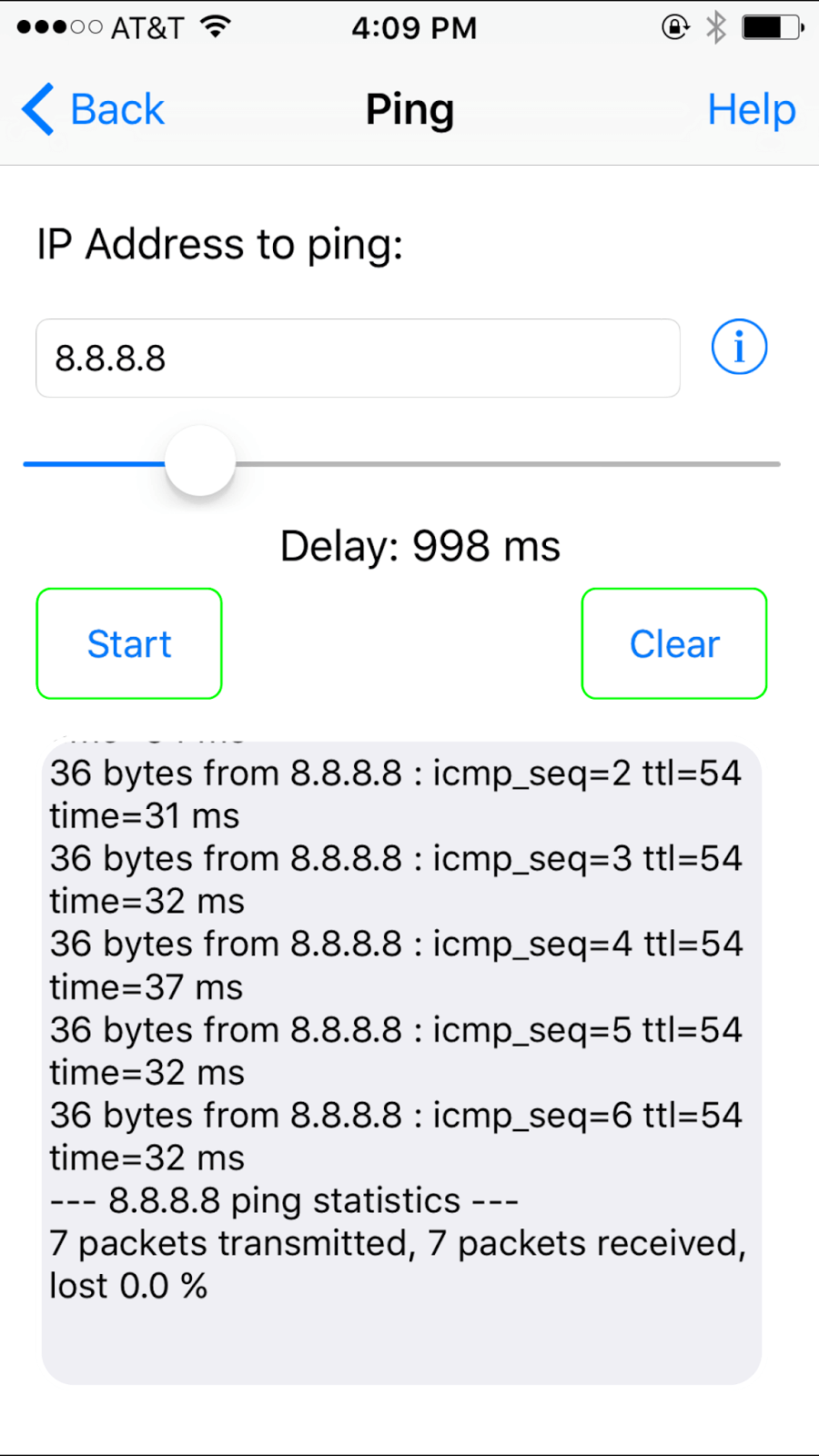
Every packet that gets sent is received, and response times are in the 30-40 ms range (that’s pretty good).
Now we know what a decent Wi-Fi connection looks like on the iPhone. To see what happens when smartphones move out of Wi-Fi range, I simply started walking away from the router and out of our office (while Ping Lite continued to fire off packets).
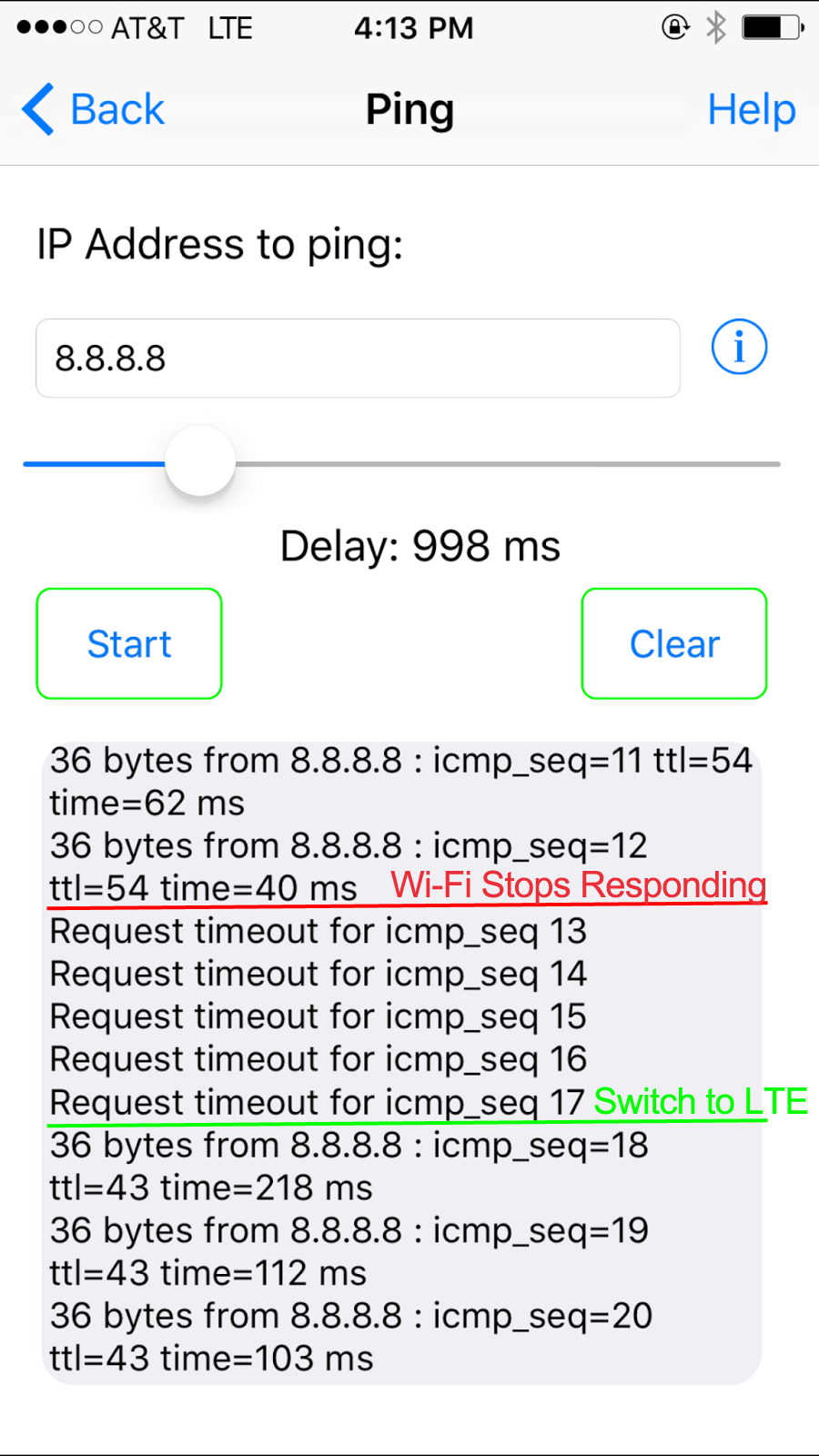
The Not-So-Pretty Results
Taking a look at the results above, we can see exactly how the iPhone fails to keep us online when switching from Wi-Fi to 4G:
- Take a look at the first couple pings. Wi-Fi is taking longer and longer to respond, showing times like 62 ms and 40 ms. That may not sound so terrible, but then I take one more step, and…
- For 5 messages in a row, none of the pings on Wi-Fi get any response. That’s 5 full seconds without Internet. What’s worse is that many of my apps will not automatically revive themselves, so Internet radio drops off, my Meerkat viewers see the video stream completely disappear, YouTube goes to buffering until I restart the video… you get the idea, I’m off the Internet.
- Finally, the phone gives up on Wi-Fi and switches to mobile broadband. 4G LTE has much higher latencies than Wi-Fi, but at least I’m back online. But, here’s the rub: I still have to manually restart streaming apps, uploads, and downloads to get them to recognize and work over the 4G connection.
When you hit the end of your home or office Wi-Fi, your phone takes 5 or more seconds to realize what’s happened, before giving up. For anyone trying to stream to-or-from their iPhone and Android devices, manage app updates or other downloads/uploads, this is enough to break everything and leave you having to reinitiate apps manually. I think you’ll agree, this is not how your smartphone should work.
Alex and the Speedify team are always exploring the latest in networking and security technology—like 5G, 6G, WiFi 7, laser and satellite internet—and sharing it in new discussion content across YouTube, TikTok, Instagram, and LinkedIn every week.
Got a tech question? Let's go deeper! Pop into Speedify Office Hours live every Wednesday at 10 AM Eastern. Speedify CEO Alex Gizis and our network engineers are standing by to break down your questions about networks, tech updates, and Speedify features.


Speedify
Get started with Speedify today.
Combine Wi-Fi, 4G/5G cellular, Ethernet, Starlink, and more into one faster, steadier connection. Free to try — no credit card required.
🚀 Speed
Faster uploads and downloads by bonding all your connections at once.
📶 Stability
Automatic failover in under a second when any connection drops.
🔒 Security
AES-256 encryption on every connection, on every network you join.





15M+ downloads worldwide. 75K+ five-star reviews on iOS and Android.