



Speedify’s Starlink Control Center Lets You See How Both Starlink Dishes Are Doing at Once
Starlink disconnects all the time for ALL Starlink users. The Speedify Starlink Index report found that Starlink connections are down for an average of ~33 min per day. Plus, all Starlink dishes experience small drops and packet loss every 15 seconds, when the moving Starlink satellites hand off the connection to the next satellite overhead.
The best way to fix Starlink's connection drops is to combine your Starlink connection with another internet connection, such as 4G/5G cellular, cable, fiber, DSL, or another Starlink connection. Speedify makes this possible with channel bonding.

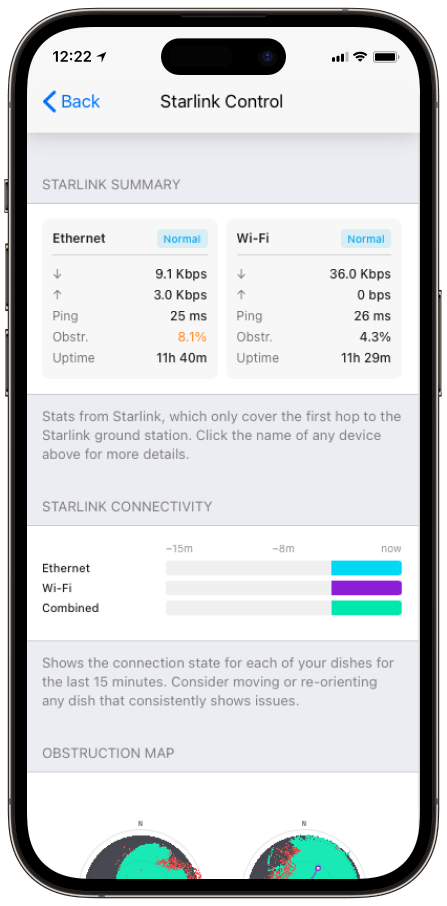
Monitor your Starlink dish performance inside Speedify.
Speedify’s built-in Starlink Control Center gives you real-time visibility into your dish’s health — without opening a separate app.
Why the Starlink App Only Shows One Dish
Every Starlink dish ships hard-coded to the same local IP address: 192.168.100.1. SpaceX has used that address on every dish it ships. The Starlink app pulls all of its statistics by talking to the dish at that IP address.
With one dish, that works perfectly. Add a second Starlink dish and both dishes answer to 192.168.100.1. The Starlink app can only address one device at that IP at a time, so it talks to whichever dish it reaches first and treats the other as if it isn’t there. The second Starlink dish shows no status, no throughput, no ping, no obstruction map, and no alignment tools. You’re running it blind.
This used to be a rare problem. It isn’t anymore: anyone running two Starlink dishes on a yacht, a broadcast truck, an RV, or a remote work site hits the same wall.
The Workarounds of Monitoring a Second Starlink Dish, and Why They’re a Hassle
You can technically reach a second Starlink dish without Speedify, but every method is fiddly, and none of them shows you stats for both Starlink dishes together:
- Switching networks. Put each dish on its own subnet or VLAN, then leave one network and join the other every time you want to check the other dish. You see one dish at a time, and you’re constantly switching.
- Static routes. Adding a static route to 192.168.100.1 lets a router reach one dish’s stats page, but pointing that route at two dishes that share the same address is a conflict no simple route solves.
- Unplugging one dish. Physically disconnecting the first dish so the app finds the second works, but now you can only ever see one at a time, and you’ve taken a dish offline to do it.
- Third-party monitoring tools. Advanced users poll each dish over gRPC and build dashboards in tools like Grafana or Home Assistant. It works, but it takes real networking and scripting effort to set up and keep running.
Every one of these gets you a partial answer. None gives a regular user a simple, live view of how both Starlink dishes are doing at the same time.
How Speedify’s Starlink Control Center Shows Both Dishes at Once
Speedify’s Starlink Control Center gets past the shared IP address by talking to each Starlink dish in parallel. Both dishes appear at the same time, each in its own live Starlink Summary card showing status, download and upload throughput, ping, obstruction percentage, and uptime.
Speedify renders each dish’s obstruction map and places them side by side, so you can see at a glance whether the two dishes are covering the same sky or different parts of it. Speedify also surfaces Starlink dish alerts in the app, including when the actuator motor is stuck, the mast isn’t vertical, or the dish hits a thermal throttle. And Speedify’s alignment wizard, with a Bonding Alignment mode, helps you point each dish at a different slice of sky. The full walkthrough is in Speedify’s Starlink Control Center documentation, and there’s more on monitoring in how to monitor Starlink stats with Speedify.
Speedify Also Bonds Both Starlink Dishes for Faster Speeds
Seeing both dishes is the first benefit. Using both is the second. Speedify’s channel bonding technology spreads your traffic across both Starlink dishes at the same time for up to 95% of their combined upload and download throughput, instead of leaving the second dish idle. If one dish drops on a satellite handoff or an obstruction, Speedify’s automatic failover keeps you online on the other. There’s a full breakdown in how to manage two Starlink dishes at once with Speedify.
How to See Your Second Starlink Dish in Speedify
- Download Speedify for your device: Windows, macOS, iOS, Android, Linux, or an OpenWrt router.
- Connect both Starlink dishes to your network so each appears as a separate connection. For whole-network coverage, use a Speedify-compatible router.
- Open the Starlink Control Center in Speedify. A Starlink Summary card appears for each dish.
- Check the obstruction maps side by side, and run the Alignment Wizard if the two dishes are seeing the same sky.
- Set both connections to Always mode so Speedify uses both dishes at once.
Speedify Lets You See and Use Both Starlink Dishes
The Starlink app can’t show your second dish because every Starlink dish shares the same 192.168.100.1 address, and no simple setting changes that. Speedify works around it by talking to each dish in parallel, so you finally get a live view of how both Starlink dishes are doing, side by side, plus a bonded connection that uses both. Speedify makes your Starlink setup faster, more reliable, and more secure.
Alex and the Speedify team are always exploring the latest in networking and security technology—like 5G, 6G, WiFi 7, laser and satellite internet—and sharing it in new discussion content across YouTube, TikTok, Instagram, and LinkedIn every week.
Got a tech question? Let's go deeper! Pop into Speedify Office Hours live every Wednesday at 10 AM Eastern. Speedify CEO Alex Gizis and our network engineers are standing by to break down your questions about networks, tech updates, and Speedify features.


Speedify
Get started with Speedify today.
Combine Wi-Fi, 4G/5G cellular, Ethernet, Starlink, and more into one faster, steadier connection. Free to try — no credit card required.
🚀 Speed
Faster uploads and downloads by bonding all your connections at once.
📶 Stability
Automatic failover in under a second when any connection drops.
🔒 Security
AES-256 encryption on every connection, on every network you join.





15M+ downloads worldwide. 75K+ five-star reviews on iOS and Android.