

Use Speedify’s Starlink Control Center to Monitor and Combine Two Starlink Dishes for Faster Internet Upload and Download Speeds
Yes, you can connect two Starlink dishes together and use both at the same time, but not with Starlink’s own equipment alone. Every Starlink dish uses the same address, 192.168.100.1, so the Starlink app only sees one, and a normal setup uses one Starlink dish at a time while the other sits idle.
Speedify is an app that uses all of your internet connections at the same time, including two or more Starlink dishes. It uses both Starlink dishes together as one internet connection, so their speeds add up and you stay online if either one drops. Below: why two Starlink dishes clash, and how to set them up and manage them with Speedify.
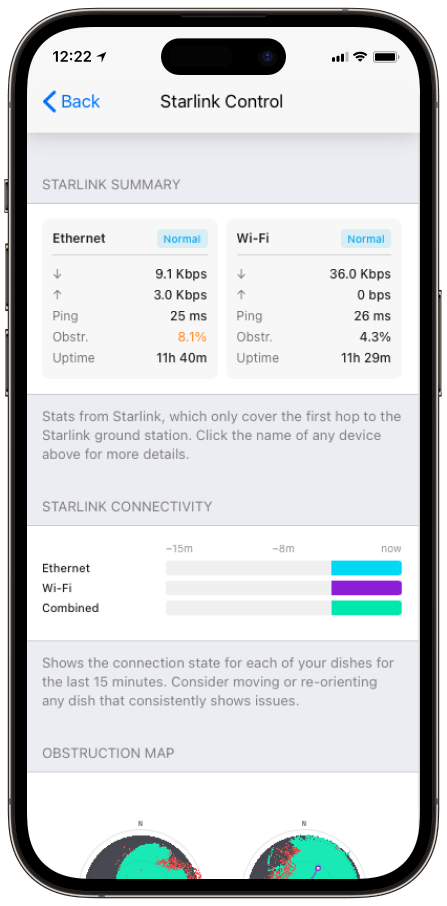
Monitor your Starlink dish performance inside Speedify.
Starlink Internet Connection Drops Happen to Everyone
Speedify measures thousands of Starlink users in more than 140 countries. In September 2026, fixed Starlink dishes went offline for about 38 minutes a day on average, and Starlink dishes on RVs and boats for about 46 minutes a day.
All Starlink dishes also see short dropouts roughly every 15 seconds as the Starlink internet connection switches from one moving satellite to the next. Even a perfectly installed Starlink dish goes offline, and about 7 in 10 Starlink users on Speedify use Starlink together with a second internet connection, like 4G/5G cellular.
Why Two Starlink Dishes Clash on the Same 192.168.100.1 Address
Starlink sets every Starlink dish to the same address: 192.168.100.1. With one Starlink dish, that’s fine: your router reaches the Starlink dish at that address and everything works.
Add a second Starlink dish and you have a clash. Both Starlink dishes answer at 192.168.100.1. The Starlink app talks to the Starlink dish at that address, so it can only reach one Starlink dish at a time. For the second one, you get no status, no obstruction map and no aiming tools. For the full story of that problem, see why the Starlink app only shows one Starlink dish.
This used to affect only a few people, but more setups run two or more Starlink dishes today:
- Boats and yachts: two Starlink dishes pointed at different satellites, for a backup and more speed at sea.
- Broadcast trucks and people who live stream on the go: two Starlink dishes carrying live video, so one dropping doesn’t end the stream.
- RVs and overland travelers: Starlink dishes mounted at different angles, so trees and hills block less of the sky.
- Disaster response teams: two Starlink dishes for field communications, where one going down isn’t an option.
As more people use two Starlink dishes, the address clash is no longer a rare problem, and Speedify solves it.
How Speedify’s Starlink Control Center Manages Two Starlink Dishes
Starting with version 16.7, Speedify has a Starlink Control Center built for more than one Starlink dish. A Speedify video explains why the Starlink app fails with two dishes. Here’s what Speedify does that the Starlink app doesn’t.
Speedify Talks to Both Starlink Dishes at the Same Time: Speedify gets around the shared address by talking to each Starlink dish separately. Both Starlink dishes show up in Speedify at once, each on its own Starlink Summary card with status, speed, ping, how much of the view is blocked, and time online.
Speedify Shows the Two Starlink Obstruction Maps Side by Side: each Starlink dish has an obstruction map, a round view of the sky: green where the Starlink dish has a clear view, red where something blocks it. With two Starlink dishes, Speedify shows both maps side by side, so you can see right away whether they cover the same sky or different parts of it. If they overlap, the second Starlink dish adds less than it should.
Speedify’s Alignment Wizard Points Each Starlink Dish at a Different Part of the Sky: the Alignment Wizard, Speedify’s step-by-step aiming tool, has a Bonding Alignment setting for setups with more than one Starlink dish. Speedify picks a target for each Starlink dish, so each one sees a different part of the sky and different satellites. The wizard also beeps faster as you get closer to the target, so you can aim without watching a screen. When you’re done, Speedify’s Setup Analysis report flags anything worth fixing.
Speedify Uses Both Starlink Dishes Together: once both Starlink dishes are connected and aimed, Speedify uses them together as one internet connection. Instead of one Starlink dish sitting idle, Speedify sends your traffic over both at the same time, for faster upload and download speeds. If one Starlink dish is blocked or drops, Speedify switches your traffic to the other automatically, without interrupting you.
How to Set Up Two Starlink Dishes with Speedify
To set up Speedify with two Starlink dishes:
- Download Speedify for your device: Windows, Mac, iOS, Android, Linux or an OpenWrt router.
- Connect your device to both Starlink routers, for example one with an Ethernet cable and one over Wi-Fi, or use a router that works with Speedify. Speedify finds both Starlink dishes on its own.
- Open Speedify and go to the Starlink Control Center. Speedify shows a Starlink Summary card for each Starlink dish.
- Compare the two obstruction maps. If the red areas overlap a lot, both Starlink dishes are blocked by the same things.
- Run the Alignment Wizard with Bonding Alignment on. Follow the beeps and turn each Starlink dish toward its target. Speedify tells you which way to turn, for example: “Most obstruction is to the south. Try rotating the dish 30° north.”
- Check the Setup Analysis report. Speedify flags anything left to fix in your setup.
- Speedify now uses both Starlink dishes at the same time, for faster upload and download speeds.
With Speedify, Two Starlink Dishes Work Together Instead of Against Each Other
The 192.168.100.1 address clash isn’t going away: it’s built into every Starlink dish. With Speedify, the clash no longer stops you from checking, aiming or getting the combined speed of two Starlink dishes at once.
Speedify’s Starlink Control Center shows both Starlink dishes at the same time: live stats, obstruction maps, aiming tools, and one internet connection that uses both Starlink dishes for faster upload and download speeds. If one Starlink dish goes down, Speedify keeps you online on the other.
For anyone running two Starlink dishes, on a boat, a broadcast truck, an RV or at a field site, Speedify turns a second Starlink dish you couldn’t see into one you can manage and use.
Speedify
Get started with Speedify today.
Combine Wi-Fi, 4G/5G cellular, Ethernet, Starlink, and more into one faster, steadier connection. Free to try — no credit card required.
🚀 Speed
Faster uploads and downloads by bonding all your connections at once.
📶 Stability
Automatic failover in under a second when any connection drops.
🔒 Security
AES-256 encryption on every connection, on every network you join.



15M+ downloads worldwide. 75K+ five-star reviews on iOS and Android.