


How to Tether an iPhone to a PC via Bluetooth
Tethering your iPhone to your Windows 10 PC using Bluetooth is not hard at all. But, while Bluetooth is a convenient and wireless way to get internet from your iPhone to your PC, it is limited to 1 Mbps (Bluetooth 4) or 2 Mbps (Bluetooth 5). If you have fast 4G / LTE speeds on your iPhone, you might get better results with USB or Wi-Fi tethering.
iPhone Bluetooth tethering to a Windows 10 PC is useful when you want to share the Internet connection from your iPhone. You can also combine the tethered connection on your PC with a Wi-Fi, wired Ethernet or cellular 4G LTE / 5G dongle connection using the Speedify app. This will get you faster, more stable and secure Internet.
With that said, in this article, we are going to walk you through the steps for tethering your iPhone to a Windows 10 PC using Bluetooth.
Should you have a backup 4G, 5G, Starlink, or cable internet connection?
Yes — every internet connection goes down, including Starlink, which drops for ~34 minutes a day on average. A backup connection from a different provider means one outage never takes you fully offline. The most common options are a 4G/5G cellular hotspot, a cable or DSL line, or a second satellite dish.
4G/5G cellular
Works anywhere. Just a SIM or hotspot — no installation needed.
Learn more →Cable / DSL
Best for fixed locations. Different network, so outages rarely overlap.
Learn more →Second Starlink
Adds redundancy and throughput for remote sites or heavy usage.
Learn more →Speedify bonds any two connections into one — automatic failover, more speed, no dropped calls.
Try Speedify free →Three Steps for iPhone Bluetooth Tethering on Windows 10
First of all, make sure your Windows 10 PC has an internal Bluetooth adapter or get an external Bluetooth USB adapter, if not.
Step 1: Turn on the Personal Hotspot feature on your iPhone.
To do this, tap Settings from your home screen and go to Personal Hotspot.

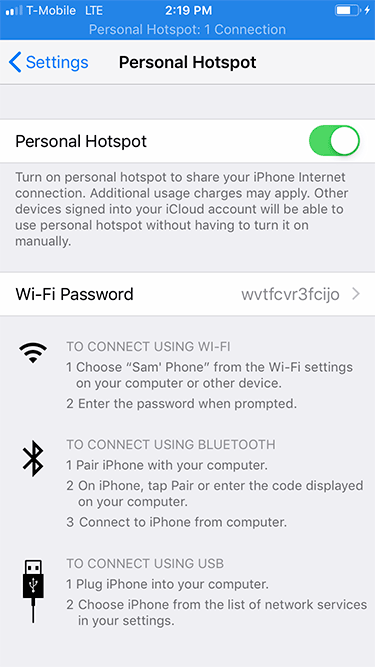
Step 2: Connect (or “tether”) your iPhone to your PC using Bluetooth.
If you’re using an external Bluetooth USB adapter, make sure you install it following the instructions you got with the device. You may need to restart your PC before being able to use it.
On your iPhone, make sure Bluetooth is enabled (Settings > Bluetooth).


On your PC, go to Bluetooth Settings (either from the lower right corner of the taskbar – systray – or by searching for “bluetooth”). Slide the Bluetooth toggle on – this will make your computer visible to other devices.

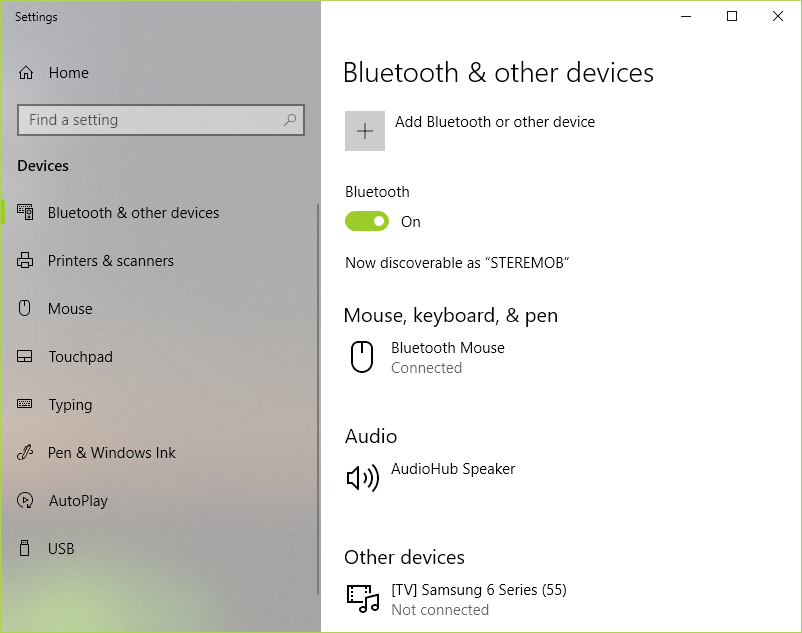
Click on the “Add Bluetooth of other device” and let your PC detect the iPhone. This may take a while, so give it a couple of minutes. Finish the pairing process following the instructions both on you PC and on your iPhone.
Step 3: Connect your PC to the Internet using the Bluetooth tethered iPhone.
Go to Network Connections (Windows key + X – choose “Network Connections”) and on the right side click on “Change adapter options”.
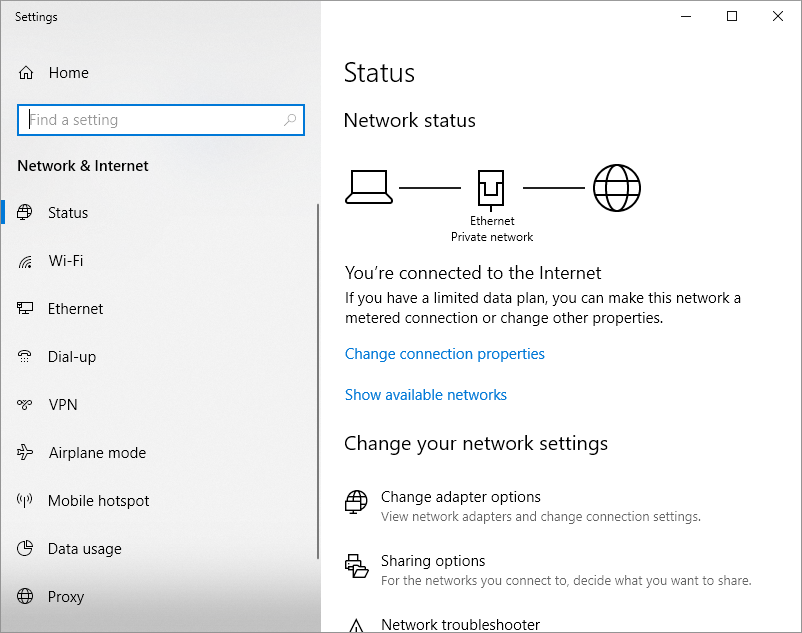
Look for the “Bluetooth Network Connection”.


If it’s connected – you’re good to go. If it’s not, double click to view Bluetooth devices. If your iPhone doesn’t automatically show up here, click on “Add a device” and add it.

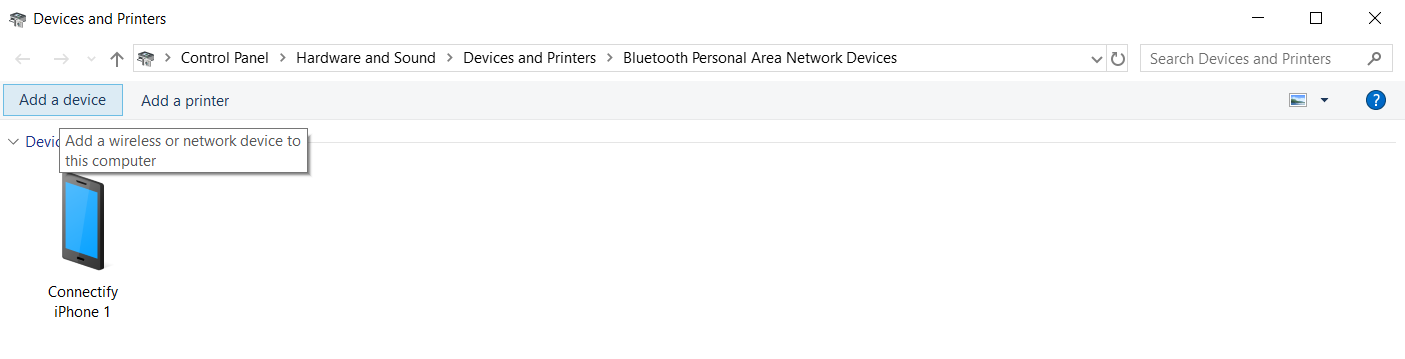
Click on the “Connect using” button above and choose “Access point”. Windows will set up the connection as “Network X” and you will be able to enjoy Internet connectivity.
And that’s all there is to iPhone Bluetooth tethering a Windows 10 PC!
Now – feel free to toss this tethered iPhone connection into any existing combination of active Internet connections on your PC. Use Speedify for Windows to combine them.
Alex and the Speedify team are always exploring the latest in networking and security technology—like 5G, 6G, WiFi 7, laser and satellite internet—and sharing it in new discussion content across YouTube, TikTok, Instagram, and LinkedIn every week.
Got a tech question? Let's go deeper! Pop into Speedify Office Hours live every Wednesday at 10 AM Eastern. Speedify CEO Alex Gizis and our network engineers are standing by to break down your questions about networks, tech updates, and Speedify features.


Speedify
Get started with Speedify today.
Combine Wi-Fi, 4G/5G cellular, Ethernet, Starlink, and more into one faster, steadier connection. Free to try — no credit card required.
🚀 Speed
Faster uploads and downloads by bonding all your connections at once.
📶 Stability
Automatic failover in under a second when any connection drops.
🔒 Security
AES-256 encryption on every connection, on every network you join.





15M+ downloads worldwide. 75K+ five-star reviews on iOS and Android.