



Speedify Keeps Your Starlink Online Even When Antenna Placement Isn’t Perfect
This guide covers where to place a Starlink antenna for the best speeds, how to check for obstructions before you drill, and what to do when no spot on your property is fully clear.

Quick answer
Should you get a backup connection for Starlink?
Yes. Starlink goes down every day — an always-on dish averages about 34 minutes of downtime daily from routine satellite handoffs. A second connection keeps you online when Starlink drops.
What’s the best backup connection for Starlink?
A 4G/5G cellular hotspot or SIM is the most practical backup for most Starlink users — it works anywhere Starlink works, requires no installation, and uses a different network so outages rarely overlap. Cable or DSL broadband is a strong option if you have it at a fixed location. A second Starlink dish is also possible if you need maximum throughput.
How do you use two internet connections at once with Starlink?
Speedify combines Starlink with any other connection — cellular, cable, Wi-Fi, or a second dish — into one bonded connection. Speedify runs on your phone, laptop, or router. When Starlink drops, Speedify moves your traffic to the backup instantly, so calls don’t cut out and downloads don’t stall. Speedify is free to try.
71% of Speedify’s Starlink users already run a second connection. Try Speedify free →
Speedify Starlink Index — real-world performance from 6,209 Starlink users: 2.4% downtime, about 34 minutes a day for always-on connections
Starlink goes down every day.
Here’s what that actually looks like.
Speedify passively monitors every connection it bonds. These figures come from 6,209 Starlink users over 14 days — compared in real time against the other connections on the same devices. No speed tests, no lab conditions.
Daily downtime
~34 min
2.4% of connected time unreachable
Median latency
60 ms
p90 spikes to 257 ms
Avg packet loss
0.17%
vs 0.08% on T-Mobile
71% ran at least one other connection simultaneously — 4,381 of 6,209 users. Cellular is the most common backup.
Use Speedify to stay online during satellite handoffs every 15 seconds
Research confirms Starlink switches between satellites every 15 seconds on a fixed schedule. Each satellite handoff is a potential dropout, and on a congested network or with any obstruction, those Starlink dropouts become real interruptions.
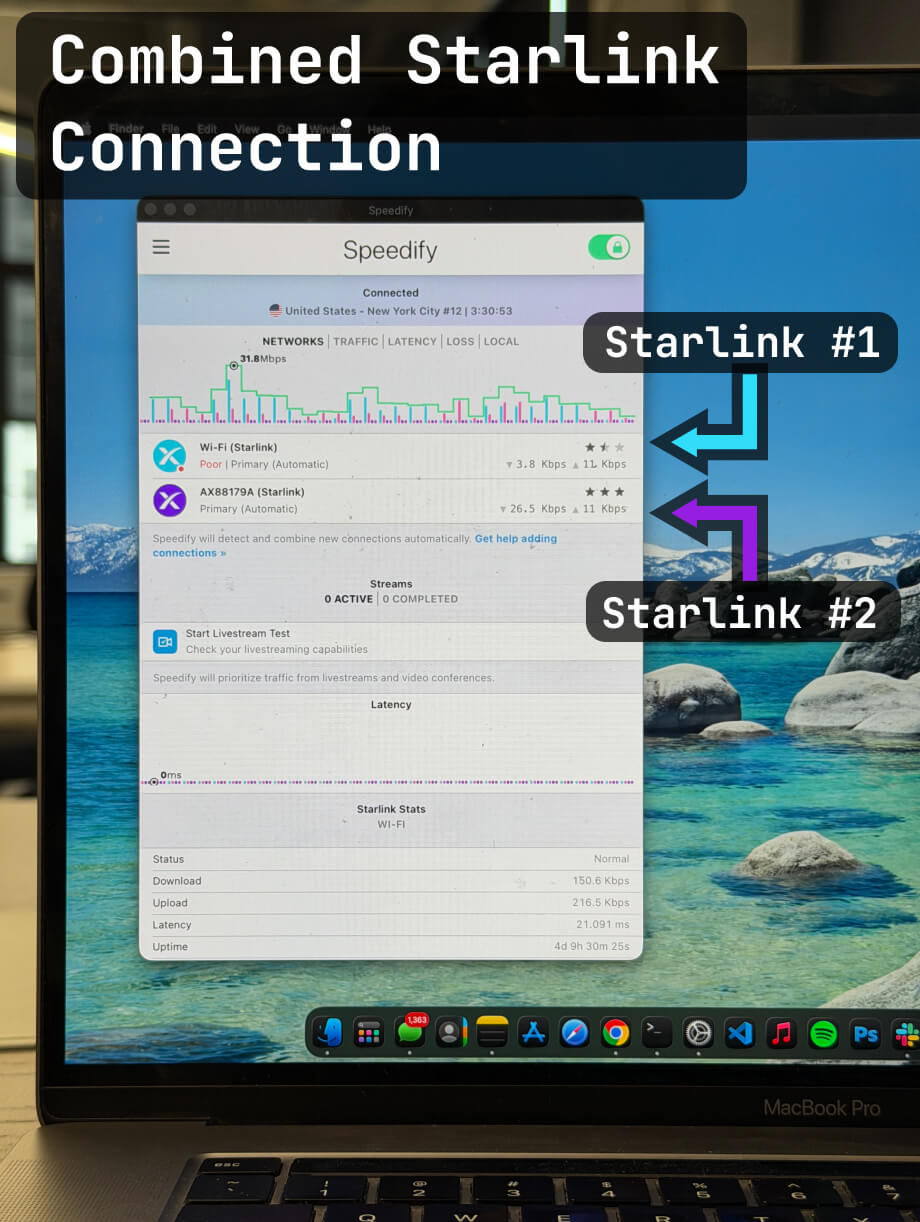
Speedify fixes Starlink connection drops by combining your Starlink internet connection with another satellite dish, Wi-Fi, 4G/5G cellular, or wired Ethernet at the same time. When Starlink drops, Speedify keeps your traffic moving on the backup internet connection instantly.




Speedify alerts you about your Starlink dish status
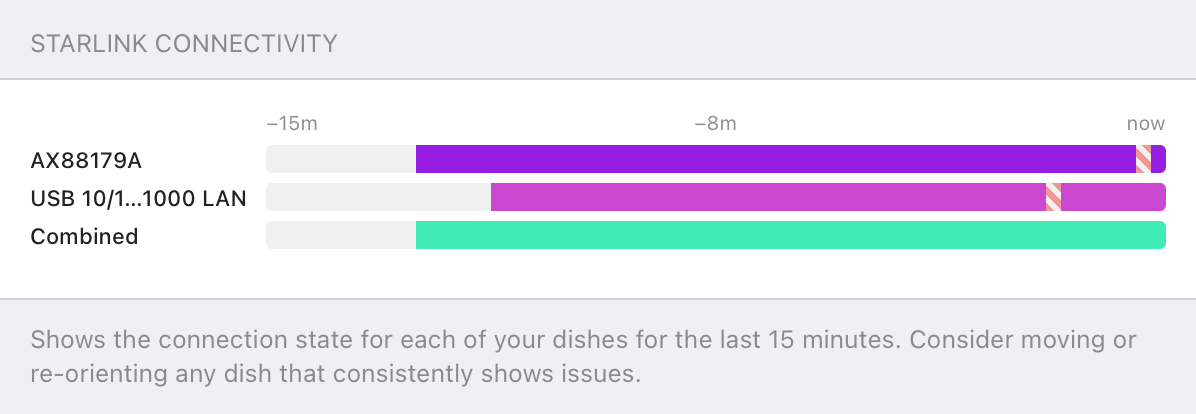
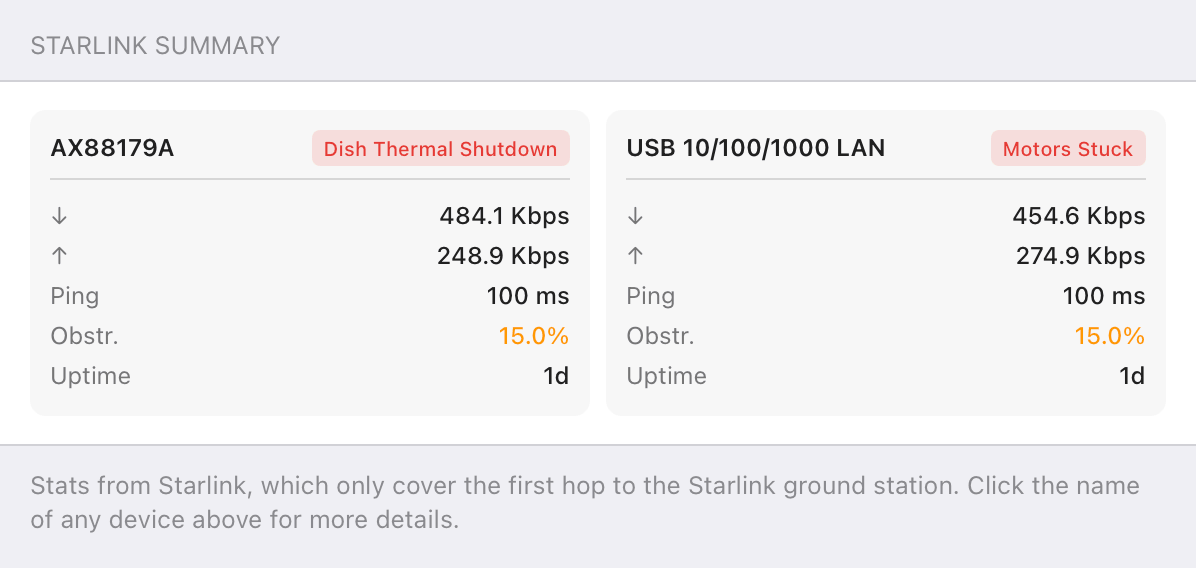
Speedify software alerts you about your Starlink dish status as soon as your dish experiences an issue - e.g. when your actuator motor is stuck, the mast is not vertical or there's a thermal throttle.
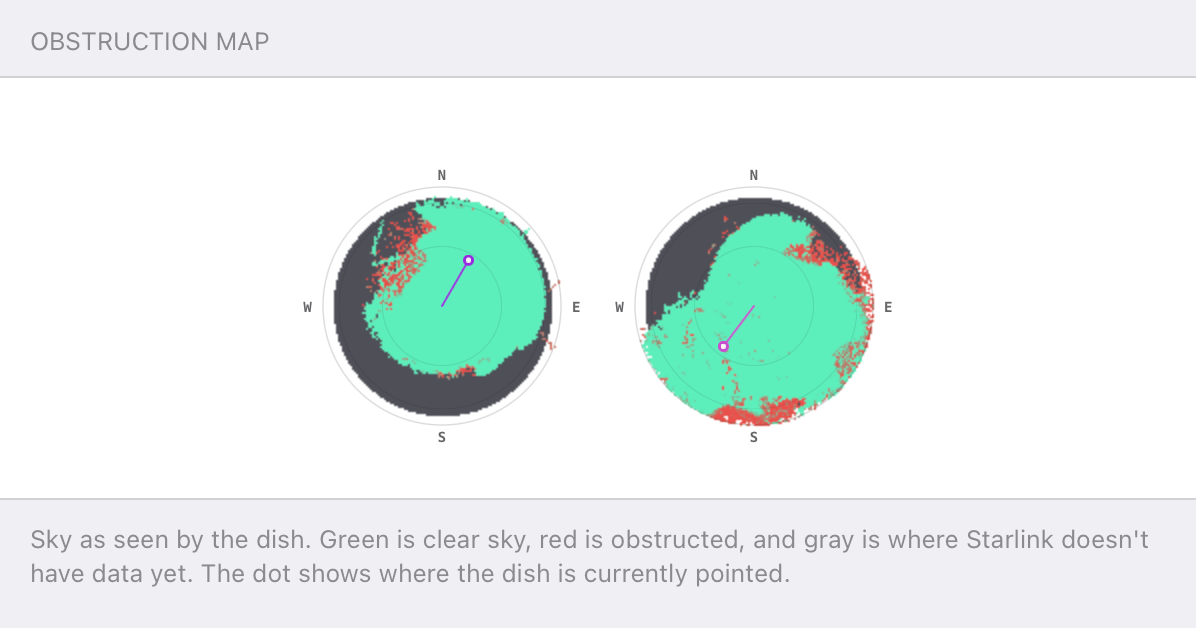
Speedify's Starlink Control Center helps you monitor all your Starlink dishes, read obstruction maps, and align multiple dishes all in the Speedify app. Get a real-time view of each dish's health and optimize the position of each Starlink dish, so you get the best possible performance out of your Starlink connections.
Where to Place a Starlink Antenna for the Best Speeds
A Starlink antenna is a phased array that tracks satellites passing overhead, so it needs a clear view of the open sky rather than the horizon. The basics:
- Mount it high and clear. The higher the antenna sits above nearby trees, chimneys, and rooflines, the fewer obstructions block the satellites.
- Point it the right way. In the Northern Hemisphere a Starlink antenna’s field of view skews north; in the Southern Hemisphere, south. Give the open sky in that direction priority.
- Check before you drill. The Starlink app’s obstruction tool scans the sky from a position and reports the percentage blocked. Hold your phone exactly where the antenna will sit, at the same height, before mounting anything.
- Stay clear of interference. On boats and vehicles, keep the Starlink antenna away from radar arrays and other transmitters.
Aim for 0% obstruction. Even a few percent causes brief service interruptions, and those interruptions are what freeze video calls and stall uploads.
Why Even Good Starlink Dish Placement Still Generates Internet Dropouts Sometimes
Careful placement cuts obstructions. It can’t remove every interruption. Starlink reassigns your antenna to a new satellite roughly every 15 seconds, and each handoff can cause a momentary drop even under a clear sky. Heavy rain and snow degrade the signal no matter where the antenna sits. And a single antenna is still a single point of failure.
Speedify’s channel bonding technology spreads your traffic across every internet connection you have at the same time. Pair your Starlink antenna with a 4G/5G cellular connection, a second Starlink antenna, or any other link, and Speedify uses both at once. Speedify also has a dedicated Starlink control center that helps you monitor your Starlink dishes, read obstruction maps, and align multiple dishes for better combined performance.
If the Starlink antenna stutters on a handoff or an obstruction, Speedify’s automatic failover holds the connection on the other path without interrupting what you’re doing. There’s more on the handoff problem in how Speedify prevents disconnections from Starlink satellite handoffs.
When the Best Spot for a Starlink Antenna Still Isn’t Good Enough
Here are three situations where the Starlink antenna placement alone won’t fix internet disconnects, but bonding Starlink with another Starlink or internet sources eliminates internet dropouts:
The homeowner boxed in by trees. A rural homeowner whose only mounting spot is partly blocked by tall trees can’t relocate the forest. Bonding the Starlink antenna with a 4G/5G cellular connection, or with a second antenna on a clearer side of the roof, means an obstruction on one path no longer drops the whole internet connection.
The van-life remote worker. Someone working from a different campsite every week can’t find a flawless clear-sky spot each time. Speedify bonds the Starlink antenna with a cellular hotspot, so a marginal park spot still holds a video call together.
The remote lodge or field office. A lodge with one usable roof location surrounded by terrain is stuck with whatever sky that spot sees. A second Starlink antenna mounted at a different angle, bonded with Speedify, covers the slice of sky the first antenna can’t reach.
How to Add a Second Internet Connection with Speedify
- Install Speedify. Speedify runs on Windows, macOS, iOS, Android, Linux, and OpenWrt routers.
- Connect both links. Plug in your Starlink antenna and your second internet connection, whether that’s 4G/5G cellular, another Starlink antenna, or wired internet. For whole-network coverage, use a Speedify-compatible router.
- Set both to Always. Speedify then uses both connections at the same time and fails over instantly if one drops.
Good Starlink Antenna Placement Plus Speedify Gives You the Most Reliable Starlink Internet Connection
Put the Starlink antenna in the clearest, highest spot you can, check it with the obstruction tool, and point it at the open sky. Then bond it with a second internet connection so the drops that placement can’t prevent stop mattering. Speedify makes your Starlink faster, more reliable, and more secure, whatever the view from your roof.


Get started with Speedify today!
With Speedify you can combine Wi-Fi, 4G / 5G cellular, Ethernet, Starlink and other satellites into one bonded super-connection to improve livestreaming, video calling, gaming, web browsing, and everything else you do online.






Speed
Stability
Security
Speedify engineers love talking tech on YouTube, Tiktok, and Instagram!
Alex Gizis and the Speedify engineers discuss and explain technology including Starlink satellites, Wi-Fi 7 routers, Apple networking features, fiber optics, broadband internet, 5G mobile networks, AI, networking protocols, and much more. Follow Speedify on YouTube, TikTok, Instagram, and LinkedIn!
Alex and the Speedify team are always exploring the latest in networking and security technology—like 5G, 6G, WiFi 7, laser and satellite internet—and sharing it in new discussion content across YouTube, TikTok, Instagram, and LinkedIn every week.
Got a tech question? Let's go deeper! Pop into Speedify Office Hours live every Wednesday at 10 AM Eastern. Speedify CEO Alex Gizis and our network engineers are standing by to break down your questions about networks, tech updates, and Speedify features.

