



Slow Internet Connection? Try These Tips to Pin the Cause
How many times have you asked yourself “Why is my Internet so slow” recently? A slow Internet connection is more than something very annoying. It’s particularly noticeable when trying to:
- stream video from YouTube,
- get on a Facetime call or
- upload photos on Instagram to share with family and friends.
Before engaging in this troubleshooting guide, have your ISP contract and contact info handy. Also make sure you have at least another device available for tests.
Let’s dive in to fixing slow Internet connection. We’ll guide you through the most common steps. Toward the end of this article, we’ll unveil an easy solution for faster, more reliable Internet.
Should you have a backup 4G, 5G, Starlink, or cable internet connection?
Yes — every internet connection goes down, including Starlink, which drops for ~34 minutes a day on average. A backup connection from a different provider means one outage never takes you fully offline. The most common options are a 4G/5G cellular hotspot, a cable or DSL line, or a second satellite dish.
4G/5G cellular
Works anywhere. Just a SIM or hotspot — no installation needed.
Learn more →Cable / DSL
Best for fixed locations. Different network, so outages rarely overlap.
Learn more →Second Starlink
Adds redundancy and throughput for remote sites or heavy usage.
Learn more →Speedify bonds any two connections into one — automatic failover, more speed, no dropped calls.
Try Speedify free →Why Is My Internet so Slow Troubleshooting – Step 1: Run an Online Speed Test and Compare It to Your Plan
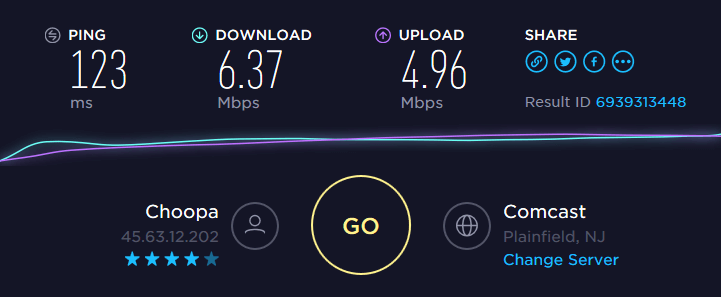
Just go to speedtest.net and run an online test. Use a computer connected to the router via wired Ethernet for most relevant results.
We recommend you do this with another device as well, if available – e.g. a smartphone. When connecting via WiFi, conduct the test near the wireless router, with no walls or objects between.

What to do
- Are the download and upload speeds close to what’s in the ISP contract? If so, you need to upgrade your plan. Contact your ISP for that.
- Test speeds significantly under what your service provider committed to in the contract? Try the following steps before contacting your ISP.
Getting slow speeds when connecting via WiFi from a location that is far from the wireless router? Time to improve your WiFi signal: either put the router in a more central location or get a WiFi range extender. You can also use your PC as a WiFi repeater.
Why Is My Internet so Slow Troubleshooting – Step 2: Restart Your Modem and Router
Believe it or not, this procedure can do wonders for your slow Internet connection. That’s because your router is actually a mini-computer that has a CPU, memory, local storage and operating system. Any of those can have an issue at some point: high CPU temperature, memory or operating system error (!), etc. So, as you fix a computer when it’s acting up by rebooting it, you can do the same with your router.
What to do
The simplest way to restart your modem / router is to:
- remove the power cord,
- wait about 10 seconds,
- connect the power cord back into the modem / router and
- wait for about one minute for the equipment to initialize.
Then, you can check your Internet speed again. Did this solve your slow Internet issue? If not, go to the next step.
Why Is My Internet so Slow Troubleshooting – Step 3: Check the Wires that Go into Your Modem or Router
Your Internet can get really slow if you have loose connectors or punched wires going in and out of your modem or router. Also – poor quality coaxial splitters can have an impact on your cable Internet speed.
What to do
- Start from your computer. Inspect the Ethernet cable that goes into the router – is it in good shape? Try to swap it and test speed with another one, if possible.
- Go to the router and modem – are all connectors plugged in firmly?
- If you have coaxial splitters, try to disconnect them and test your Internet speed.
Still no improvement? Go further!
Dealing with a Slow Internet Connection – Step 4: Contact Your Internet Service Provider
Sooner or later you’re going to have to face them. Your ISP may change its network configuration or encounter technical difficulties. These are usually communicated on a status page. If your ISP doesn’t have that, it’s best to contact them.
What to do
Call your ISP or contact them through instant messaging apps or social media. After all, you do want a quick response.
Still experiencing slow Internet? Time to bring out the heavy artillery: Speedify fast bonding VPN!
Proven Solution to Fix Slow Internet – Step 5: Use Speedify Fast Bonding VPN
Unless you’re living in a very remote area, you have multiple Internet connections available from different upstream networks. Examples include:
- your own smartphone through its cellular connection,
- nearby public WiFi networks,
- USB cellular adapters for computers,
- a second Internet connection you use for backup.
We’re not recommending switching to these connections. Rather, you can combine them together at once to get more speed with… Speedify!
Speedify’s channel bonding technology allows using two or more Internet connections. You’ll get a faster and more stable Internet connection.
Here’s what you have to do:
- Get Speedify on your computer or mobile device. It works on iOS, Android, macOS and Windows.
- Leave all your Internet connections active. For iPhones and Android smartphones – enable both WiFi and cellular data. Don’t worry – you can set data caps from within the Speedify app. This way, you won’t exceed it and pay extra.
For computers and laptops you can use:
- the wired Ethernet connection,
- multiple WiFi,
- additional 4G/LTE dongles or integrated cards.
- any type of USB network adapters – WiFi, Bluetooth, Ethernet
- Enjoy faster, more reliable Internet. Speedify will automatically detect any new active Internet connections and toss them into the mix. This will create a faster and dependable Internet connection. Its smart algorithms can detect if one of your connections has performance issues (e.g. bad WiFi hotspot). Speedify will fix it so you’ll always be connected.
Tired of troubleshooting slow Internet? Still wondering why your Internet is slow and what you can do about it? The answer is simple: get Speedify and start combining available connections for more speed and stability.
Alex and the Speedify team are always exploring the latest in networking and security technology—like 5G, 6G, WiFi 7, laser and satellite internet—and sharing it in new discussion content across YouTube, TikTok, Instagram, and LinkedIn every week.
Got a tech question? Let's go deeper! Pop into Speedify Office Hours live every Wednesday at 10 AM Eastern. Speedify CEO Alex Gizis and our network engineers are standing by to break down your questions about networks, tech updates, and Speedify features.


Speedify
Get started with Speedify today.
Combine Wi-Fi, 4G/5G cellular, Ethernet, Starlink, and more into one faster, steadier connection. Free to try — no credit card required.
🚀 Speed
Faster uploads and downloads by bonding all your connections at once.
📶 Stability
Automatic failover in under a second when any connection drops.
🔒 Security
AES-256 encryption on every connection, on every network you join.





15M+ downloads worldwide. 75K+ five-star reviews on iOS and Android.