


Complete Guide to Live Streaming IRL to YouTube using OBS
IRL streaming to YouTube can be done easily directly from your iPhone or Android smartphone. But if you want more options for your stream or if you want to live stream IRL on multiple social platforms including YouTube, OBS is a great choice for you.
The power behind OBS stands in the great community of users all over the world who keep improving the most popular open source software for live streaming on Windows, MacOS and Linux.
Read below to find out how to IRL stream with OBS on YouTube and avoid any live streaming issues such as poor video quality, high lag or drop-outs.
Should you have a backup 4G, 5G, Starlink, or cable internet connection?
Yes — every internet connection goes down, including Starlink, which drops for ~34 minutes a day on average. A backup connection from a different provider means one outage never takes you fully offline. The most common options are a 4G/5G cellular hotspot, a cable or DSL line, or a second satellite dish.
4G/5G cellular
Works anywhere. Just a SIM or hotspot — no installation needed.
Learn more →Cable / DSL
Best for fixed locations. Different network, so outages rarely overlap.
Learn more →Second Starlink
Adds redundancy and throughput for remote sites or heavy usage.
Learn more →Speedify bonds any two connections into one — automatic failover, more speed, no dropped calls.
Try Speedify free →Requirements for Live Streaming IRL to YouTube via OBS
- Audio-video source – a camera, either dedicated (like a GoPro, for example), or a computer webcam(s) or your smartphone’s camera.
- Pro Tip: for better quality audio, you can use dedicated microphones.
- Pro Tip: extra lighting could be useful in specific scenarios.
- Streaming device – laptop or desktop computer.
- Streaming software – OBS, in this case
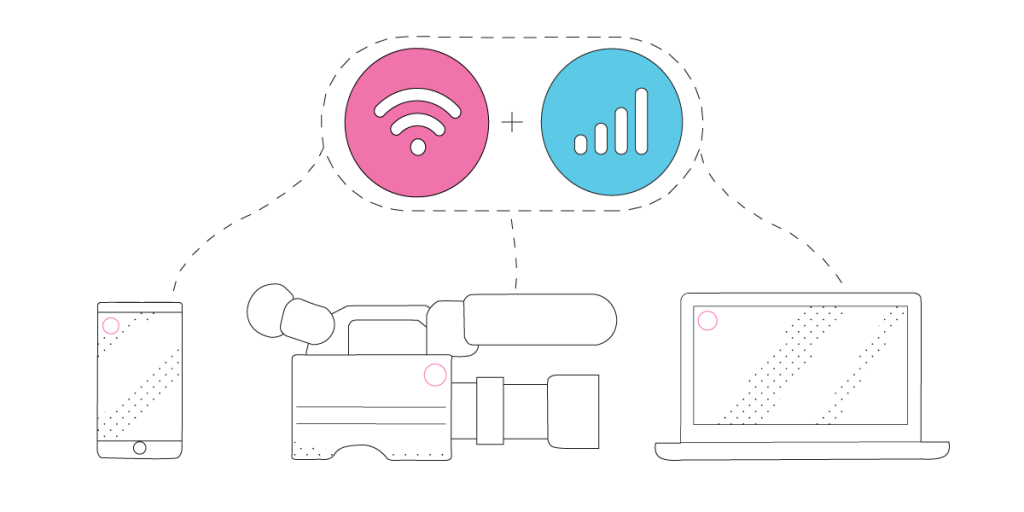
- Stable Internet – use at least two Internet connections at the same time while live streaming IRL – Speedify can help with that.
- Pro Tip: Use an additional smartphone with a cellular data plan. Combine that with your main Internet connection together at once with Speedify to hit your target bitrate and avoid flaky Internet problems.
4 Steps on How to IRL Stream with OBS on YouTube
- Set up your streaming device and connect all available Internet sources.
As you’ll be streaming from your computer using OBS, you can toss in any type of connection – wired Ethernet, Wi-Fi, tethered smartphones, external USB cellular adapters, etc. - Start Speedify and make sure it combines your connections.
When you open Speedify, all the active Internet sources connected should be recognized. Just choose a server to connect to.
If you don’t have a Speedify subscription yet, you can get it from our website store, the Apple App Store or the Google Play Store. - Set up OBS.
Follow the instructions on the OBS website to get started with OBS Studio.
Also check out this article on what to need to do to link OBS and YouTube together and start live streaming. - Go Live after a final check.
Audio and video should be working. Speedify should be running.
Whenever you’re ready, just start the IRL live stream and broadcast to your YouTube audience.
Speedify – an Essential Element in Your IRL Live Streaming YouTube Setup
Live streaming IRL to YouTube using OBS Studio should be all about focusing on what you stream. You shouldn’t have to worry whether you’ll get in an area where your Internet connection will drop. Unfortunately, this is the case for most live streamers out there.
This is where Speedify comes to the rescue. It is the only app that can combine multiple internet sources into one bonded super-connection for more stable and secure live streaming, video calling, online gaming and web browsing.
You will get the best Internet connectivity by running Speedify, which prioritizes your IRL live stream over other Internet traffic. Thus, you are avoiding issues such as low quality, choppy and laggy videos, buffering and even disconnects from the streaming server.
Alex and the Speedify team are always exploring the latest in networking and security technology—like 5G, 6G, WiFi 7, laser and satellite internet—and sharing it in new discussion content across YouTube, TikTok, Instagram, and LinkedIn every week.
Got a tech question? Let's go deeper! Pop into Speedify Office Hours live every Wednesday at 10 AM Eastern. Speedify CEO Alex Gizis and our network engineers are standing by to break down your questions about networks, tech updates, and Speedify features.


Speedify
Get started with Speedify today.
Combine Wi-Fi, 4G/5G cellular, Ethernet, Starlink, and more into one faster, steadier connection. Free to try — no credit card required.
🚀 Speed
Faster uploads and downloads by bonding all your connections at once.
📶 Stability
Automatic failover in under a second when any connection drops.
🔒 Security
AES-256 encryption on every connection, on every network you join.





15M+ downloads worldwide. 75K+ five-star reviews on iOS and Android.