


How to Set Up OBS to Stream IRL on Facebook
OBS Studio is clearly the most popular software for live streaming on multiple platforms, including Facebook Live, YouTube, Twitch, etc. It’s also a great pick when you need more options for your live stream than using the native Facebook Live app. OBS is a great solution if you’re doing that from a desktop or laptop computer running Windows, MacOS or Linux.
Read below to learn how to IRL live stream to Facebook with OBS without any software or Internet connectivity issues.
Should you have a backup 4G, 5G, Starlink, or cable internet connection?
Yes — every internet connection goes down, including Starlink, which drops for ~34 minutes a day on average. A backup connection from a different provider means one outage never takes you fully offline. The most common options are a 4G/5G cellular hotspot, a cable or DSL line, or a second satellite dish.
4G/5G cellular
Works anywhere. Just a SIM or hotspot — no installation needed.
Learn more →Cable / DSL
Best for fixed locations. Different network, so outages rarely overlap.
Learn more →Second Starlink
Adds redundancy and throughput for remote sites or heavy usage.
Learn more →Speedify bonds any two connections into one — automatic failover, more speed, no dropped calls.
Try Speedify free →What You Need to Live Stream to Facebook with OBS
Here’s a checklist to stream IRL to Facebook Live using OBS:
- camera – dedicated (like a GoPro, for example), the computer webcam, or your smartphone’s camera turned into a webcam using Camo
- streaming device – a PC, Mac or computer running Linux.
- OBS Studio live streaming software
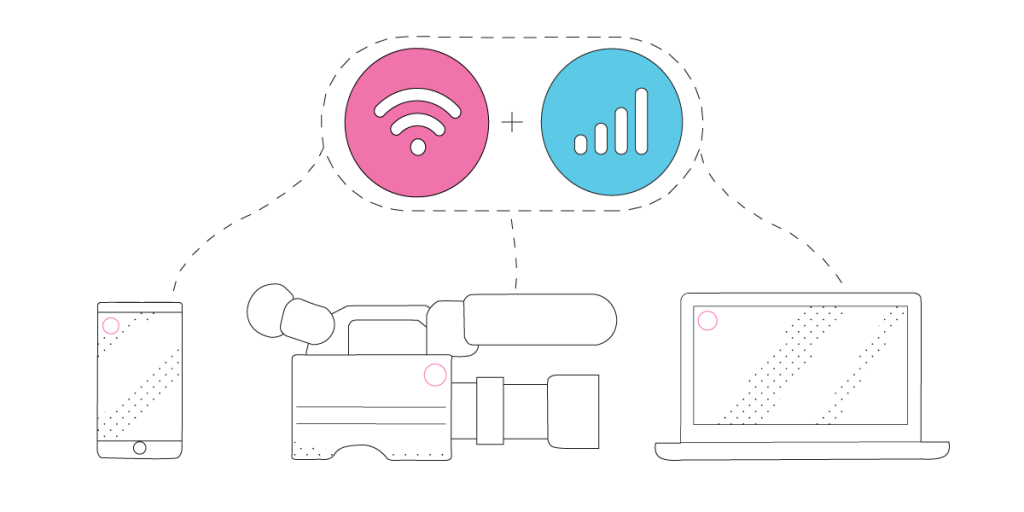
- stable Internet connection – you should have at least 2 connections available from different providers. For example – your home Internet / public Wi-Fi and an additional smartphone with a cellular data plan. The idea is to use two connections together at once with Speedify to hit your target bitrate and avoid flaky Internet problems while streaming IRL to Facebook Live using OBS.
Additional accessories, such as dedicated microphones, extra lighting, etc. may be required depending on where you’ll be streaming from.
Step-by-Step Guide on How to IRL Live Stream to Facebook with OBS Studio
STEP 1 – CONNECT ALL AVAILABLE INTERNET SOURCES TO YOUR STREAMING DEVICE
Internet connectivity is what makes or breaks a successful IRL live stream. That’s why it’s important to get it right and use all available connections at once – it will help you avoid issues if one of your connections becomes unstable or even drops.
Use one or multiple of the following on your computer that will be running OBS Studio:
- wired Ethernet connection
- Wi-Fi hotspot
- tethered smartphone
- external USB 5G / 4G LTE cellular adapter
STEP 2 – GET STABLE INTERNET BY BONDING YOUR CONNECTIONS WITH SPEEDIFY
If you don’t have a Speedify subscription yet, you can get it from our website store, the Apple App Store or the Google Play Store.
Run Speedify and log into your account. All the active Internet sources you connected at step 1 should be recognized by Speedify. All you have to do now is choose a server to connect to – the fastest server options usually works best.
STEP 3 – CONFIGURE OBS Studio
Follow the quick start instructions on the OBS website to get started for your IRL live streaming session. Specifically for Facebook, check out the video below on how to use OBS Studio with Facebook.
STEP 4 – FINAL CHECK, GO LIVE
Before going live with your stream, make sure:
- you are in the OBS Studio and are able to see the video you want to broadcast in the preview window
- audio is working
- Speedify is running, and it combines the Internet sources you’re connected to.
Whenever you’re ready, just start the IRL live stream and broadcast to your Facebook audience.
The good thing about Speedify is that it prioritizes your IRL live streams over other Internet traffic. Thus, you are avoiding issues such as low quality, choppy and laggy videos, buffering and even disconnects from the streaming server.
Best Practices When Live Streaming to Facebook with OBS: Use Speedify for Flawless Internet Connectivity
Whenever you’re live streaming IRL to Facebook, you should be focusing on your content. You shouldn’t have to worry about the Internet connectivity, your video quality or whether you’re lagging, buffering or dropping from the live stream.
This is where Speedify comes to the rescue. It is the only app that can combine multiple internet sources into one bonded super-connection for more stable and secure live streaming, video calling, online gaming and web browsing.
With Speedify, your IRL live streams will be prioritized over other types of traffic on your streaming device. You can be sure your Facebook Live streams get the bandwidth and stability they need to provide the best video quality even if your computer or phone decides it’s time to update its apps or run a backup job.
We’d like to hear more about your experiences with live streaming IRL on Facebook using OBS Studio – reach out to us on Twitter, Facebook or Instagram with your feedback!
Alex and the Speedify team are always exploring the latest in networking and security technology—like 5G, 6G, WiFi 7, laser and satellite internet—and sharing it in new discussion content across YouTube, TikTok, Instagram, and LinkedIn every week.
Got a tech question? Let's go deeper! Pop into Speedify Office Hours live every Wednesday at 10 AM Eastern. Speedify CEO Alex Gizis and our network engineers are standing by to break down your questions about networks, tech updates, and Speedify features.


Speedify
Get started with Speedify today.
Combine Wi-Fi, 4G/5G cellular, Ethernet, Starlink, and more into one faster, steadier connection. Free to try — no credit card required.
🚀 Speed
Faster uploads and downloads by bonding all your connections at once.
📶 Stability
Automatic failover in under a second when any connection drops.
🔒 Security
AES-256 encryption on every connection, on every network you join.





15M+ downloads worldwide. 75K+ five-star reviews on iOS and Android.