



Speedify Shows Your Starlink Status in Real Time and Keeps You Online When Starlink Internet Drops Out
This guide covers where to see your Starlink status, what each status state means, and how Speedify’s Starlink Control Center shows your dish status in real time. Speedify combines Wi-Fi, 4G/5G cellular, Ethernet, Starlink and satellite into a single bonded connection, so even when your Starlink status drops, you stay online.
Starlink disconnects all the time for ALL Starlink users. The Speedify Starlink Index report found that Starlink connections are down for an average of ~33 min per day. Plus, all Starlink dishes experience small drops and packet loss every 15 seconds, when the moving Starlink satellites hand off the connection to the next satellite overhead.
The best way to fix Starlink's connection drops is to combine your Starlink connection with another internet connection, such as 4G/5G cellular, cable, fiber, DSL, or another Starlink connection. Speedify makes this possible with channel bonding.
Speedify Starlink Index — real-world performance from 6,228 Starlink users: 2.3% downtime, about 33 minutes a day for always-on connections
Your Starlink loses connection every day.
Speedify’s Starlink Index reports Starlink performance data from a sample of thousands of real-world Starlink dishes.
Daily Starlink downtime
~33 min
2.3% of connected time unreachable
Avg packet loss
0.17%
vs 0.08% on T-Mobile
71% of Starlink users ran at least one other internet connection — 4,400 of 6,228 users. Cellular is the most common backup.
Should you get a backup connection for Starlink?
Yes. Starlink goes down every day — an always-on dish averages about 34 minutes of downtime daily from routine satellite handoffs. A second connection keeps you online when Starlink drops.
What’s the best backup connection for Starlink?
A 4G/5G cellular hotspot or SIM is the most practical backup for most Starlink users — it works anywhere Starlink works, requires no installation, and uses a different network so outages rarely overlap. Cable or DSL broadband is a strong option if you have it at a fixed location. A second Starlink dish is also possible if you need maximum throughput.
How do you use two internet connections at once with Starlink?
Speedify combines Starlink with any other connection — cellular, cable, Wi-Fi, or a second dish — into one bonded connection. Speedify runs on your phone, laptop, or router. When Starlink drops, Speedify moves your traffic to the backup instantly, so calls don’t cut out and downloads don’t stall. Speedify is free to try.
71% of Speedify’s Starlink users already run a second connection. Speedify’s Starlink Index tracks real-world Starlink performance data from thousands of dishes.
See the full dataset →Use Speedify to stay online during Starlink satellite handoffs every 15 seconds
Research confirms Starlink switches between satellites every 15 seconds on a fixed schedule. Each satellite handoff is a potential dropout, and on a congested network or with any obstruction, those Starlink dropouts become real interruptions.
Speedify fixes Starlink connection drops by combining your Starlink internet connection with another satellite dish, Wi-Fi, 4G/5G cellular, or wired Ethernet at the same time. When Starlink drops, Speedify keeps your traffic moving on the backup internet connection instantly.


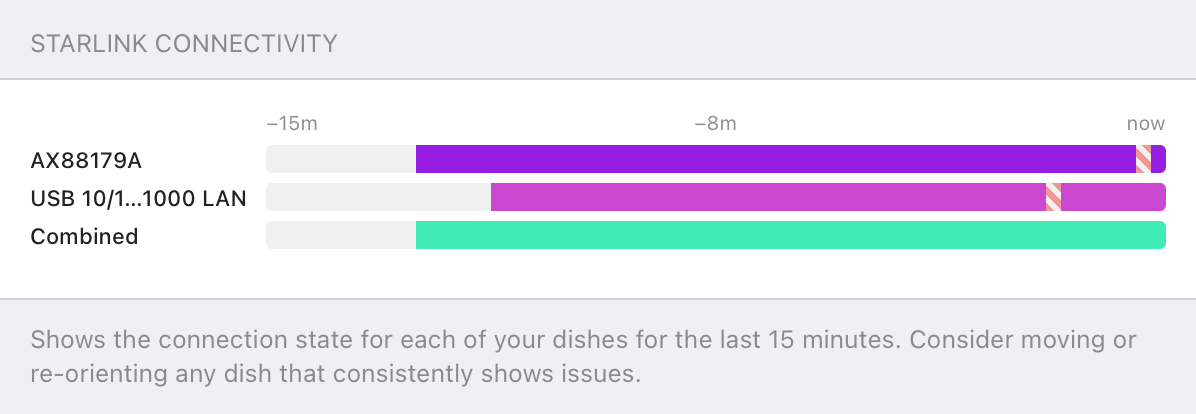

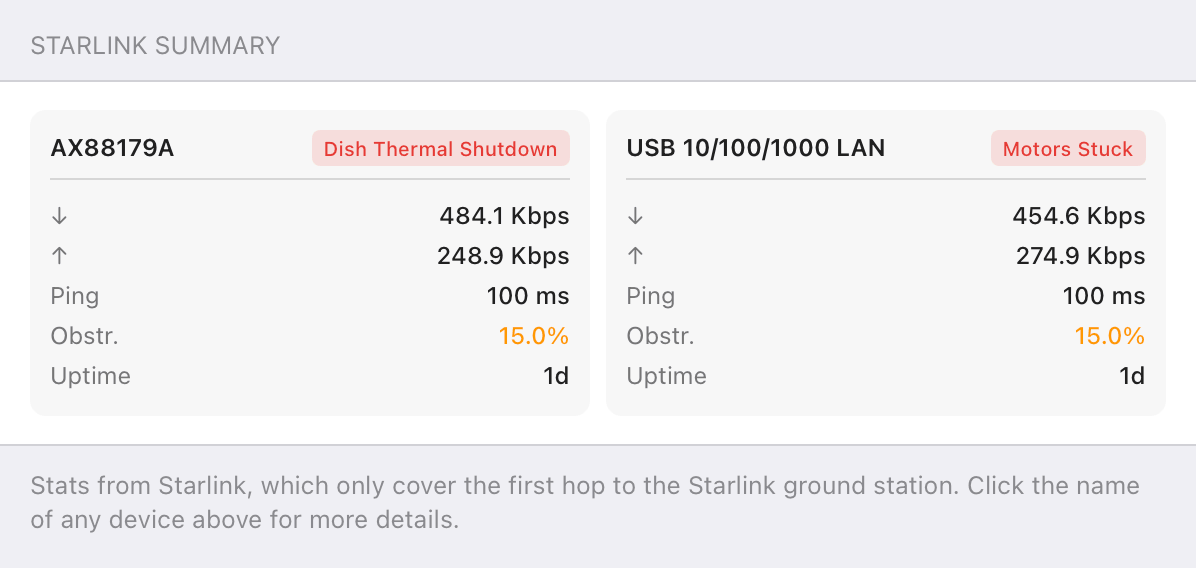

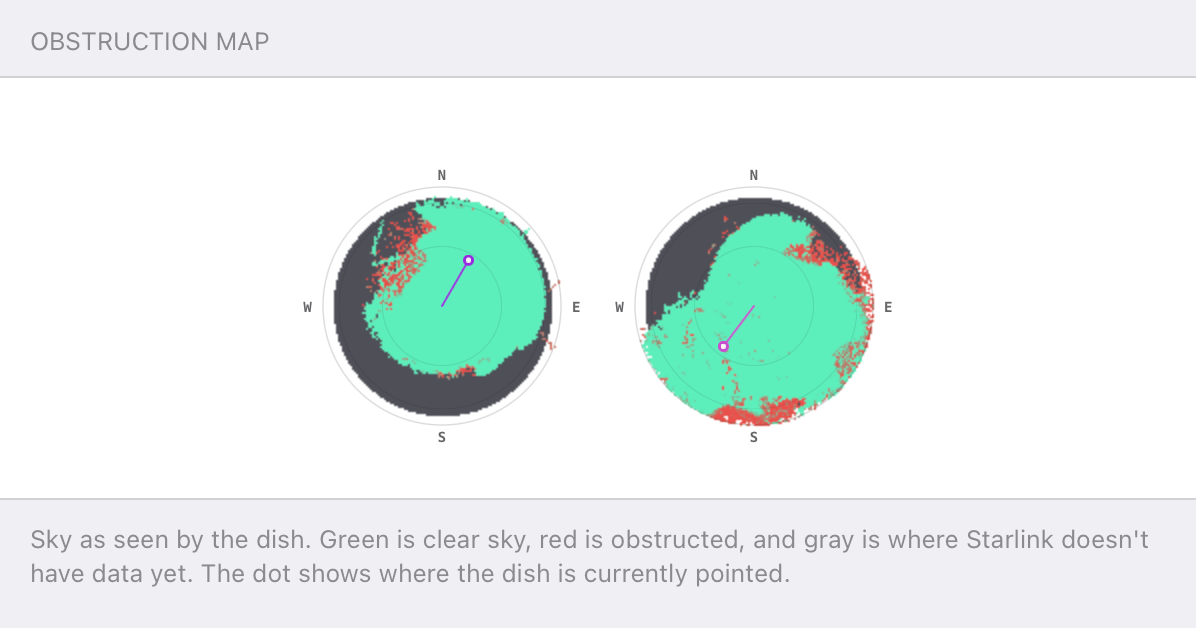
Speedify alerts you about your Starlink dish status
Speedify software alerts you about your Starlink dish status as soon as your dish experiences an issue - e.g. when your actuator motor is stuck, the mast is not vertical or there's a thermal throttle.
Speedify's Starlink Control Center helps you monitor all your Starlink dishes, read obstruction maps, and align multiple dishes all in the Speedify app. Get a real-time view of each dish's health and optimize the position of each Starlink dish, so you get the best possible performance out of your Starlink connections.
Where to See Your Starlink Status
- The Starlink app. The home screen shows your dish status at the top: online, or one of the offline states. You need to be connected to your Starlink Wi-Fi for the app to reach the dish.
- A browser. Type dishy.starlink.com or 192.168.100.1 into any browser on the Starlink network to see the same status and statistics.
- Router lights. The Starlink router’s light gives a rough read: blinking white while searching, steady for a working connection, red for a hardware fault.
- Advanced debug data. In the app, Advanced then Debug Data shows lower-level status and alerts for a deeper look.
What Each Starlink Status Alert Means
Starlink app’s Dish Status reports a handful of statuses and alerts. Here’s what each status tells you:
- Online. The dish is connected to the Starlink network and passing traffic normally.
- Offline – Booting. The dish is starting up. Normal for a few minutes after power-up; if it’s stuck past 20 minutes, power cycle the dish.
- Offline – Searching. The dish is hunting for satellites, usually right after a reboot. Give it 5 to 20 minutes.
- Offline – No Signal Received. The dish is powered but can’t reach the satellites. Causes include a heavy obstruction, a hardware fault, or a network issue.
- Obstructed. Something is blocking part of the dish’s view of the sky, causing brief interruptions. Check the obstruction map.
- Disconnected. Your phone isn’t on the Starlink Wi-Fi, so the app can’t reach the dish. Reconnect to the Starlink network.
- Network Issue or Outage. Starlink has confirmed a problem on its side. Nothing to fix locally.
Here are the Starlink alerts you can get via the Starlink app:
- Starlink Obstructed. Something is partly blocking the dish’s view of the sky, causing short drops that hit video calls and gaming hardest. Give the dish a clearer view.
- Starlink Disconnected. The dish is unplugged or rebooting. Make sure it’s fully plugged in, or wait for the reboot to finish.
- Service Outage. Starlink’s network is down in your area. There’s nothing to fix locally.
- Recent Interruptions. The connection is healthy now but saw elevated packet loss in the last 15 minutes, usually from weather or a brief obstruction. No action needed.
- Starlink Overheated. The dish got too hot and shut down to cool off, and reconnects once it cools. Improve ventilation and shade.
- Thermal Throttling. The dish is hot and running slower to avoid overheating. Move it somewhere cooler or out of direct sun.
- Poor Cable Connection or Slow Ethernet. The cable between dish and router is running below its proper speed, pointing to a damaged cable or loose connector. Reseat the cable and use Cat5e or better.
- Poor WiFi Signal. Your device is too far from the router. Move closer or add a mesh node.
- Determining Location. The dish is acquiring GPS, which can take up to 15 minutes. Don’t unplug it, and avoid metal mounts that wrap the base.
- Update Required. The dish needs a software update to stay connected. Keep it powered with a clear view of the sky so it can download and reboot.
- Unexpected Location or Too Far From Service Address. The dish is being used away from its registered address or in an unsupported area. Return to the address, update it, or switch to a Roam plan.
- Starlink Moving Too Fast. The dish is moving faster than your plan allows; Residential is stationary-only. Slow down or move to a Roam or Mobile plan.
- Actuator Motor Stuck. On self-aiming dishes, the motor can’t move to align, often from ice or debris. Clear any obstruction, and contact Starlink if it persists.
- Mast Not Vertical. The mounting pole is off-vertical, which hurts alignment. Adjust the mount until the mast is vertical.
The catch with all of these: the Starlink app shows the status of one dish at a time, and only while you’re connected to that dish’s network.
How Speedify Shows Your Starlink Status in Real Time
Speedify’s Starlink Control Center reads your dish data and shows a live Starlink Summary card: status, download and upload throughput, ping, obstruction percentage, and uptime, all updating continuously. Speedify also surfaces Starlink dish alerts in the app, including when the actuator motor is stuck, the mast isn’t vertical, or the dish hits a thermal throttle, so you can see a problem developing before the status flips to offline.
If you run more than one Starlink, Speedify shows every dish’s status at once, side by side, something the Starlink app can’t do because every dish shares the same 192.168.100.1 address. If your Starlink app only shows one dish, that’s why, and there’s a fix in how to manage two Starlink dishes at once with Speedify. For more on the stats behind the status, see how to monitor Starlink stats with Speedify.
How Speedify Keeps Your Starlink Status Online
Seeing the status is useful. Staying online regardless of it is better. Starlink reassigns your dish to a new satellite roughly every 15 seconds, and each handoff, obstruction, or weather event can flip your status to offline for a moment. Speedify’s channel bonding technology runs your Starlink alongside a second connection, a 4G/5G cellular link or a second Starlink, and carries your traffic on both at once. When the Starlink status drops, Speedify’s automatic failover shifts everything to the other connection instantly, so your internet stays up even while the dish reconnects. There’s more in how Speedify prevents disconnections from Starlink satellite handoffs.
How to Check Your Starlink Status in Speedify
- Download Speedify for your device: Windows, macOS, iOS, Android, Linux, or an OpenWrt router.
- Connect your Starlink so it appears as a connection in Speedify. For whole-network coverage, use a Speedify-compatible router.
- Open the Starlink Control Center in Speedify to see your dish’s live status, throughput, ping, obstruction, and uptime.
- Add a second connection and set both to Always mode so Speedify keeps you online when the Starlink status drops.
See Your Starlink Status, and Stay Online When It Changes
Check your Starlink status in the app or at dishy.starlink.com to learn whether your dish is online, booting, searching, or obstructed. Then watch it live in Speedify’s Starlink Control Center and bond a second connection, so a change in status stops meaning a change in whether you have internet. Speedify makes your Starlink faster, more reliable, and more secure.
Speedify
Get started with Speedify today.
Combine Wi-Fi, 4G/5G cellular, Ethernet, Starlink, and more into one faster, steadier connection. Free to try — no credit card required.
🚀 Speed
Faster uploads and downloads by bonding all your connections at once.
📶 Stability
Automatic failover in under a second when any connection drops.
🔒 Security
AES-256 encryption on every connection, on every network you join.



15M+ downloads worldwide. 75K+ five-star reviews on iOS and Android.
Alex and the Speedify team are always exploring the latest in networking and security technology—like 5G, 6G, WiFi 7, laser and satellite internet—and sharing it in new discussion content across YouTube, TikTok, Instagram, and LinkedIn every week.
Got a tech question? Let's go deeper! Pop into Speedify Office Hours live every Wednesday at 10 AM Eastern. Speedify CEO Alex Gizis and our network engineers are standing by to break down your questions about networks, tech updates, and Speedify features.

