

Speedify: Your Starlink Companion App
To see your Starlink stats, open Statistics in the Starlink app, or type dishy.starlink.com or 192.168.100.1 into a web browser while you’re on your Starlink Wi-Fi. The Starlink app, on Google Play for Android and the App Store for iPhone, shows your Starlink dish’s download and upload speed, ping, recent outages and how much of its view of the sky is blocked.
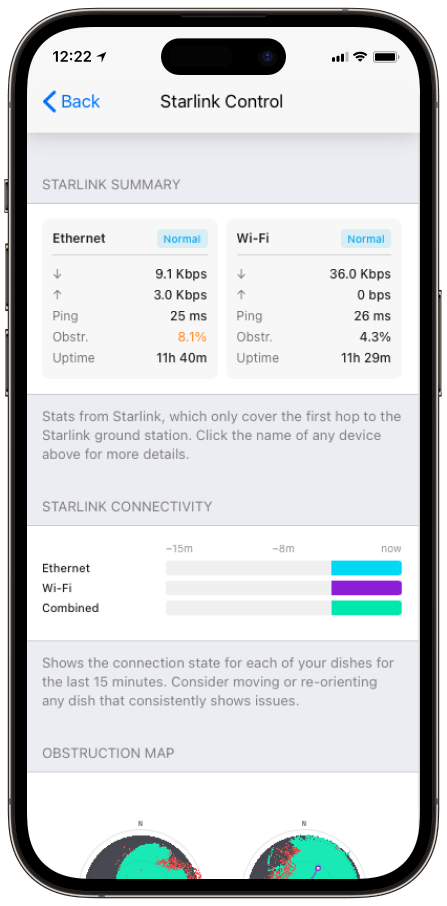
Speedify, an app for Android, iPhone, Windows, Mac and Linux that uses all of your internet connections at the same time, also shows live Starlink stats and Starlink dish alerts in its Starlink Control Center, for every Starlink dish you use with it. Below: which Starlink stats matter, what Speedify adds, and how to turn those stats into faster, steadier internet.
Monitor your Starlink dish performance inside Speedify.
Starlink Internet Connection Drops Happen to Everyone
Speedify measures thousands of Starlink users in more than 140 countries. In September 2026, fixed Starlink dishes went offline for about 38 minutes a day on average, and Starlink dishes on RVs and boats for about 46 minutes a day.
All Starlink dishes also see short dropouts roughly every 15 seconds as the Starlink internet connection switches from one moving satellite to the next. Even a perfectly installed Starlink dish goes offline, and about 7 in 10 Starlink users on Speedify use Starlink together with a second internet connection, like 4G/5G cellular.
Which Starlink Stats Matter, and What Each One Tells You
- Download and upload speed. Starlink says downloads run 45 to 280 Mbps, with most users over 100 Mbps, and uploads 10 to 30 Mbps. Speeds well below that at the same time every evening point to a busy Starlink network.
- Ping. The delay between you and the internet, usually 25 to 60 milliseconds on land. Short jumps are normal when your Starlink dish switches satellites, about every 15 seconds.
- Obstruction. How much of your Starlink dish’s view of the sky is blocked. Even a small blocked area causes short drops.
- Outages. When your Starlink internet connection dropped, and the likely reason, like something blocking the view or a network problem on Starlink’s side.
- Data usage. How much data you’ve used, which matters if your Starlink plan has a data limit. Speedify also lets you set a separate data limit for each internet connection, so you can keep your Starlink data and your cellular data under their limits.
To test your speed on demand, see how to test your Starlink speed.
See Starlink Dish Alerts in the Speedify App, Before They Take You Offline
Speedify doesn’t just show your speeds. It also tells you when something is wrong with your Starlink dish or the rest of your Starlink setup.
Speedify reads the reports your Starlink dish sends and shows them right in the app, so you don’t have to spend hours working out what’s wrong. Check Speedify for:
- Temperature alerts, like a Starlink dish that’s too hot
- Position and movement alerts, like a stuck motor or a pole that isn’t straight
- Connection alerts, like something blocking the view of the sky
- Maintenance alerts, like a waiting software update


When you see an alert about your Starlink dish in Speedify, you can act on it right away, usually by restarting your Starlink dish or clearing whatever blocks its view. With a second internet connection in Speedify, you stay online while you do it.
For the list of Starlink dish alerts and what to do about each one, see Speedify’s Starlink dish alert article.
Why Starlink Stats Alone Don’t Fix Slow Starlink: Use a Second Internet Connection with Speedify
Stats tell you what’s wrong. They don’t fix a slow upload or a dropped call. Speedify does, by using your Starlink internet connection together with other internet connections: 4G/5G cellular, DSL, cable, Wi-Fi, or a second Starlink dish.
Speedify sends your traffic over all of them at the same time, so you get the speed of all of them combined. If your Starlink internet connection drops in the middle of a video call or a file upload, Speedify switches your traffic to your other internet connection automatically, so the call keeps going. With Starlink alone, Speedify can’t add speed or stop drops: it needs that second internet connection.
How to Get Started with Speedify on Starlink
Speedify runs on Windows, Mac, Linux, Android, iOS and OpenWrt routers. Connect to your Starlink and your second internet connection, download Speedify, and it starts using both on its own, with your Starlink stats in its Starlink Control Center.
Speedify
Get started with Speedify today.
Combine Wi-Fi, 4G/5G cellular, Ethernet, Starlink, and more into one faster, steadier connection. Free to try — no credit card required.
🚀 Speed
Faster uploads and downloads by bonding all your connections at once.
📶 Stability
Automatic failover in under a second when any connection drops.
🔒 Security
AES-256 encryption on every connection, on every network you join.



15M+ downloads worldwide. 75K+ five-star reviews on iOS and Android.