

Speedify’s Starlink Control Center Lets You Monitor All Your Starlink Dishes in One Place
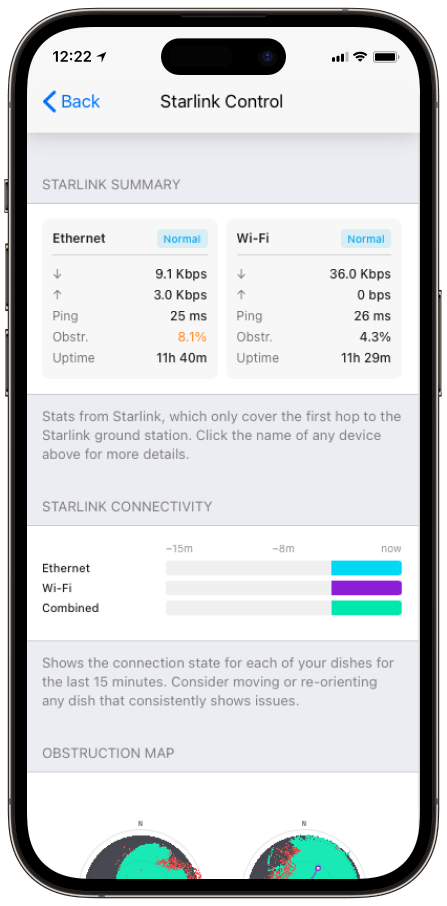
Speedify’s Starlink Control Center is a control panel for all of your Starlink dishes in one place: live status, speed, ping, obstruction maps, time online and dish alerts for every Starlink dish on your network, without switching between screens or signing in to each Starlink dish.
Speedify is an app that uses all of your internet connections at the same time, including several Starlink dishes at once. Below: what the Starlink Control Center shows, how to open it, how it works with Starlink data pooling for businesses, and how Speedify uses all of your Starlink dishes together.
Monitor your Starlink dish performance inside Speedify.
Starlink Internet Connection Drops Happen to Everyone
Speedify measures thousands of Starlink users in more than 140 countries. In September 2026, fixed Starlink dishes went offline for about 38 minutes a day on average, and Starlink dishes on RVs and boats for about 46 minutes a day.
All Starlink dishes also see short dropouts roughly every 15 seconds as the Starlink internet connection switches from one moving satellite to the next. Even a perfectly installed Starlink dish goes offline, and about 7 in 10 Starlink users on Speedify use Starlink together with a second internet connection, like 4G/5G cellular.
What Is the Starlink Control Center in Speedify?
Every Starlink dish shares its stats on your local network. Speedify reads them and shows them in its own app, as the Starlink Control Center. You don’t need the Starlink app open. You get one screen that shows how your Starlink internet connection is doing next to your other internet connections: Wi-Fi, 4G/5G cellular and Ethernet.
The Starlink Control Center works on any device that runs Speedify and can reach the Starlink dish on your local network.
What Speedify’s Starlink Control Center Shows for Each Starlink Dish
- Status and time online. Whether each Starlink dish is online, and how long it has stayed online, live.
- Obstruction maps. Speedify shows the obstruction map straight from your Starlink dish: which parts of the sky trees, buildings or other structures block.
- Ping, download speed and upload speed over time. So you can see when your Starlink internet connection slows down or drops.
- Temperature and hardware alerts. Speedify shows alerts from the Starlink dish, including when it gets too hot. Overheating is a known problem for Starlink dishes in hot places.
- Every Starlink dish side by side. If you run more than one Starlink dish, the Starlink Control Center shows all of them at once. The Starlink app can’t, because every Starlink dish uses the same 192.168.100.1 address.
How Speedify Keeps You Online When Your Starlink Internet Connection Weakens
Speedify measures how every internet connection is doing, live: its speed, its delay, and how much data it loses. The Starlink Control Center adds what the Starlink dish itself reports, so you can see why.
When Speedify sees your Starlink internet connection weaken because of something blocking the view or a storm, it moves more of your traffic to your other internet connections, like 4G/5G cellular or Ethernet, automatically. When Starlink recovers, Speedify uses it again.
These moves happen without cutting off video calls, downloads or VPN sessions. With Starlink alone, the Starlink Control Center still shows everything above, but Speedify needs a second internet connection to add speed or keep you online through drops.
How to Open Speedify’s Starlink Control Center
- Make sure your Starlink dish is powered on and connected to your local network.
- Install Speedify on any device on the same network as your Starlink dish.
- Open Speedify and connect. Speedify finds the Starlink dish on your local network on its own.
- Go to the Starlink Control Center in the Speedify app. Speedify shows your Starlink dish’s status, obstruction map and hardware stats right away.
There’s nothing else to set up. Speedify reads the data straight from the Starlink dish, so you don’t need to sign in to your Starlink account.
How Speedify Works with Starlink Data Pooling for Businesses
Data pooling is a Starlink option for business accounts; check with Starlink which plans include it. It lets several Starlink dishes on the same account share one combined data allowance. Instead of each Starlink dish having its own fixed limit, they all draw from one shared pool. A busy site uses more of the pool, and a quiet site leaves more for the others. Billing and data limits sit under one account.
Speedify’s Starlink Control Center shows each Starlink dish’s own usage and stats, which matters more when they all draw from a shared pool. If one Starlink dish uses far more than its share of the pooled data, because the site is busy or has a problem, the per-dish stats in Speedify show which Starlink dish it is.
Speedify also sends traffic over all of your Starlink dishes at the same time, based on how each one is doing right now. That spreads your traffic more evenly across the pooled Starlink dishes, instead of sending everything through one until it slows down, so no single Starlink dish holds the rest back.
Data pooling handles the billing side of running several Starlink dishes. Speedify handles the speed and staying-online side.
Who Gets the Most from Speedify’s Starlink Control Center
- Starlink users with slow speeds or drops they can’t explain. The obstruction map and speed history show the cause: a tree in the Starlink dish’s view, a spot that falls into shade every afternoon, or drops at the same time every day.
- Homes and businesses with two Starlink dishes. The Starlink Control Center shows both at once, so you can compare them and see how Speedify shares your traffic between them.
- IT managers looking after remote sites. You can see how each Starlink dish is doing without visiting the site or signing in to a separate system. With Starlink data pooling, the per-dish stats show which sites use the most of the shared data.
- Anyone tired of switching apps. Speedify shows your Starlink dish’s data next to all your other internet connections, on one screen instead of two.
For businesses: if you run several Starlink dishes across sites or vehicles, Contact Us to plan a Speedify setup that monitors every Starlink dish and uses them together.
For individuals: Download Speedify to see your Starlink dish, or two, in one place at home.
Get the Most from Several Starlink Dishes with Speedify
Whether you run two Starlink dishes at home as a backup or look after a fleet of Starlink dishes across many sites, Speedify’s Starlink Control Center gives you two things the Starlink app alone doesn’t: a view of how all your Starlink dishes are doing next to each other, and the ability to use all of them at the same time instead of one at a time.
See how Speedify combines internet connections, including several Starlink dishes.
Speedify
Get started with Speedify today.
Combine Wi-Fi, 4G/5G cellular, Ethernet, Starlink, and more into one faster, steadier connection. Free to try — no credit card required.
🚀 Speed
Faster uploads and downloads by bonding all your connections at once.
📶 Stability
Automatic failover in under a second when any connection drops.
🔒 Security
AES-256 encryption on every connection, on every network you join.



15M+ downloads worldwide. 75K+ five-star reviews on iOS and Android.