

The Starlink Summary Card in Speedify’s Starlink Control Center Shows Every Dish’s Key Stats at a Glance
Starlink ping, the delay you see in speed tests, is usually 25 to 60 milliseconds on land, and it jumps for a moment each time your Starlink dish switches satellites, about every 15 seconds. When your internet feels slow, ping is one of four numbers worth checking, along with speed, how much of the sky is blocked, and how long your Starlink dish has stayed online.
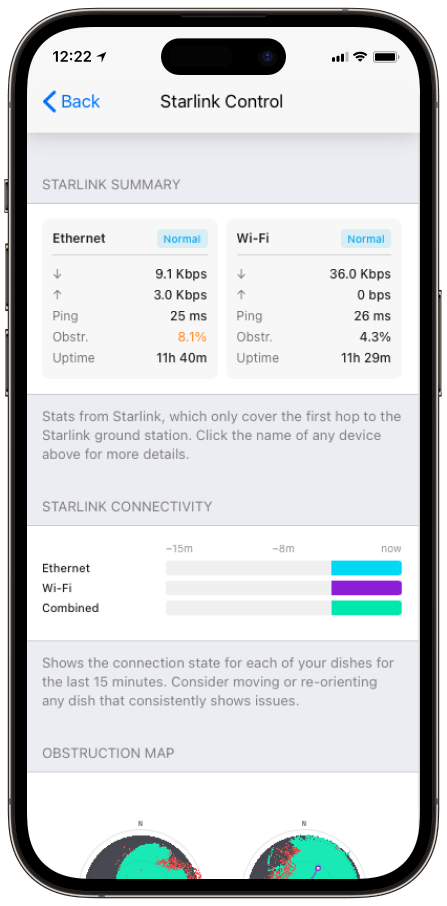
Speedify, an app that uses all of your internet connections at the same time, including one or more Starlink dishes, shows all four for every connected Starlink dish on one Starlink Summary card in its Starlink Control Center. Below: what each number means, and what to do when one looks wrong.
Monitor your Starlink dish performance inside Speedify.
Starlink Internet Connection Drops Happen to Everyone
Speedify measures thousands of Starlink users in more than 140 countries. In September 2026, fixed Starlink dishes went offline for about 38 minutes a day on average, and Starlink dishes on RVs and boats for about 46 minutes a day.
All Starlink dishes also see short dropouts roughly every 15 seconds as the Starlink internet connection switches from one moving satellite to the next. Even a perfectly installed Starlink dish goes offline, and about 7 in 10 Starlink users on Speedify use Starlink together with a second internet connection, like 4G/5G cellular.
What Speedify’s Starlink Summary Card Shows for Each Starlink Dish
- Download and upload speed. The current speed of each Starlink dish in Mbps, measured at the Starlink dish itself.
- Ping. How long data takes, in milliseconds, to reach the Starlink ground station (the Starlink site on the ground that links the satellites to the internet) and come back. It isn’t measured to a public speed test server.
- Obstruction. How much of the Starlink dish’s view of the sky is blocked.
- Uptime. How long the Starlink dish has stayed online since its last drop.
- Status. What the Starlink dish reports about itself: Normal, Searching, or another condition.
These numbers only cover the trip from your Starlink dish, through the satellite, to the Starlink ground station. So they show how the Starlink part of your internet is doing, apart from the rest of the internet. Click a Starlink dish’s name to open its full details.
How to Read Starlink Ping, Speed and Obstruction on the Summary Card
A high obstruction number explains most Starlink problems. Your Starlink dish follows satellites across a wide patch of sky, so anything in that patch, like a tree, a pole or a roofline, interrupts the Starlink internet connection. Starlink explains this in its Obstructions Explained article.
Ping goes up for a moment during each satellite switch; ping that stays high points to a busy Starlink network or something blocking the view. Speed goes up and down with how busy the Starlink network is and with anything blocking the view. For the same numbers in Starlink’s own tools, see Starlink’s usage statistics article.
How Speedify Keeps You Online When the Summary Card Numbers Look Bad
Speedify does more than show these numbers. It watches how each Starlink dish is doing, live, and sends your traffic over every working internet connection at the same time.
When one Starlink dish gets more blocked or slows down, Speedify, which measures every internet connection itself, moves your traffic to your other internet connections, like a second Starlink dish, 4G/5G cellular, Wi-Fi or Ethernet, without cutting off what you’re doing. With one Starlink dish and nothing else, Speedify can show the numbers but can’t add speed or stop drops: it needs a second internet connection.
Who Gets the Most from the Starlink Summary Card
- Anyone working out why Starlink is slow. The Summary card shows whether the problem is on the Starlink side (a blocked view, low speed at the Starlink dish) or somewhere farther along.
- People running two or more Starlink dishes. Speedify lists every Starlink dish on one card, so you can compare them side by side instead of switching between them.
- People who look after remote sites. Uptime and status tell you how each Starlink dish is doing without a trip to the site.
Turn Your Starlink Dish’s Numbers into Steadier Internet with Speedify
The Starlink Summary card tells you what each Starlink dish is doing right now. Speedify decides what to do about it, using your Starlink dishes and other internet connections together, so a dip on one of them doesn’t reach your video calls, games or downloads. For the full tour, see how to use Speedify’s Starlink Control Center, or see how Speedify combines internet connections.
Speedify
Get started with Speedify today.
Combine Wi-Fi, 4G/5G cellular, Ethernet, Starlink, and more into one faster, steadier connection. Free to try — no credit card required.
🚀 Speed
Faster uploads and downloads by bonding all your connections at once.
📶 Stability
Automatic failover in under a second when any connection drops.
🔒 Security
AES-256 encryption on every connection, on every network you join.



15M+ downloads worldwide. 75K+ five-star reviews on iOS and Android.