


Get Solid Internet Connectivity for Your Ecamm Live Streams
This article explains how to use Ecamm Live and Speedify together on your Mac to make sure your live stream is hassle-free.
You most surely experienced network related issues such as low quality video, choppy and laggy streams, buffering and even disconnects from the streaming servers when streaming with Ecamm Live. And this was regardless of the streaming platform – Twitch, YouTube, Facebook Live or any other.
A solid Internet connection is a must have for any live streamer. But do not mistake solid with fast. Even if you’re on a 1000 Mbps fiber Internet connection, you can still have problems, like temporary outages, ISP throttling, Internet censorship or local network equipment issues.
This is where Speedify comes in – it is the only app that can combine multiple internet sources into one bonded super-connection for more stable and secure live streaming, video calling, and web browsing.
<1 sec
With Speedify, your internet stays on when one connection fails.
When one of your internet connections drops, Speedify shifts your traffic to your remaining connections in under a second — so calls don’t cut out and downloads don’t stall.
Should you have a backup 4G, 5G, Starlink, or cable internet connection?
Yes — every internet connection goes down, including Starlink, which drops for ~34 minutes a day on average. A backup connection from a different provider means one outage never takes you fully offline. The most common options are a 4G/5G cellular hotspot, a cable or DSL line, or a second satellite dish.
4G/5G cellular
Works anywhere. Just a SIM or hotspot — no installation needed.
Learn more →Cable / DSL
Best for fixed locations. Different network, so outages rarely overlap.
Learn more →Second Starlink
Adds redundancy and throughput for remote sites or heavy usage.
Learn more →Speedify bonds any two connections into one — automatic failover, more speed, no dropped calls.
Try Speedify free →


3 Steps to Use Ecamm Live with Speedify
Step 1 – Connect all available Internet sources to your Mac
If you’re streaming from your computer, use one or multiple of the following:
- Wired Ethernet Connection
- Wi-Fi Hotspot
- Tethered Smartphone
- External USB 5G / 4G LTE cellular adapter
Tethering an iPhone or iPad? Read This!
When you connect an iPhone or iPad to your Mac via USB, Ecamm Live will by default configure it as a camera source which unfortunately will prevent it from being able to share its internet connection with your Mac. If you plan on using a USB tethered iOS device as an Internet source you will need to disable this function in Ecamm Live by performing the following steps:
- Connect your iPhone to your Mac via USB and unlock your smartphone.
- Launch Ecamm Live and go to the Camera menu > Include in Switcher and uncheck your iPhone or iPad from the list there.
- Unplug, then reconnect your phone.

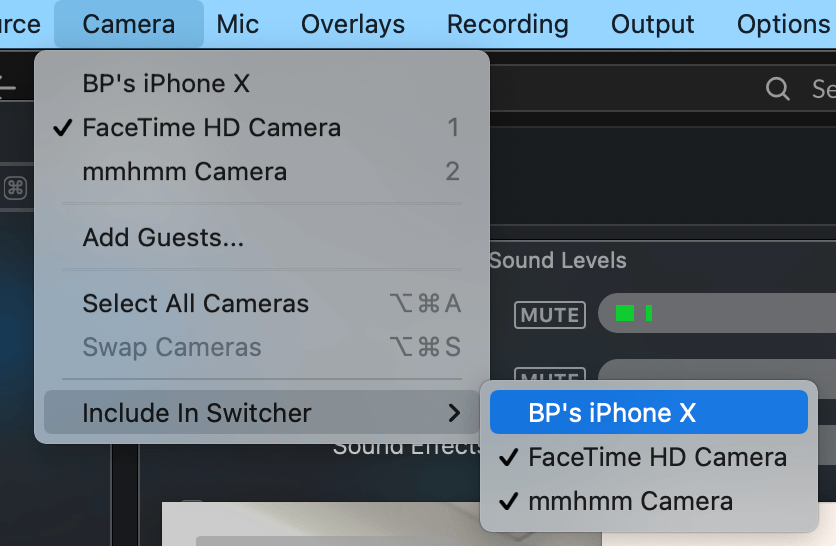
Once you complete the steps above for the first time, just follow the steps below – launch Speedify and start live streaming with Ecamm.
Step 2 – Start Speedify and connect to a server
If you don’t have a Speedify subscription yet, you can get it from our website store or the Apple App Store.
Run Speedify and log into your account. All the active Internet sources you connected at step 1 should be recognized by Speedify.
All you have to do now is choose a server to connect to:
- if you have a dedicated server, connect to that. You will get the best performance Speedify can offer for live streaming.
- fastest server – that will connect you to the server that should deliver the best performance;
- you can also manually choose a server in a location near the ingest servers for Ecamm Live or the streaming platforms – Twitch, YouTube, etc.
Step 3 – Configure Ecamm Live and start live streaming
Follow the instructions on the Ecamm website to get started for live streaming.
Whenever you’re ready, just start the live stream. You will get the best Internet connectivity by running Speedify, thus, avoiding issues such as low quality, choppy and laggy videos, buffering and even disconnects from the streaming server.
Having issues with Ecamm Live streaming while using Speedify?
Check out this article to troubleshoot potential issues.
If this doesn’t help, make sure you contact us and we’ll assist you with your live stream.
What Speedify Does to Improve Ecamm Live Streaming
When you live stream, it’s best you are not dependent to a single Internet connection, however good that may be. Some of the common reasons are above. That’s why you should definitely consider using all your available Internet sources at once while you live stream.
Speedify enables you to do exactly that – simultaneously use any connections you might have, including:
- one or multiple wired Ethernet connections;
- one or multiple Wi-Fi networks – your own, public hotspots nearby;
- one or multiple cellular sources – via tethered smartphones, external USB 5G / 4G LTE adapters, MiFi devices.
For best results, every connection should come from a different provider. And that’s to allow you to keep on live streaming if one ISP has issues / outages.
Speedify Makes Ecamm Live Streaming Better
Speedify is tailored and optimized for live streaming. Its default settings will automatically prioritize live streams and deliver the best performance for those.
Our latest tests on live streaming with Ecamm Live on Twitch showed that Speedify can improve the average bitrate of a slow and spotty Wi-Fi connection with up to 125%. And that’s not counting the failover protection it brings to the table – the stream didn’t experience any issues.
Given the above, we strongly recommend you use Speedify at all times, at least when live streaming, working remotely, playing games online. That’s the recipe for best Internet connectivity anywhere.
Doc Rock of Ecamm Live spoke recently with Speedify’s Alex Gizis on enhancing your Mac live streams – see the video below.
Alex and the Speedify team are always exploring the latest in networking and security technology—like 5G, 6G, WiFi 7, laser and satellite internet—and sharing it in new discussion content across YouTube, TikTok, Instagram, and LinkedIn every week.
Got a tech question? Let's go deeper! Pop into Speedify Office Hours live every Wednesday at 10 AM Eastern. Speedify CEO Alex Gizis and our network engineers are standing by to break down your questions about networks, tech updates, and Speedify features.


Speedify
Get started with Speedify today.
Combine Wi-Fi, 4G/5G cellular, Ethernet, Starlink, and more into one faster, steadier connection. Free to try — no credit card required.
🚀 Speed
Faster uploads and downloads by bonding all your connections at once.
📶 Stability
Automatic failover in under a second when any connection drops.
🔒 Security
AES-256 encryption on every connection, on every network you join.




15M+ downloads worldwide. 75K+ five-star reviews on iOS and Android.