

How to Stop Zoom From Freezing on Slow Internet
A Zoom call can stay smooth even on a slow or crowded internet connection when more than one connection is carrying the video. Speedify is an app that combines two or more internet connections at once, like home Wi-Fi and a phone’s 4G/5G cellular, into one faster, steadier connection. If one connection stalls or drops, Speedify shifts the Zoom traffic to the other, so the picture keeps moving instead of freezing mid-sentence.
Speedify keeps you working when the home connection gives out
How do I use WiFi and 4G/5G cellular at the same time with Speedify?
Pick your two internet connections and your device below and we'll take you to the step-by-step setup guide.


What Makes Zoom Freeze: Bandwidth, Jitter and Packet Loss
- Bandwidth shortage. Zoom needs roughly 3 to 4 Mbps for a stable HD call, and that climbs fast with screen sharing. A household already streaming 4K leaves Zoom fighting for scraps.
- Jitter. A fast connection can still freeze video if packets arrive at uneven intervals, and Zoom’s buffer only smooths over so much before the picture stutters.
- Packet loss. A dropped packet forces Zoom to wait for a retransmission or drop a frame, and a Wi-Fi dip lasting even a second is enough to cause it.
Any one of these degrades a call. All three together turn a meeting into a slideshow.
When a call drops completely instead of freezing, the cause is usually one internet connection failing: maintenance on the ISP’s network, a router or modem that needs a restart, or a congested cell tower or used-up full-speed allowance on a 4G/5G cellular plan.
Why Closing Browser Tabs Does Not Stop Zoom Freezing
Closing browser tabs barely moves the needle. The real competition for bandwidth comes from background updates, other people’s devices, and a router managing dozens of connections on one channel. A household that needs reliable internet for working from home cannot solve that by trimming browser windows, since the bottleneck sits upstream of the laptop entirely.
When someone else in the house is streaming, the home Wi-Fi is shared, but a phone’s 4G/5G cellular is not. Speedify draws on both connections at once, so the call gets bandwidth the rest of the house is not using. On the computer running Speedify, Speedify’s Streaming Mode, on by default, also gives real-time traffic like Zoom priority over downloads.
How Speedify Combines Wi-Fi and 4G/5G Cellular for Steadier Zoom Calls
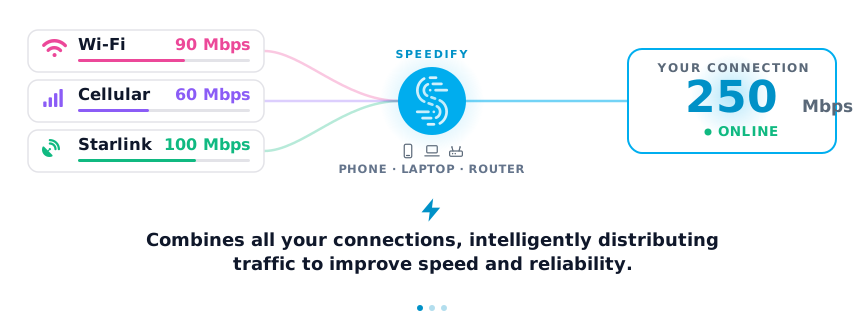
Speedify treats every available connection (Wi-Fi, 4G/5G cellular, Ethernet, Starlink and satellite) as one combined pool of bandwidth rather than a single point of failure. A laptop on home Wi-Fi and a phone acting as a mobile hotspot work together: Speedify splits the Zoom traffic across both, balances the load in real time and pulls more traffic through whichever connection is currently fastest.
Combining connections is what keeps calls steady in homes where several people work, learn and stream on the same network at once.
Fiber, Wi-Fi or Cellular: Find What Makes Zoom Freeze
Before paying for fiber, plug the laptop into the router with an Ethernet cable and join a test call. If Zoom stops freezing, the problem is the Wi-Fi, and a faster plan will not fix it; move closer to the router or add a second connection. If Zoom still freezes on Ethernet, the internet connection itself is the limit. On 4G/5G cellular, calls freeze when the signal weakens or the tower is busy, so cellular works best combined with Wi-Fi or Ethernet in Speedify rather than on its own.
There are three ways to stop depending on one internet connection. A business plan from the same ISP costs more and still goes down when that ISP has an outage. A second internet connection from a different provider, ideally a different type (cable plus 4G/5G cellular, for example), covers that, but switching over by hand after the first one fails still drops the call. Speedify uses both internet connections at the same time, so the call carries on over whichever one is working.
Redundant Mode, Quick Wins, and a Before-Call Checklist
For calls that cannot afford a dropped frame (board meetings, client pitches, interviews), Speedify’s Redundant mode sends the same data across every connection at once, so a lost packet on one connection is covered by its duplicate on the other.
A short pre-call routine catches most problems before they start:
- Confirm at least two connections are connected in Speedify (Wi-Fi plus 4G/5G cellular, or Wi-Fi plus Ethernet).
- Leave Streaming Mode on (it is the default) so Speedify gives the call priority.
- Pause large downloads or updates on other devices in the house.
- Join the call a minute early to confirm both connections are stable.
Combining connections has limits. Speedify needs at least two working connections to combine, and it cannot invent bandwidth that does not exist between them, so a household with one weak signal and no second connection will not see the same gains. Download Speedify and add a second connection before the next big call, rather than during it.
Stop Zoom From Freezing: FAQ
Why does Zoom freeze even when my speed test looks fine?
A speed test measures peak speed for a few seconds; a call needs steady delivery for an hour. Jitter and short bursts of packet loss freeze video even on a fast connection. Speedify sends the call over two connections, so a burst on one is covered by the other.
Does Speedify work with only one internet connection?
Speedify runs on one connection and still encrypts it, but it needs at least two active connections, such as home Wi-Fi and a phone’s 4G/5G cellular, to combine them.
Will Speedify fix a slow internet plan?
Speedify cannot make one slow connection faster. It adds the speed of a second internet connection, such as a phone’s 4G/5G cellular, to the first, so a slow plan plus cellular gives Zoom more bandwidth than either alone.
How fast does Speedify react when an internet connection drops mid-call?
Speedify moves traffic to the working connection as soon as one drops, so Zoom keeps running instead of freezing.
Speedify
Get started with Speedify today.
Speedify combines Wi-Fi, 4G/5G cellular, Ethernet, Starlink and satellite into one faster, more reliable internet connection. Free to try: 5 GB a month with a free account. No credit card required.
🚀 Speed
Faster uploads and downloads, because Speedify uses all your internet connections at once.
📶 Stability
If one internet connection drops, Speedify moves your traffic to the others in milliseconds.
🔒 Security
AES-256 encryption on every internet connection, on any network you join.



15M+ downloads worldwide. 75K+ five-star reviews on iOS and Android.