Speedify 16 Adds Local Load Balancer Bonding Mode
Speedify normally encrypts your internet traffic and carries the traffic through Speedify’s VPN servers, across every internet connection you have. Some setups don’t need the VPN server. A retail network, a kiosk or an embedded device may want several internet connections and fast failover without the overhead of routing traffic through a VPN server.
The short version: Speedify 16, released on 22 October 2025 for Android, iOS, macOS, Windows, Linux and OpenWrt, adds Local Load Balancer bonding mode. Local Load Balancer runs entirely on your device or router and spreads internet traffic across your internet connections without Speedify’s VPN servers and without encryption. Speedify 16 also turns on the Performance Enhancing Proxy (PEP) by default on router devices, including some OpenWrt routers. PEP speeds up data transfer on wireless, long-range and high-latency (long-delay) internet connections. The Traffic graph now shows download and upload separately, and performance improves with packet loss and in Redundant mode, the mode that sends the same traffic over every internet connection at once.
In this release:
- Local Load Balancer bonding mode, without VPN servers or encryption
- Routers: PEP on by default, plus new rules for choosing which traffic PEP speeds up
- Download and upload shown separately in the Traffic graph
- Better performance with packet loss and in Redundant mode
Local Load Balancer Bonds Internet Connections Without a Speedify Server
Local Load Balancer skips the Speedify server. The load balancer runs entirely on your device or router and sends each new download, call or web page your apps open to the best internet connection available: Ethernet, Wi-Fi, 4G or 5G cellular, Starlink or other satellite. Local Load Balancer weighs three things:
- Performance: latency (the round-trip delay), packet loss (data that never arrives) and jitter (how much the delay varies)
- Cost: cheaper or unlimited internet connections such as Wi-Fi come before metered cellular
- Reliability: dead or unstable hotspots get skipped
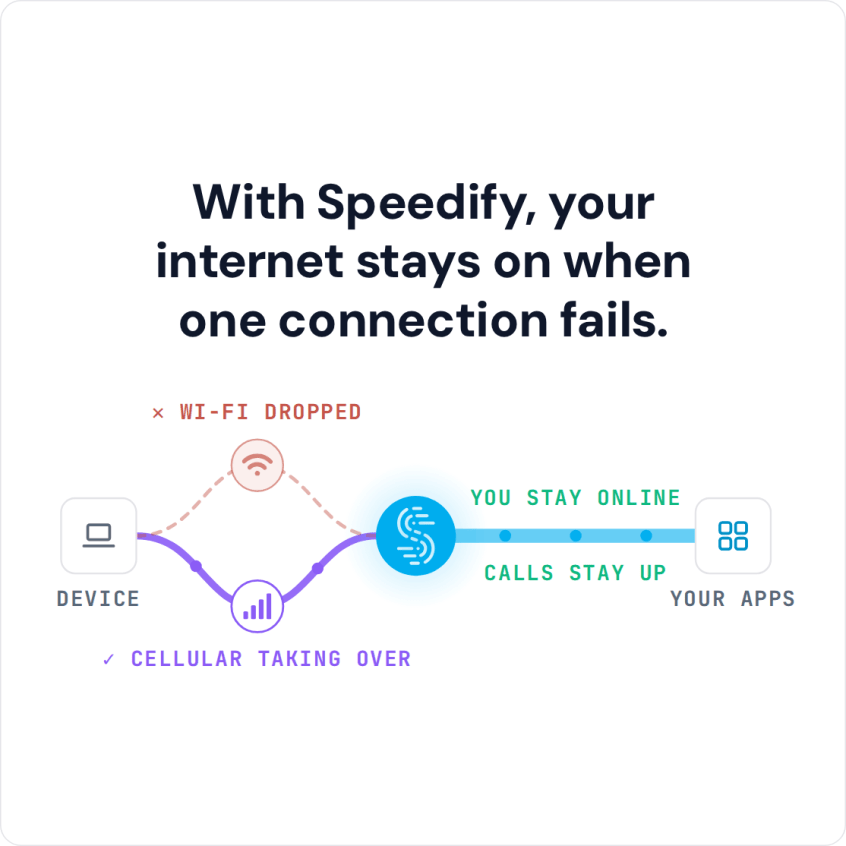
Local Load Balancer also follows the priority you give each internet connection. Primary internet connections carry traffic first, balanced across all Primary internet connections. Secondary internet connections take over only if every Primary internet connection fails, and Backup internet connections only if every Primary and Secondary internet connection fails. Set every internet connection to Primary to spread the load. For plain failover, set your main internet connection to Primary and the rest to Secondary.
To turn on Local Load Balancer, open the ≡ menu in the top left of the Speedify app, go to Bonding Mode and choose Local Load Balancer. The top status bar then shows Local Load Balancer. On a device without the Speedify app interface, run speedify_cli connect proxy from the Speedify command line. The Local Load Balancer guide has the details.
What Local Load Balancer Gives Up Compared With Speedify’s VPN Bonding
Without a Speedify server, Speedify doesn’t encrypt your traffic. Failover still happens, usually within a couple of seconds, but active sessions such as file uploads or video calls may break when an internet connection drops. Regular bonding keeps sessions running. A single stream, such as a large upload or a video stream, stays on a single internet connection instead of being split across several internet connections. Redundancy and stream optimization for calls and live video aren’t available either.
If you need encryption, single-stream bonding or Speedify’s servers, switch back to another bonding mode. Local Load Balancer fits setups that want Speedify’s failover and load spreading but prefer to keep traffic local and unencrypted.
The Performance Enhancing Proxy Is On by Default on Speedify Routers
The Performance Enhancing Proxy (PEP) is a feature built into Speedify that speeds up web pages, downloads and uploads. On a Speedify router, PEP takes over the back-and-forth checks that slow this traffic down on long-distance and wireless links, then restores the traffic to the usual form on Speedify’s servers. PEP was first built for satellite internet, where those checks take the longest, and PEP also eases the load on a router’s small processor. The PEP guide has the details.
Speedify 16 turns PEP on by default on router devices, including some OpenWrt routers. The list of routers that run Speedify covers the supported models. Speedify 16.0.2 lets you choose which traffic PEP speeds up, by IP address range or by type of traffic. Speedify 16.0.3 makes PEP faster and handles errors better, and fixes some traffic, such as outgoing email, failing through PEP.
To turn PEP on or off, open Settings, then Session Settings, then Performance Enhancing Proxy, and choose On or Off. On the command line, speedify_cli pep on and speedify_cli pep off turn PEP on and off.
Other Fixes and Changes in Speedify 16
- The Traffic graph at the top of the Speedify dashboard now shows download and upload usage separately.
- Performance improvements with packet loss and in Redundant mode.
- Fixed in 16.0.3: Speedify using too much of the device’s processor while idle.
- Fixed in 16.0.3: Enhance Streaming turning off when you switched to Speed mode.
- Fixed in 16.0.3: Pair & Share cellular sharing devices sometimes showing the wrong ISP (internet provider) information.
- On OpenWrt, fixed in 16.0.3: the Speedify settings file moved to the standard OpenWrt settings folder, to avoid conflicts with other software.
How to Update to Speedify 16
Speedify 16 is out for Android, iOS, macOS, Windows, Linux and OpenWrt. Update every device you use Speedify on, routers included.
- Download Speedify
- All Speedify release notes
- How Local Load Balancer works
- How the Performance Enhancing Proxy works
Found a problem in Speedify 16? Tell Speedify support.
Update Speedify Now
Speedify is the only app that seamlessly combines all of your connections, including WiFi, 4G, 5G, Ethernet, and Starlink, into one stronger connection to keep you online and secure with increased bandwidth, reduced latency, and failover protection.
You can easily share and combine LTE, 4G and 5G cellular connections between devices to create a faster, more reliable connection for everyone using Speedify’s cellular sharing feature, Pair & Share
Make sure you update Speedify on all your devices, including computers, mobile devices and supported routers!