
Want faster upload and download speeds, and more reliable Starlink internet on your Mac? Run your Starlink connection and a second Wi-Fi network at the same time.
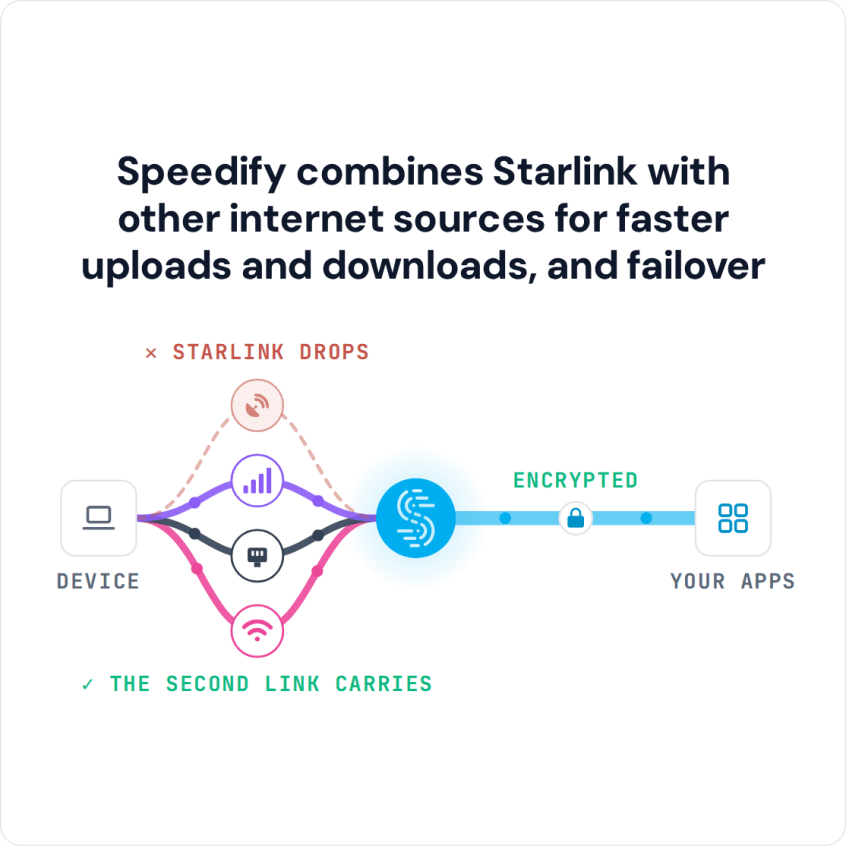
Speedify is an app that combines two or more internet connections at once – such as Starlink and another Wi-Fi network – so you get faster uploads and downloads and stay online if one connection drops.
This guide shows how to combine Starlink Wi-Fi with a second Wi-Fi connection on macOS using Speedify.
Speedify bonds your Starlink with another Starlink, 4G/5G cellular, cable, DSL and splits traffic across them. If Starlink drops mid-call or mid-transfer, Speedify fails over to your remaining connections instantly.
NOTE: For best results, use internet connections from different sources. Joining one router over both Ethernet and Wi-Fi won't help.
Speedify combines Starlink with other internet sources for faster uploads and downloads, and failover
Increase Bandwidth and Connection Stability on macOS by Combining Starlink with a Secondary Wi-Fi Network
3 Steps to Combine Starlink Internet and Wi-Fi on a Mac
Step 1: Connect to Your Starlink Wi-Fi Hotspot
First - make sure you setup your Starlink according to the instructions you received in the package. This includes setting up your new Starlink Wi-Fi network, along with your password.
Click the Wi-Fi icon in the menu bar. (If Wi-Fi is off, choose "Turn Wi-Fi on.") Select the Wi-Fi hotspot associated with your Starlink connection and enter the password to connect.
Step 2: Configure and Connect your USB Wi-Fi Adapter
You can use a secondary Wi-Fi connection on your Mac computer if it's running MacOS version 11 (Big Sur) or older. You’ll need a compatible USB Wi-Fi adapter and any corresponding software or drivers from the device manufacturer. Instructions may vary for your specific make or model.
Connect your USB Wi-Fi Adapter to a USB port on your Mac. Install the necessary drivers and Wireless Utility for your USB Wi-Fi network adapter. Once complete, you may be required to restart your Mac.
Turn On the Wireless Utility of your USB Wi-Fi Network Adapter.
Next, open the Wireless Utility and select and connect to a network from the list that appears. Be aware that you usually have to enter a password for private networks.
You should now be connected to a Wi-Fi network via your USB Wi-Fi Adapter. To confirm your connection status, visit System Preferences, click Network, and look for your new adapter in the list on the left.
NOTE: If you’re using MacOS Monterey (version 12) or newer, you will not be able to use a USB Wi-Fi adapter, as Apple removed support for these. Instead, here are some alternatives:
- if you’re at home and have a wireless router, you can choose to connect your Mac to it via wired Ethernet instead.
- if the Wi-Fi hotspot is public, then you can try using a tethered iPhone or Android smartphone as a secondary connection.
Step 3: Download and Install Speedify
Last but certainly not least, download and install Speedify. Once running, Speedify will automatically detect your Starlink connection and any other available Internet connections and combine them for increased speed, security, and stability.
Need to keep several devices connected in areas with limited or spotty network coverage, like event venues, remote locations or when traveling? Get consistent and uninterrupted online activity for all your devices using Speedify's Pair & Share functionality, which allows you to share cellular data between multiple devices wirelessly.
By pairing devices, you can effectively distribute your cellular connection across them, improving overall performance, especially when other network options like Wi-Fi may be slow or unstable.
You can manage settings, view statistics, and even apply limits to individual connections by either clicking/tapping on them from the Dashboard or by navigating to the desired connection through the main Settings menu.
Speedify will work quietly in the background to optimize performance including prioritizing streaming web traffic to avoid stuttering, buffering and disconnects.
When using Starlink Internet, Speedify is the only VPN that makes your online experiences faster, more reliable, and more secure.
Speedify
Get started with Speedify today.
Combine Wi-Fi, 4G/5G cellular, Ethernet, Starlink, and more into one faster, steadier connection. Free to try — no credit card required.
🚀 Speed
Faster uploads and downloads by bonding all your connections at once.
📶 Stability
Automatic failover in under a second when any connection drops.
🔒 Security
AES-256 encryption on every connection, on every network you join.



15M+ downloads worldwide. 75K+ five-star reviews on iOS and Android.