
Ubuntu Linux can use Starlink Wi-Fi and a second Wi-Fi network at the same time once you add a USB Wi-Fi adapter, so one network covers for the other when it slows down or drops.
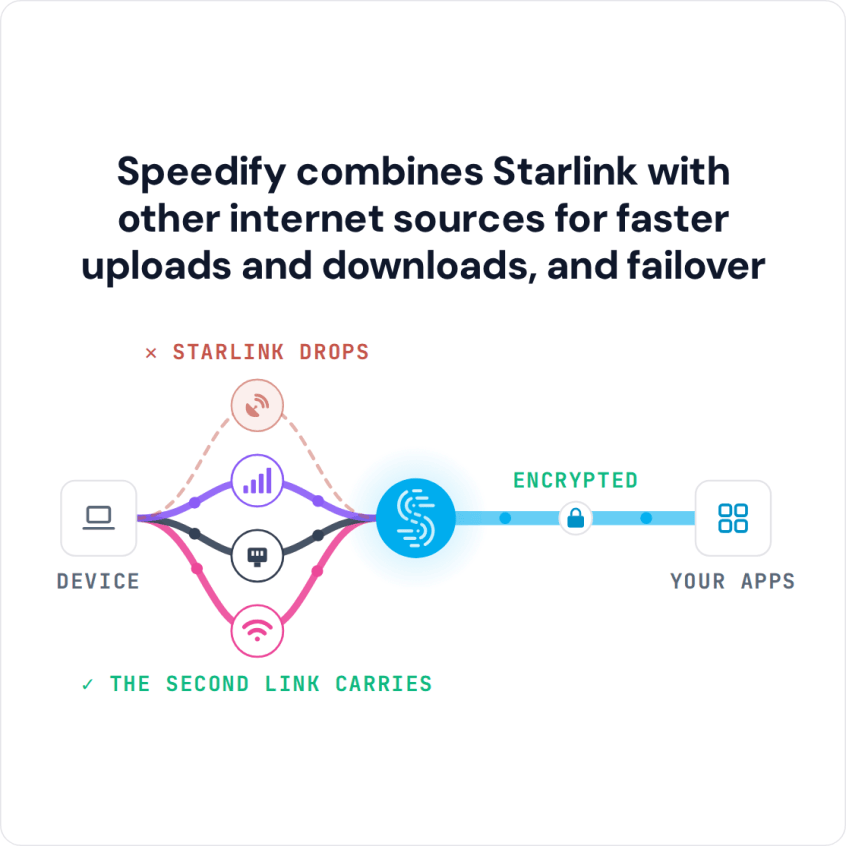
Speedify is an app that combines two or more internet connections at once, such as Starlink and another Wi-Fi network, so you get faster uploads and downloads and stay online if one connection drops. Speedify needs both networks connected: on Starlink alone, it works as an encrypted VPN and cannot stop Starlink itself from dropping.
This guide shows how to combine Starlink Wi-Fi with a second Wi-Fi connection on Ubuntu Linux using Speedify.
Note: Combine internet connections from different sources. Connecting to the same router over both Wi-Fi and Ethernet does not add speed, because both share one internet connection.
3 Steps to Combine Starlink Internet and Wi-Fi on Ubuntu Linux
Step 1: Connect to Your Starlink Wi-Fi Hotspot
First, set up your Starlink with the instructions that came in the box. This includes your Starlink Wi-Fi network name and password.
On your Ubuntu computer, open the system menu at the right side of the top bar and click the arrow next to Wi-Fi. Choose your Starlink Wi-Fi network and enter its password to connect. On Ubuntu 22.04 and earlier, choose Wi-Fi > Select Network instead.
Step 2: Connect a USB Wi-Fi Adapter to Your Second Wi-Fi Network
Connect your USB Wi-Fi adapter to a USB port on your Ubuntu computer.
Open the system menu at the right side of the top bar and find the Wi-Fi entry for your USB adapter (its name depends on the adapter model). Open it and choose your Wi-Fi network.
Step 3: Download and Install Speedify
Download and install Speedify. Speedify is an app that combines your Starlink with the other internet connections on your device, so your internet is faster, more reliable, and more secure.
Once running, Speedify finds your internet connections on its own and splits your traffic across them. If Starlink drops, Speedify moves your traffic to the internet connections that still work. Video calls and live streams get priority over background downloads and updates.
To see how each internet connection is doing, or to set a data limit on one, click or tap it in Speedify.
Speedify's cellular sharing adds more 4G/5G cellular: phones and computers running Speedify on the same local network share their 4G/5G cellular with each other.
Speedify
Get started with Speedify today.
Speedify combines Wi-Fi, 4G/5G cellular, Ethernet, Starlink and satellite into one faster, more reliable internet connection. Free to try: 5 GB a month with a free account. No credit card required.
🚀 Speed
Faster uploads and downloads, because Speedify uses all your internet connections at once.
📶 Stability
If one internet connection drops, Speedify moves your traffic to the others in milliseconds.
🔒 Security
AES-256 encryption on every internet connection, on any network you join.



15M+ downloads worldwide. 75K+ five-star reviews on iOS and Android.