
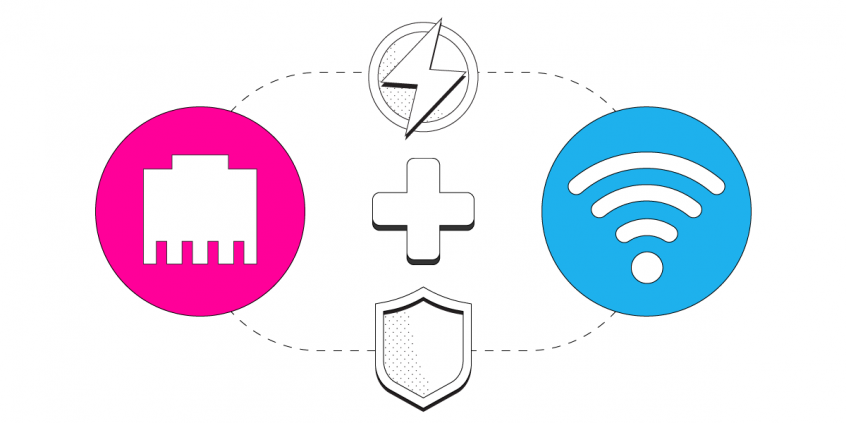
Yes, you can have Starlink and a cable internet service like Spectrum, or DSL, at the same time, and your Windows PC can use both at once with Speedify. If one of them drops, Speedify switches your traffic to the other automatically.
Connect your PC to the Starlink router with an Ethernet cable, connect it to your cable or DSL router over Wi-Fi, then run Speedify to use both together. The steps are below.
Speedify combines Starlink with other internet sources for faster uploads and downloads, and failover
Starlink internet connection drops happen to everyone
Speedify measures thousands of Starlink users in more than 140 countries. In September 2026, fixed Starlink dishes went offline for about 38 minutes a day on average, and Starlink dishes on RVs and boats for about 46 minutes a day.
All Starlink dishes also see short dropouts roughly every 15 seconds as the Starlink internet connection switches from one moving satellite to the next. Even a perfectly installed Starlink dish goes offline, and about 7 in 10 Starlink users on Speedify use Starlink together with a second internet connection, like 4G/5G cellular.
Is Starlink DSL? No, and That’s Why Starlink and DSL Work Well Together
Starlink isn’t DSL. Starlink is satellite internet: your Starlink dish talks to satellites overhead. DSL comes over your telephone line, and cable internet like Spectrum comes over your provider’s cable line. Starlink lists download speeds of 45 to 280 Mbps and upload speeds of 10 to 30 Mbps. Cable and DSL speeds depend on your provider and plan.
Because they reach you in different ways, they rarely fail at the same time. Starlink slows down or drops when something blocks your Starlink dish’s view of the sky, when the Starlink network is busy in the evening, and for a moment each time your Starlink dish switches satellites, about every 15 seconds. None of that affects a cable or DSL line. A fault on your cable or phone line doesn’t affect Starlink. So if you add Starlink, keeping your cable or DSL service and using both is much steadier than either one alone.
3 Steps to Use Starlink by Ethernet Cable and Cable or DSL by Wi-Fi on a Windows PC
Step 1: Connect Your PC to the Starlink Router with an Ethernet Cable
The Starlink Gen 3 router has Ethernet ports built in. Older Starlink routers need the Starlink Ethernet Adapter, which fits between the Starlink dish’s cable and the Starlink router and gives you an Ethernet port.
Connect an Ethernet cable from the Starlink router (or the Starlink Ethernet Adapter) to the Ethernet port on your PC. If your computer doesn’t have an Ethernet port, use a USB to Ethernet adapter.
In most cases, your PC connects to the internet on its own. If it doesn’t, see these fixes for connecting a PC to wired Ethernet.
Step 2: Connect Your PC to Your Cable or DSL Router over Wi-Fi
Check that Wi-Fi is turned on on your PC.
Click the Wi-Fi symbol in the lower right corner of the taskbar. If you’re not already connected to your cable or DSL Wi-Fi network, turn on Wi-Fi in the menu that opens and pick your network. Enter the Wi-Fi password if it asks for one.
If your PC sits closer to your cable or DSL router, you can swap them: an Ethernet cable to the cable or DSL router, and Wi-Fi to Starlink. Speedify works the same way.
Step 3: Download and Install Speedify on Your PC
Last, download and install Speedify. Once it’s running, Speedify finds every internet connection your PC has and uses them together, for more speed and steadier internet. You should see both your Starlink Ethernet connection and your cable or DSL Wi-Fi connection in the Speedify app.
Click either internet connection on the Speedify dashboard, or open it in Speedify’s settings, to see its stats, set a data limit, or set its priority. Set cable or DSL to Backup if you want Speedify to use it only when Starlink drops.
Speedify works in the background and puts video, calls and streams first, so they’re less likely to stutter, buffer or cut out. Speedify needs that second internet connection: with Starlink alone, it can’t add speed or stop drops. Speedify also encrypts all your internet traffic, at home, at work or on the go.
Speedify
Get started with Speedify today.
Combine Wi-Fi, 4G/5G cellular, Ethernet, Starlink, and more into one faster, steadier connection. Free to try — no credit card required.
🚀 Speed
Faster uploads and downloads by bonding all your connections at once.
📶 Stability
Automatic failover in under a second when any connection drops.
🔒 Security
AES-256 encryption on every connection, on every network you join.



15M+ downloads worldwide. 75K+ five-star reviews on iOS and Android.