

Setting Up Multiple Starlink Dishes for Better Internet
If you’re experiencing slow speeds or frequent disconnections with your current Starlink setup, you might be wondering: how to add a second Starlink to your account for improved performance.
Many users spend time adjusting dish positioning, restarting equipment, or contacting support when their internet underperforms. However, adding a second Starlink terminal to your existing setup provides measurable improvements in both speed and reliability when used together at once with Speedify.
Starlink disconnects all the time for ALL Starlink users. The Speedify Starlink Index report found that Starlink connections are down for an average of ~33 min per day. Plus, all Starlink dishes experience small drops and packet loss every 15 seconds, when the moving Starlink satellites hand off the connection to the next satellite overhead.
The best way to fix Starlink's connection drops is to combine your Starlink connection with another internet connection, such as 4G/5G cellular, cable, fiber, DSL, or another Starlink connection. Speedify makes this possible with channel bonding.
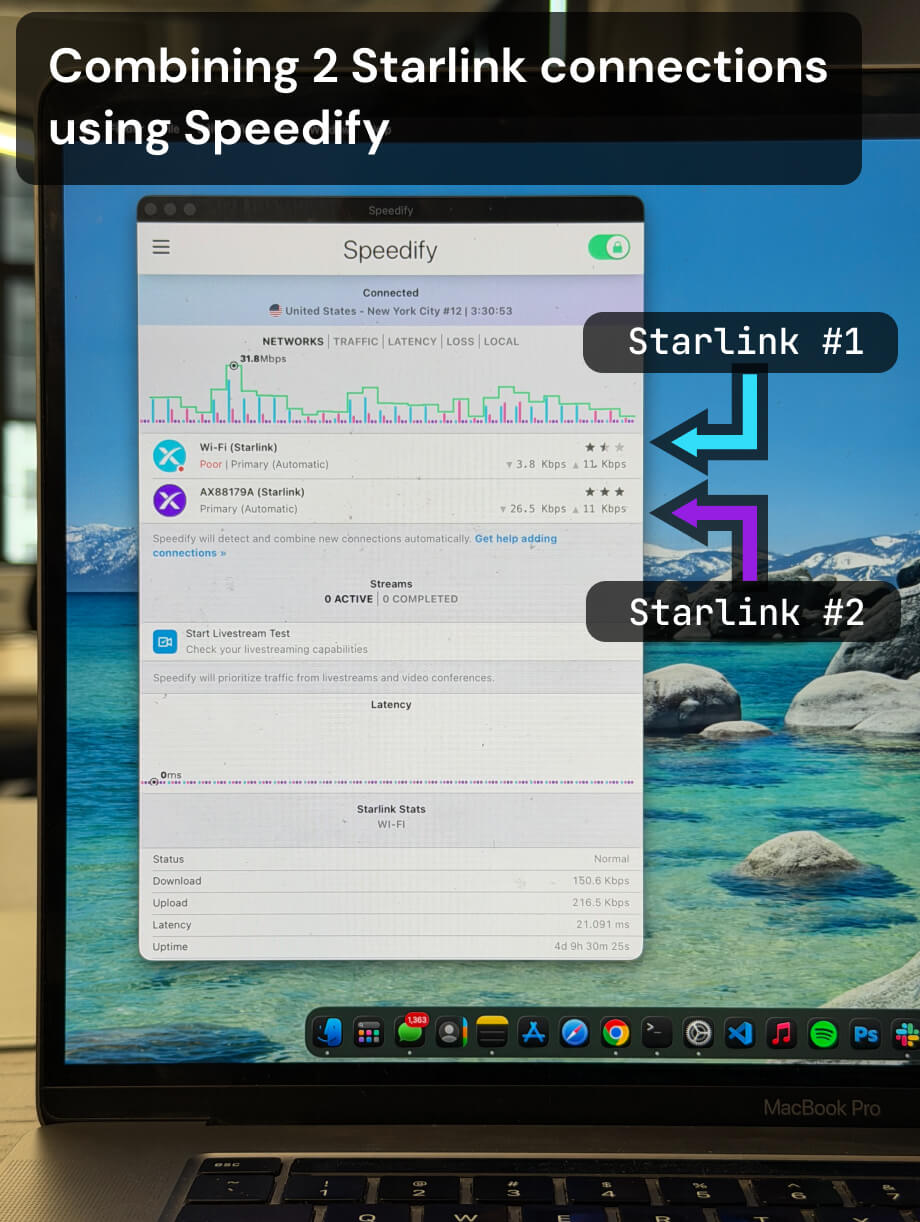
Multiple Starlink dishes, one faster and more reliable connection.
Speedify bonds all your Starlink dishes simultaneously — so you get the combined bandwidth of all your Starlink dishes, and stay online when any one drops.
Can You Add Multiple Starlink Dishes to One Account? How to Do That
You CAN add multiple Starlink subscriptions to your account.
Important considerations: Each additional Starlink requires both hardware purchase and a separate subscription. You cannot share one subscription between multiple dishes at the same location.
Method 1: Ordering the Second Starlink Through Your Account
- Log into your Starlink account at starlink.com
- Navigate to the “Subscriptions” tab
- Click “Add Subscription” in the top right corner
- Select your desired plan and complete the purchase
- Each dish requires its own monthly subscription
Method 2: Activating Existing Starlink Hardware
If you already have a second Starlink kit, all you have to do is activate it. This process doesn’t cancel or modify your current Starlink subscriptions.
- Visit starlink.com/activate
- Select “Existing Account” during setup
- Follow the activation prompts for your additional dish
- Your new terminal will be added to your current account
Why Add a Second Starlink to Your Account
The most important reason for using two Starlinks together is getting faster, more reliable Internet. This way, you can forget about that slow and often disconnecting Internet.
Most connectivity problems stem from factors beyond your control:
Satellite congestion: During peak usage hours, available satellites serve multiple users simultaneously, reducing individual connection speeds regardless of your troubleshooting efforts.
Weather interference: Rain fade, snow accumulation, or atmospheric conditions affect satellite communication. Having two dishes increases the likelihood that at least one maintains optimal signal.
Hardware limitations: Single dishes have physical bandwidth constraints. No amount of repositioning or equipment restarting will exceed these built-in limits.
Network maintenance: SpaceX occasionally performs satellite constellation updates that can temporarily affect service. Multiple dishes reduce the impact of these maintenance windows.
Traditional troubleshooting methods like dish repositioning, cable checking, or equipment resets address minor technical issues but cannot overcome fundamental capacity or infrastructure limitations.


By using two Starlinks at once through your account, you get:
Increased bandwidth: Two Starlink dishes can connect to different satellites in the constellation, significantly increasing your available bandwidth when properly configured.
Improved reliability: If one dish experiences signal obstruction or technical issues, the second maintains your internet connection without interruption.
Load distribution: Heavy usage scenarios like video conferences, large file uploads, and streaming can be distributed across multiple connections, preventing any single dish from becoming a bottleneck.
Geographic redundancy: Dishes positioned in slightly different locations may have varying line-of-sight to satellites, improving overall signal availability.
Using Speedify to Combine Two Starlinks
Simply having two Starlink dishes doesn’t automatically combine their performance. Connection bonding software is necessary to aggregate both connections effectively.
Speedify is the only app that allows you to combine two Starlink connections:
Connection bonding: Traffic is distributed across both dishes based on real-time performance, ensuring optimal utilization of available bandwidth.
Automatic detection: The software recognizes when multiple Starlink connections are available and begins bonding them without manual configuration.
Failover protection: Even before one Starlink connection experiences issues, traffic automatically shifts to the better performing dish without dropping active sessions.
Encryption: All bonded traffic passes through encrypted tunnels, maintaining security across multiple connection paths.
Adding a Second Starlink to Your Account: Real-World Performance Improvements and Considerations
Users implementing multiple Starlink setups typically report:
Speed increases: Combined download speeds often reach 150-250 Mbps, significantly higher than single-dish performance averaging 50-150 Mbps.
Uptime improvement: While both connections rely on the same Starlink network backend, having two dishes provides redundancy against individual hardware failures and local signal issues.
Consistent performance: Speed variations become less noticeable when load is distributed across multiple satellite connections.
Upload enhancement: Upload speeds, typically limited on single Starlink connections, improve substantially when aggregated across multiple dishes.

In terms of costs for adding a second Starlink to your Internet setup, you should think about:
Hardware costs: Each additional dish requires the full hardware purchase price, typically several hundred dollars.
Monthly subscriptions: Each dish needs its own service plan, doubling your monthly Starlink expenses.
Power requirements: Additional dishes increase power consumption, which may be relevant for off-grid installations.
Physical installation: Multiple dishes require separate mounting locations with clear sky visibility.
When Using Two Starlinks Together Makes Sense
Business operations: Companies requiring guaranteed uptime benefit from redundant satellite connections that eliminate single points of failure.
Remote work: Professionals whose income depends on reliable internet connectivity can justify the additional cost through prevented downtime.
Content creation: Video uploaders, streamers, and digital creators benefit from aggregated upload speeds that reduce file transfer times.
Large households: Families with multiple remote workers, students, and heavy streaming usage may saturate single connections during peak hours.
Critical applications: Medical monitoring, security systems, or other applications requiring constant connectivity benefit from redundant connections.
Getting Started with Your Second Starlink on Your Account
Instead of spending time troubleshooting connection issues that may be beyond your control, add a second Starlink to your account and combine both dishes with Speedify – this is a proven solution to your connectivity problems.
After getting the second Starlink and adding it to your account, just get Speedify on your computers, mobile devices and router(s) to start combining the two dishes together.
Best way to do this is combing both Starlink connection via a bonding capable router, like the Miri X510. You can also combine the two Starlink connections directly on your devices using the Speedify app.
Speedify
Get started with Speedify today.
Combine Wi-Fi, 4G/5G cellular, Ethernet, Starlink, and more into one faster, steadier connection. Free to try — no credit card required.
🚀 Speed
Faster uploads and downloads by bonding all your connections at once.
📶 Stability
Automatic failover in under a second when any connection drops.
🔒 Security
AES-256 encryption on every connection, on every network you join.



15M+ downloads worldwide. 75K+ five-star reviews on iOS and Android.