

Improve Bandwidth and Latency by Combining Two Starlink Connections on Mac
This guide shows how to use two Starlink connections together on a Mac for faster, steadier internet. You connect to your first Starlink over Wi-Fi and your second over a wired Ethernet adapter.
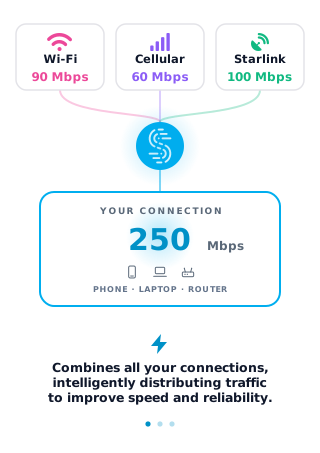
Speedify is an app that combines two or more internet connections at once, like two Starlink dishes, so you get their combined upload and download speed and stay online if one dish goes down. Every Starlink dish switches satellites on the same 15-second schedule, so for the short dropout at each switch, add 4G/5G cellular as well. On a single Starlink internet connection, Speedify still encrypts your traffic like a VPN, but cannot stop that connection from dropping. Here are the three steps to set it up on a Mac.
Note: Combine internet connections from different sources. Connecting to the same router over both Wi-Fi and Ethernet does not add speed, because both share one internet connection.
3 Steps to Combine Two Starlink Internet Connections on a Mac Using Speedify
Step 1: Connect to Your First Starlink’s Wi-Fi Hotspot
First, set up your Starlink with the instructions that came in the box. This includes your Starlink Wi-Fi network name and password.
On your Mac, click the Wi-Fi icon in the menu bar and turn Wi-Fi on if it is off. Choose your Starlink Wi-Fi network and enter its password to connect.
Step 2: Connect Your Second Starlink via Ethernet Cable to Your Mac
To connect your second Starlink, connect an Ethernet cable from your Starlink router to the Ethernet port on your Mac. The Starlink Gen 2 router has no Ethernet port and needs the Starlink Ethernet Adapter. In most cases, your Mac connects to the internet on its own. If your Mac has no Ethernet port, use a USB-C to Ethernet adapter.
Step 3: Download and Install Speedify
Download and install Speedify. Speedify is an app that combines two or more internet connections, like your two Starlink dishes, so your internet is faster, more reliable, and more secure.
Once running, Speedify finds both Starlink connections on its own and splits your traffic across them. If one Starlink drops, Speedify moves your traffic to the other. Video calls and live streams get priority over background downloads and updates.
To see how each Starlink connection is doing, click or tap it in Speedify.
To add 4G/5G cellular as well, use Speedify's cellular sharing: phones and computers running Speedify on the same local network share their 4G/5G cellular with each other.
Speedify
Get started with Speedify today.
Speedify combines Wi-Fi, 4G/5G cellular, Ethernet, Starlink and satellite into one faster, more reliable internet connection. Free to try: 5 GB a month with a free account. No credit card required.
🚀 Speed
Faster uploads and downloads, because Speedify uses all your internet connections at once.
📶 Stability
If one internet connection drops, Speedify moves your traffic to the others in milliseconds.
🔒 Security
AES-256 encryption on every internet connection, on any network you join.


15M+ downloads worldwide. 75K+ five-star reviews on iOS and Android.