
Don’t Stay Offline Until the WiFi Login Page Loads. Use the Speedify Software App to Combine 4G/5G Cellular with WiFi after Logging on to WiFi
You can usually force a Wi-Fi login page to open by setting your DNS back to automatic and visiting a plain http:// website in a private browser window. That fixes the common case: you join the cafe or hotel Wi-Fi, the sign-in page never appears, and nothing loads, because the network is waiting for you to accept its terms on a page it has not shown you.
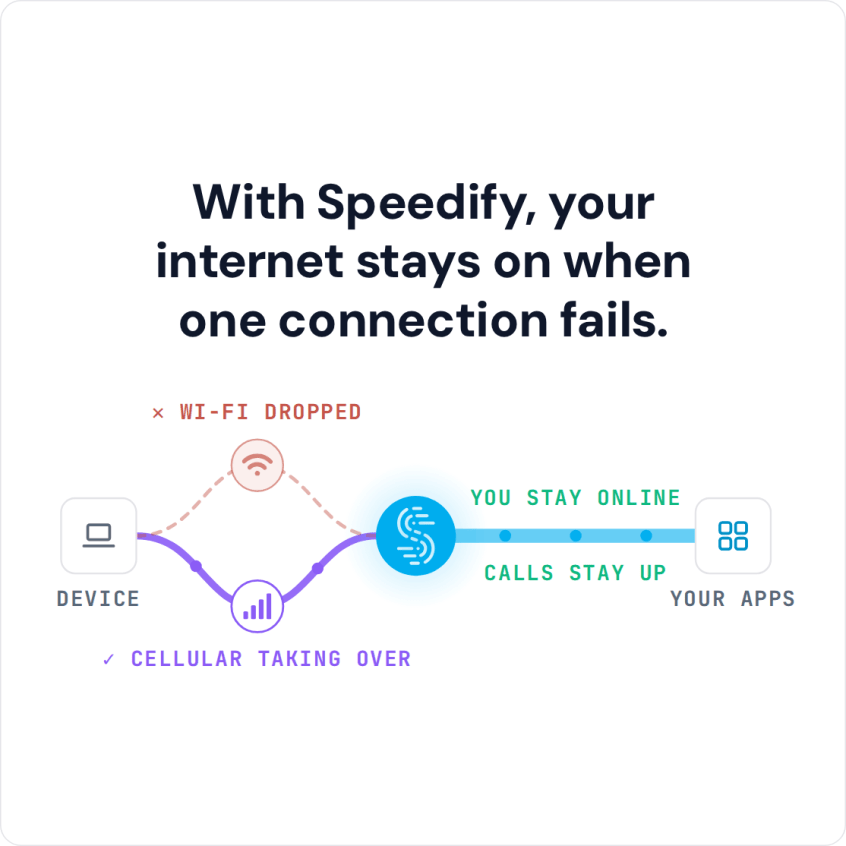
Speedify is an app that combines Wi-Fi with your phone’s 4G/5G cellular and encrypts your traffic like a VPN. Speedify detects the sign-in page and shows a notification that opens it, while cellular keeps you online until the portal lets you in. Staying online during sign-in needs that second internet connection: on the Wi-Fi alone, Speedify works as an encrypted VPN and cannot keep you online before you sign in.
With Speedify, your internet stays on when one connection fails.
Read on to see why the Wi-Fi login page fails to appear, with a short checklist for forcing it open. For city parks and other outdoor hotspots, see how to fix a park Wi-Fi login page.
Why the Wi-Fi Login Page Does Not Show Up
This is a difficult question to answer. It’s hard to know unless you are the one running the captive portal. Sometimes there are system errors, but it could also be a different reason, including your own device.
Having your computer set to use a custom DNS server can cause problems with Wi-Fi login screens. But in most cases, the problem is related to the network itself and you as a user can’t do anything about it. A network check that reports “Internet blocked by captive portal” points to the same cause: the sign-in page has not loaded, so the network is holding your traffic.
But not all is lost! There are still things you could try.
Wi-Fi Login Page Not Showing Up: Cheat Sheet to Force It Open
Here are some things you can try in order to manually get the WiFi login page to display:
- Change your DNS servers. If you don’t know where to change your DNS settings, you’re probably fine: by default, your device picks up a DNS server from the Wi-Fi router, which is what the public Wi-Fi expects you to use. If you changed your DNS settings, switch back to the “default” or “automatic” setting and the Wi-Fi login page should appear. If you forgot where the DNS setting is, this article from HowToGeek should refresh your memory.
- Did the first step not solve the issue? Then, the problem could be that your browser cache is still trying to use the previous DNS info it knows to access sites instead of loading the WiFi login page. You can try to break this cycle by accessing a new website. You could clear your browser cache or better yet, open an incognito window in your browser and try visiting a non-HTTPS site.
You may be wondering why a non-HTTPS site. If you try to visit a secure site and your network tries to redirect your browser to a login screen, your browser will prevent to keep your data secure. Make sure to use an incognito window!
- If the steps above don’t work, you’re heading to the restart path.
- Turn the WiFi on your device off and then back on.
- Restart the device.
- Restart the router if you can (or ask somebody to do it).
If the page still does not appear, close every browser tab and reopen the browser before you try again. An open https:// page can stop the sign-in page from loading, and a browser set to reopen your last tabs (“Continue where you left off” in Chrome) loads those secure pages again straight away. Switch that startup setting to “Open the New Tab page”, then visit an http:// site. At a hotel or cafe where nothing works, tell the front desk or the staff: the sign-in page runs on their network, so the fault is theirs to fix.
Another cause for the WiFi login page not showing up could be your VPN. If you are using a VPN, you should know that WiFi login pages or captive portals redirect you to a webpage so you can log in or accept the terms and conditions of usage. The network setup has specific rules about IP address ranges that are acceptable to log in. These are assigned by the hotspot / router you’re connecting to. Since your IP changes when using the VPN, the hotspot router does not allow it to come through and you end up not seeing the login page.
The obvious fix is to turn off your VPN. However, that defeats the purpose of using a VPN in the first place: staying protected at all times. Some VPNs handle Wi-Fi login pages automatically, and Speedify is one of them. Speedify combines multiple internet connections into one more stable, encrypted connection for live streaming, video calls and web browsing.
How Speedify Handles Wi-Fi Login Pages
When you join a WiFi hotspot with a login page while using Speedify, it will:
- Show you a notification asking you if you want to login.
- Keep you connected over 4G/5G cellular during the Wi-Fi login process. Your other online activities (like Teams or Slack calls, streaming, gaming) keep running over the cellular connection, encrypted by Speedify, so calls and streams are not cut while you sign in.
- If you click the notification (or the message in the app) prompting you to connect to the WiFi hotspot, Speedify will pop up the login screen in a window.
- Once you login successfully, Speedify will immediately start using the WiFi connection.
Under the hood, Speedify’s Captive Portal Assist feature handles Wi-Fi sign-in pages like this:
- when it detects a captive portal, it automatically moves the traffic to and from the captive portal login page outside of the encrypted VPN tunnel
- once you successfully log onto the network, Speedify moves that direct traffic back to the VPN tunnel
- you can also use the split tunneling feature (Bypass) for specific services, which sends their traffic outside the encrypted VPN tunnel.
Some Wi-Fi networks make you sign in again every hour or so. With a second internet connection such as 4G/5G cellular, Speedify’s failover protection moves your gaming, streaming and calls to the other working connection while you sign in again, which also makes it useful for IRL streaming.
Speedify
Get started with Speedify today.
Speedify combines Wi-Fi, 4G/5G cellular, Ethernet, Starlink and satellite into one faster, more reliable internet connection. Free to try: 5 GB a month with a free account. No credit card required.
🚀 Speed
Faster uploads and downloads, because Speedify uses all your internet connections at once.
📶 Stability
If one internet connection drops, Speedify moves your traffic to the others in milliseconds.
🔒 Security
AES-256 encryption on every internet connection, on any network you join.



15M+ downloads worldwide. 75K+ five-star reviews on iOS and Android.