


Live Streaming at Best Video Quality with Streamlabs, No Internet Connection Issues
Online video content is the new blogging – on YouTube alone there are 300 hours of content being uploaded each minute! And that’s not all – the technology advance enables each of us to live stream online content as easy as 1, 2, 3! Whether it’s IRL streaming or streaming your gameplay to your followers on Twitch, Internet connectivity is what makes and brakes the live stream.
So – how do you deal with a slow Internet connection when streaming? Low upload speeds and high latency are the enemies of quality streams. But wait – do you have several cellular connected devices laying around? If you do, then you can follow some of our suggestions to improve your streaming quality. This article shows you how to stream on Streamlabs with Speedify while avoiding issues such as slow speeds and high latency.
Should you have a backup 4G, 5G, Starlink, or cable internet connection?
Yes — every internet connection goes down, including Starlink, which drops for ~34 minutes a day on average. A backup connection from a different provider means one outage never takes you fully offline. The most common options are a 4G/5G cellular hotspot, a cable or DSL line, or a second satellite dish.
4G/5G cellular
Works anywhere. Just a SIM or hotspot — no installation needed.
Learn more →Cable / DSL
Best for fixed locations. Different network, so outages rarely overlap.
Learn more →Second Starlink
Adds redundancy and throughput for remote sites or heavy usage.
Learn more →Speedify bonds any two connections into one — automatic failover, more speed, no dropped calls.
Try Speedify free →Speedify Optimizes Streaming Dynamically Depending on Your Connectivity
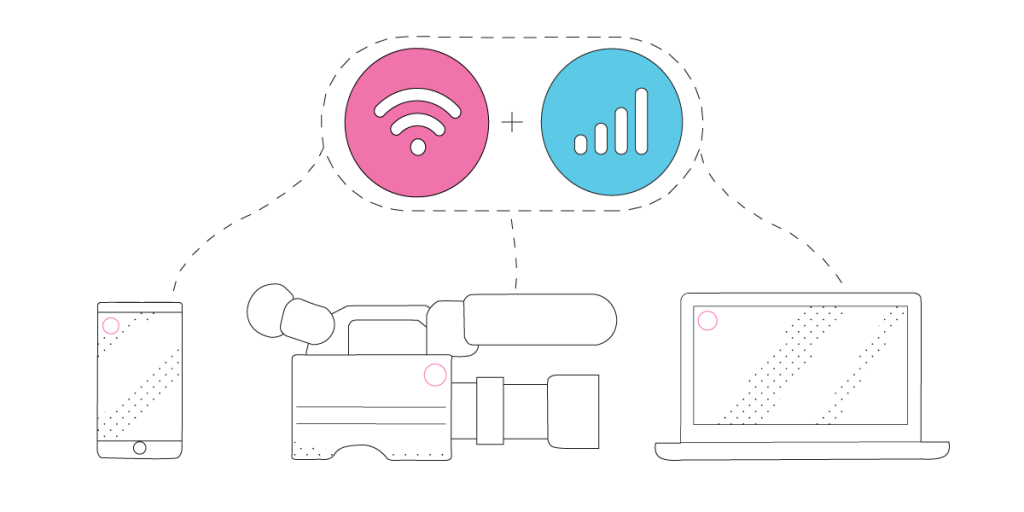
Speedify is a fast bonding VPN that allows you to combine multiple Internet connections at once. As long as you have at least two Internet connections available, this will get you a fast, stable and secure Internet for your Streamlabs live streaming session.
How to stream on Streamlabs? First, it’s best to make sure Bonding Mode is set to Streaming. Speedify prioritizes streaming traffic over other types of traffic. This mode can use extra data and battery to help deliver a better streaming experience.
3 Tips on How to Stream on Streamlabs with Speedify
Tip 1: Stream at the right resolution. When streaming via Streamlabs, it is important to choose the right resolution. If you’re using a mid to low end PC to stream, it’s best if you lower down the Output (Scaled) Resolution. Lowering the resolution can also improve your streaming quality as you’re uploading lower resolution files online.


Tip 2: Pick the right bitrate. For a 720p video at 30 frames per second, a bitrate between 2.5 and 4 Mbps would do. That translates to upload speeds between 3.2 Mbps and around 5 Mbps. But make sure you double check that with the platform you’re streaming to – Twitch, YouTube, etc.
Learn more about live streaming bitrates and upload speeds.


Tip 3: Choose the right server to broadcast. Picking the server is as important as picking the right bitrate for your streams. As a rule of thumb, you should stream to the closest geographically server to you. For best streaming results, you should also choose a Speedify server closest to the Streamlabs server.


[TEST] What Is It Like to Live Stream via Streamlabs with a Bonded Connection from Speedify?
We ran the live streaming tests with and without Speedify on Streamlabs 0.23.2 (64-bit). When running Speedify, we combined two Wi-Fi connections at once.
Spoiler alert: there’s a significant decrease in dropped frames and a better bitrate when using Speedify to combine connections, as shown below. But let’s go through the tests.
Live streaming on Streamlabs WITHOUT Speedify


Live streaming on Streamlabs WITH Speedify bonding 2 connections


The results:
- Dropped frames went down from 17% to 2% when using Speedify.
- Bitrate went up from 429 kbps to 2,976 kbps.
Here are some other tips on how to stream on Streamlabs with Speedify:
- Do you have a better upload speed, but your streams are unreliable or disconnect? Try Redundant Mode.
- Do you continue to see extensive amount of packet loss? Try switching your Transport Mode to UDP.
Alex and the Speedify team are always exploring the latest in networking and security technology—like 5G, 6G, WiFi 7, laser and satellite internet—and sharing it in new discussion content across YouTube, TikTok, Instagram, and LinkedIn every week.
Got a tech question? Let's go deeper! Pop into Speedify Office Hours live every Wednesday at 10 AM Eastern. Speedify CEO Alex Gizis and our network engineers are standing by to break down your questions about networks, tech updates, and Speedify features.


Speedify
Get started with Speedify today.
Combine Wi-Fi, 4G/5G cellular, Ethernet, Starlink, and more into one faster, steadier connection. Free to try — no credit card required.
🚀 Speed
Faster uploads and downloads by bonding all your connections at once.
📶 Stability
Automatic failover in under a second when any connection drops.
🔒 Security
AES-256 encryption on every connection, on every network you join.





15M+ downloads worldwide. 75K+ five-star reviews on iOS and Android.