
We’re Putting Speedify Streaming Mode to the Test. Will It Eliminate Zoom Dropped Calls?
To test your Zoom connection, join a test meeting at zoom.us/test before an important call to check your camera, microphone and speaker; during a call, Zoom’s Statistics panel (Settings > Statistics) shows bandwidth, latency, jitter and packet loss. Most drop-outs come down to short gaps where data does not arrive, which you hear as robotic audio and see as a face frozen mid-word.
Speedify is an app that carries a call over Wi-Fi and 4G/5G cellular at once, so those gaps get covered instead of ending the meeting. That needs two or more internet connections; on a single connection Speedify works as an encrypted VPN and cannot stop that connection from dropping.
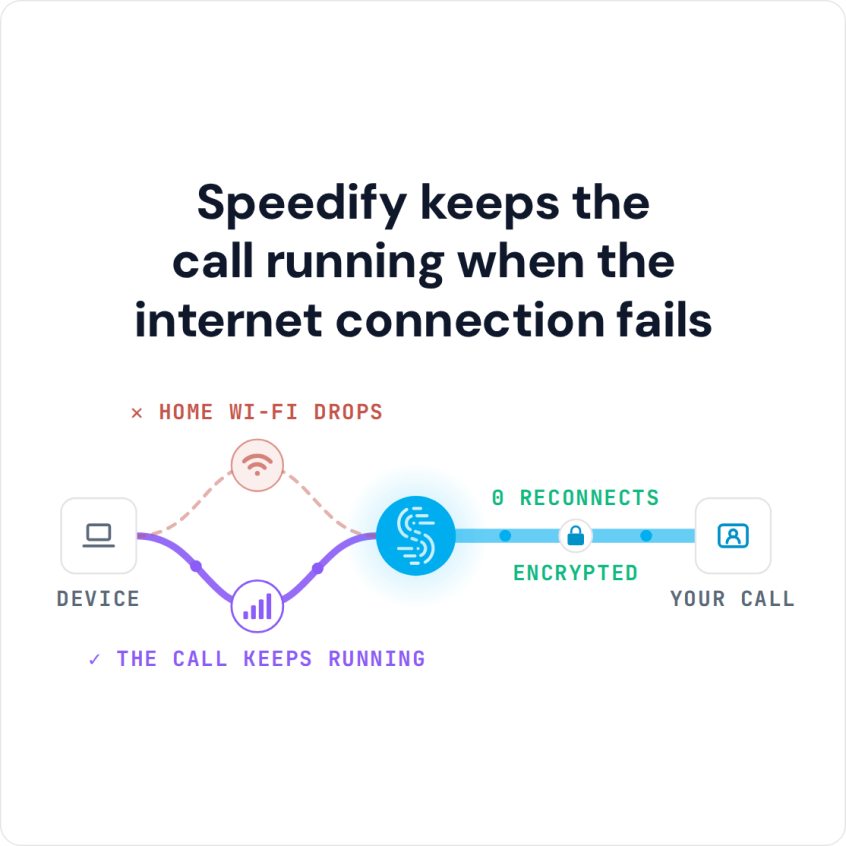
Speedify keeps the call running when the internet connection fails
Here you’ll see a test Zoom meeting run over slow, unstable internet connections on both Mac and Android, what the results showed, and how using Speedify closed the gaps that were dropping calls.
Testing Zoom Performance Over Slow and Unstable Internet Connections Offers Valuable Zoom Meeting Tricks
Zoom performs well over a fast and stable internet connection. But what about the real world, where you may not get that luxury?
The testing procedure consists of 2 series of tests for Zoom video calls:
- Without Speedify;
- Speedify on with Streaming Mode enabled.
The tests ran on an Android smartphone and a macOS laptop, combining Wi-Fi and cellular on the smartphone, and Wi-Fi with a USB tethered phone on the Mac.
The evaluation is done both subjectively and objectively as follows:
- Screen captures of the Zoom video, analyzed for quality;
- A walk towards the edge of the Wi-Fi network, to simulate:
- insufficient bandwidth conditions, moving away from the Wi-Fi router;
- unreliable connectivity at the edge of Wi-Fi with dead spots and packet loss;
- disconnecting Wi-Fi internet and how quick it switches to cellular.
For the Speedify tests, the measurements were bandwidth, latency and packet loss, and how they changed on the walk away from Wi-Fi.
Zoom Meeting Tricks: Improving Zoom Video Calls Quality with Speedify’s Streaming Mode
First off, the test with no Speedify running. Near the edge of Wi-Fi, the image starts stuttering, and finally buffering takes over. After 15+ seconds of frozen image, Zoom does switch to cellular.
Video was very similar on both tested platforms, macOS and Android.
Testing Streaming Mode with Zoom on Mac
Next, the test on a MacBook with Speedify. The video did not stutter once. Here is the bandwidth distribution:
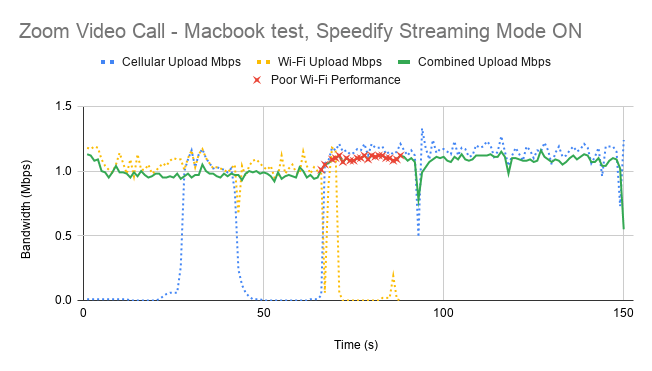
First of all, Speedify makes it possible to use both Wi-Fi and cellular at the same time. That’s why you see both connections being used together at times on the graph above. When Wi-Fi starts failing, you notice that with the help of Speedify cellular takes over. The general bandwidth is constant at around 1 Mbps. And that steady streaming rate is good for Zoom video calls and any streaming platform actually.
The little red x marks above show the moments when packet loss over the Wi-Fi connection was very high (over 5%). Without Speedify running, the call would have ended up like the first test: buffering and maybe even a drop from the call.
Android Testing for Streaming Mode with Zoom
The Android test with Speedify Streaming Mode was similar to the Mac one: video quality was good and the picture didn’t break.
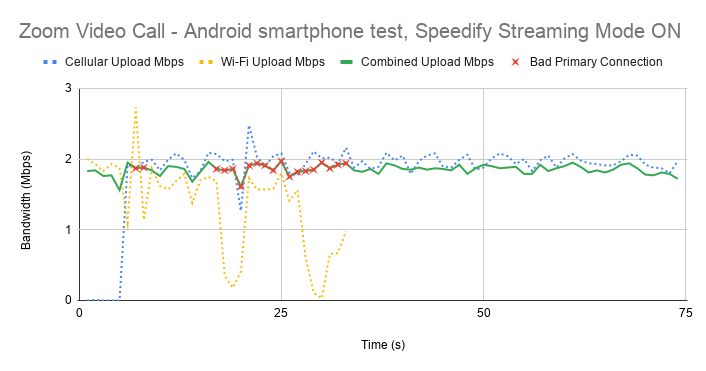
As you can see, when Wi-Fi is good and strong enough, cellular stops being used. However, cellular kicks back in as soon as Speedify detects that Wi-Fi is flaky. And again, notice the steady bandwidth around 1.80 Mbps that Speedify preserved. The red x-es again mark the high Wi-Fi packet loss rate.
Here are the average values for all tests with Speedify Streaming Mode on:
|
macOS |
Android |
|||||
|
Bandwidth (Mbps) |
Average |
Minimum |
Maximum |
Average |
Minimum |
Maximum |
|
Overall |
1.09 |
0.45 |
1.73 |
1.80 |
0.77 |
2.31 |
The table shows that Speedify kept the average Zoom video call bandwidth on macOS and Android near 1 Mbps and 1.80 Mbps respectively, both when the connections were good and when one of them went bad.
Test Conclusion: Speedify Streaming Mode Kept Zoom Video Steady as Wi-Fi Failed
There you have it: one of the best Zoom meeting tricks is to use Speedify with two internet connections. Speedify’s Streaming Mode made a clear difference to these Zoom calls.
To put it in context, here’s what happens under the hood of Streaming Mode. Speedify monitors statistics in real time about how each of your internet connections is performing. As connections change, and other apps start or stop sending data, Speedify adjusts its strategies on the fly. So you are not chained to a chair near your Wi-Fi router, hoping to get a good signal, while on Zoom calls. With 4G/5G cellular on as well, you can walk around, and even leave the house, without dropping the call. Just make your Zoom call: Speedify picks the strategy.
To learn more about Streaming Mode, which is on by default, check out the Speedify Knowledge Base article.
Zoom Meeting Tricks: update to the latest Speedify version and keep both Wi-Fi and cellular on if you’re tired of connectivity issues in Zoom calls.
Speedify
Get started with Speedify today.
Speedify combines Wi-Fi, 4G/5G cellular, Ethernet, Starlink and satellite into one faster, more reliable internet connection. Free to try: 5 GB a month with a free account. No credit card required.
🚀 Speed
Faster uploads and downloads, because Speedify uses all your internet connections at once.
📶 Stability
If one internet connection drops, Speedify moves your traffic to the others in milliseconds.
🔒 Security
AES-256 encryption on every internet connection, on any network you join.



15M+ downloads worldwide. 75K+ five-star reviews on iOS and Android.