
Combine a Tethered iPhone and a Tethered Android Smartphone on Your Windows PC with Speedify
Want faster upload and download speeds and more reliable internet on your Windows PC when there is no Wi-Fi or Ethernet? Tether two phones – an iPhone and an Android – and run both at the same time.
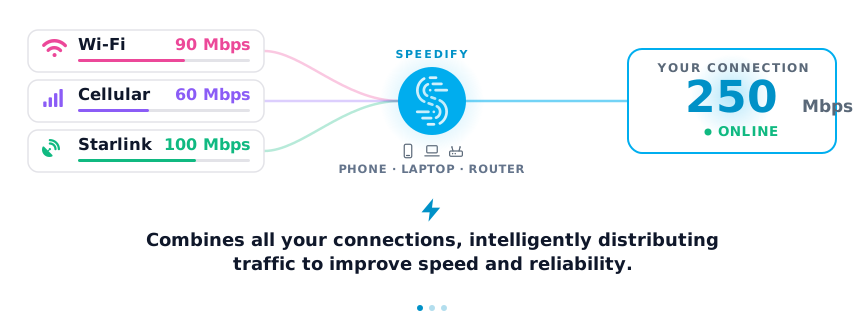
Speedify is an app that combines two or more internet connections at once – such as a tethered iPhone and a tethered Android phone – so you get faster uploads and downloads and stay online if one connection drops out. A 4G/5G dongle and a tethered Android work together the same way.
Speedify uses every internet connection your device has, at the same time
How do I use WiFi and 4G/5G cellular at the same time with Speedify?
Pick your two internet connections and your device below and we'll take you to the step-by-step setup guide.

Step-by-Step Guide to Tethering Your Smartphones to Your PC and Combining Them Together with Speedify Bonding VPN
First of all – you need to connect (tether) both smartphones to your PC. For convenience reasons, we recommend you tether your iPhone via Wi-Fi and connect your Android phone through a USB cable to your PC. We’ll approach this scenario below, but remember you can tether your iPhone to your PC through USB or Bluetooth, and your Android phone through Wi-Fi or Bluetooth.
Step 1: Make sure you have a Wi-Fi card installed on your PC and it’s on.
Go to Network Connections (Windows key + X – select Network Connections) and click on Wi-Fi on the left.If your computer doesn’t have an internal Wi-Fi card, get an external Wi-Fi USB adapter and plug it into a USB port of your PC. Windows will install the appropriate drivers or you may be required to install them – just see the documentation you get with the device. You may need to restart your PC before being able to use the external Wi-Fi USB adapter.

Step 2: Create a Wi-Fi hotspot on your iPhone (Wi-Fi tethering).
To do this, go to Settings on your iPhone’s home screen and activate the Personal Hotspot option.
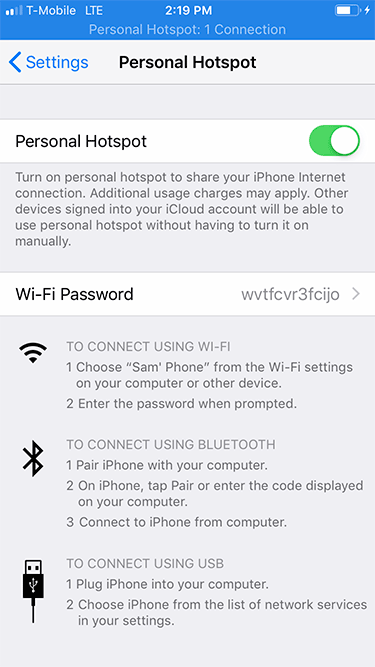
Step 3: Configure the Wi-Fi hotspot on your iPhone.
When you go into the Personal Hotspot menu, you can also customize the Wi-Fi hotspot name (SSID) and password used by other devices to connect.
Step 4: Connect your PC to the Wi-Fi network.
Click on the computer or Wi-Fi symbol in the lower right corner of the taskbar (systray). Turn on Wi-Fi by clicking on the tile in the lower side of the pop-up menu and select the Wi-Fi hotspot you set up on your iPhone. Enter your password and you’re good to go.

Step 5: Make sure you have an active Internet connection on your Android smartphone – either Wi-Fi or mobile data.
To do this, you can usually swipe down on the notification bar and tap on the Wi-Fi and/or cellular data connection. Or, you can go to the Settings screen and toggle the switch on.

Step 6: Connect (or “tether”) your Android smartphone to your PC using a USB cable.
Go to the Network Settings area on your Android smartphone – you should find there a section on Tethering. Tap on that and toggle the USB tethering switch on.

Step 7: Make sure your PC connected successfully to your tethered Android smartphone.
On your computer, the tethered connection will appear as a wired connection, having a computer icon in the lower right section of the taskbar (systray). Click on that computer icon and you should see a wired connection named “Network X” which should be connected. That is your tethered Android phone.
Step 8: Start Speedify on your PC and combine the tethered Android smartphone with the tethered iPhone on your PC. When you launch Speedify, the software automatically detects the two connections. You will see them each contained in a Connection Row on the Dashboard.
And presto! You’re combining connections with the magic of Channel Bonding for improved speed, reliability, and security. You are now free to go forth and browse the internet, stream videos, and use your apps as you normally would.
Use Speedify for Windows to combine two tethered phones on a Windows PC.
Speedify
Get started with Speedify today.
Combine Wi-Fi, 4G/5G cellular, Ethernet, Starlink, and more into one faster, steadier connection. Free to try — no credit card required.
🚀 Speed
Faster uploads and downloads by bonding all your connections at once.
📶 Stability
Automatic failover in under a second when any connection drops.
🔒 Security
AES-256 encryption on every connection, on every network you join.



15M+ downloads worldwide. 75K+ five-star reviews on iOS and Android.