


Use Ethernet on Your iPhone to Get Faster, More Stable Internet
Did you know you could connect to an Ethernet network using your iPhone? All you need to use Ethernet on iPhone is an adapter that goes into your Lightning port. There are several on the market; Apple even markets some of them in their online store.
Why would you use Ethernet on your iPhone? Maybe you get slow Internet on your iPhone via WiFi or it keeps disconnecting. Even when it says you’re connected to WiFi, chances are you stumble upon a bad hotspot and the Internet is actually not working.
If you want to have the fastest, most stable Internet on your iPhone, combine WiFi, cellular data and Ethernet. Speedify bonding VPN helps you do that at once, not alternatively, switching between them. See the video below how you can do this very easily.
<1 sec
With Speedify, your internet stays on when one connection fails.
When one of your internet connections drops, Speedify shifts your traffic to your remaining connections in under a second — so calls don’t cut out and downloads don’t stall.
Should you have a backup 4G, 5G, Starlink, or cable internet connection?
Yes — every internet connection goes down, including Starlink, which drops for ~34 minutes a day on average. A backup connection from a different provider means one outage never takes you fully offline. The most common options are a 4G/5G cellular hotspot, a cable or DSL line, or a second satellite dish.
4G/5G cellular
Works anywhere. Just a SIM or hotspot — no installation needed.
Learn more →Cable / DSL
Best for fixed locations. Different network, so outages rarely overlap.
Learn more →Second Starlink
Adds redundancy and throughput for remote sites or heavy usage.
Learn more →Speedify bonds any two connections into one — automatic failover, more speed, no dropped calls.
Try Speedify free →

Speedify Feature · Pair & Share
Cellular sharing that works better than a mobile hotspot.
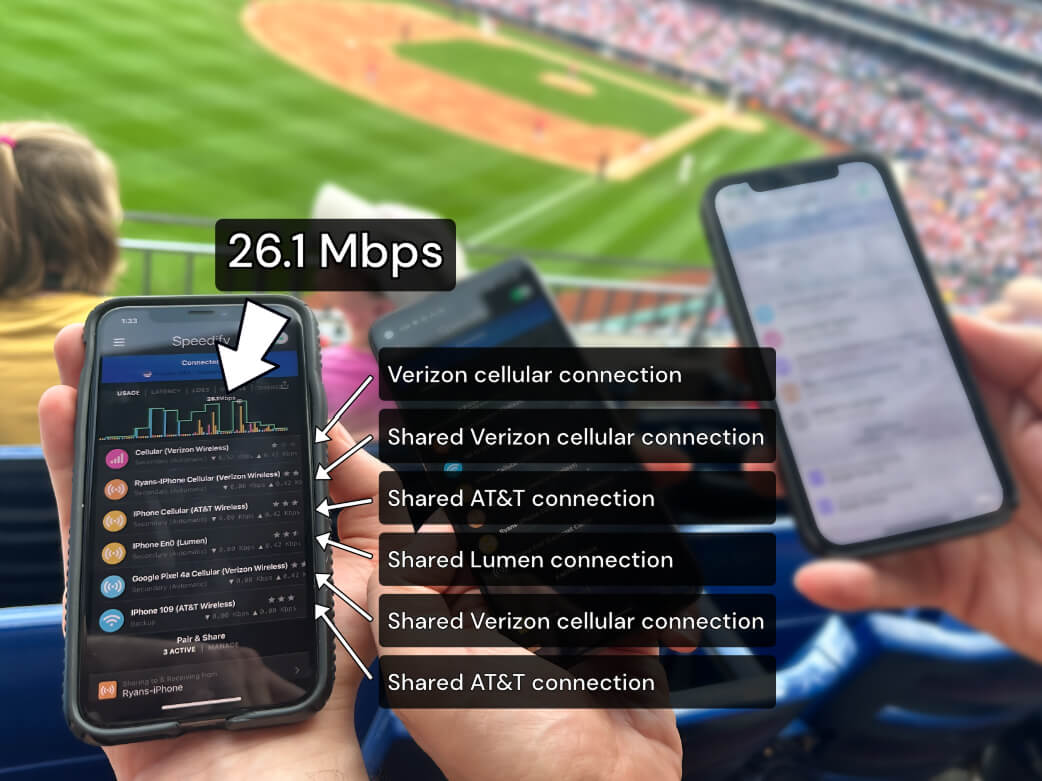
Speedify Pair & Share: share cellular between your devices, both ways
Most hotspots give. Speedify's Pair & Share gives and takes. Two devices running Speedify pair up and each uses the other's cellular connection simultaneously, so you both get faster uploads, faster downloads, and a steadier connection. No extra hardware, no new data plans, no setup beyond a tap.
Learn how Speedify's Pair & Share works ›
More speed
Every device you pair with adds its cellular to yours, and yours to theirs.
Stays connected
If a paired device drops out, Speedify keeps you online on the remaining links.
Always private
Every shared connection runs through AES-256 encryption. Your traffic is yours.
No new gear
Runs on devices already running Speedify, over your local network. Pair once, reconnects automatically.
How to Use Ethernet, WiFi and Mobile Data Together at the Same Time on Your iPhone
Requirements
- iPhone with a mobile data connection;
- Available WiFi network to connect to;
- Ethernet cord and a connection from a different upstream network than the WiFi. Ethernet and WiFi should not come from the same modem / router.
- Ethernet-lightning adapter. We used an Ethernet – USB adapter plugged into a Lightning – USB adapter.
- Speedify bonding VPN app
Step 1: Let’s verify that you have an active mobile data connection on your iPhone, and that you have your data turned on. To do this, tap “Settings,” then “Cellular,” and flip the switch on.
Step 2: Connect to a WiFi network. Tap “Settings,” then “WiFi,” and flip the switch on. You can then select a network from the list that appears. Be aware that you usually have to enter a password for private networks.
Step 3: Use Ethernet on your iPhone. Plug one end of your Ethernet cord into a router or modem and the other end into an Ethernet – Lightning adapter. Then, plug the adapter into your phone’s charging port. For best results, you should use different upstream networks for your WiFi and Ethernet. These connections should come from two separate routers.
Step 4: Time to start combining Ethernet, WiFi and cellular data together on your iPhone!
- Download Speedify from the App Store.
- When you launch the app, Speedify automatically detects your 3 active connections – Ethernet, WiFi and mobile data. You’ll see them contained inside the Connection Bubbles near the top of the Dashboard.
- Select the server you want to connect – usually the “fastest” option works best
- You can now return to your usual activities without having to worry that the Internet will be slow or disconnect.
Speedify Gets You Online Privacy when Using Ethernet on iPhone Together with WiFi and Cellular Data
Speedify is a fast bonding VPN that uses channel bonding technology to combine multiple Internet connections together simultaneously. Being a VPN, it encrypts all the data from your iPhone to the Internet. This way, you will be able to:
- stay safe from hackers and snooping ISPs, especially when connecting to public WiFi networks
- bypass content restrictions on certain networks, in certain areas or countries and unblock video streaming services.
- avoid ISP data throttling for certain services like Twitch and YouTube.
When you use Ethernet, WiFi and cellular data together on your iPhone with Speedify, you get 3 things at once: a stable connection, fast internet and secure online privacy. What are you waiting for? Get started now!
Alex and the Speedify team are always exploring the latest in networking and security technology—like 5G, 6G, WiFi 7, laser and satellite internet—and sharing it in new discussion content across YouTube, TikTok, Instagram, and LinkedIn every week.
Got a tech question? Let's go deeper! Pop into Speedify Office Hours live every Wednesday at 10 AM Eastern. Speedify CEO Alex Gizis and our network engineers are standing by to break down your questions about networks, tech updates, and Speedify features.


Speedify
Get started with Speedify today.
Combine Wi-Fi, 4G/5G cellular, Ethernet, Starlink, and more into one faster, steadier connection. Free to try — no credit card required.
🚀 Speed
Faster uploads and downloads by bonding all your connections at once.
📶 Stability
Automatic failover in under a second when any connection drops.
🔒 Security
AES-256 encryption on every connection, on every network you join.




15M+ downloads worldwide. 75K+ five-star reviews on iOS and Android.