
Speedify Makes Starlink Data Pooling Better by Combining Two or More Starlink Dishes into One Faster, More Reliable Internet Connection
Starlink data pooling lets several Starlink dishes on one business account share one data allowance, instead of each Starlink dish having its own. Starlink offers it on its Priority plans for businesses, not on Residential plans. Data pooling shares data. It doesn’t make two Starlink dishes work at the same time, and it doesn’t add speed.
That’s what Speedify does. Speedify is an app for computers, phones and routers that uses all your internet connections at the same time. With two Starlink dishes, Speedify splits your traffic across both, so you get close to their combined upload and download speed, and if one drops, Speedify moves your traffic to the other automatically. Below: why people run two Starlink dishes, what you need, how to set it up, and how data pooling and Speedify work together.
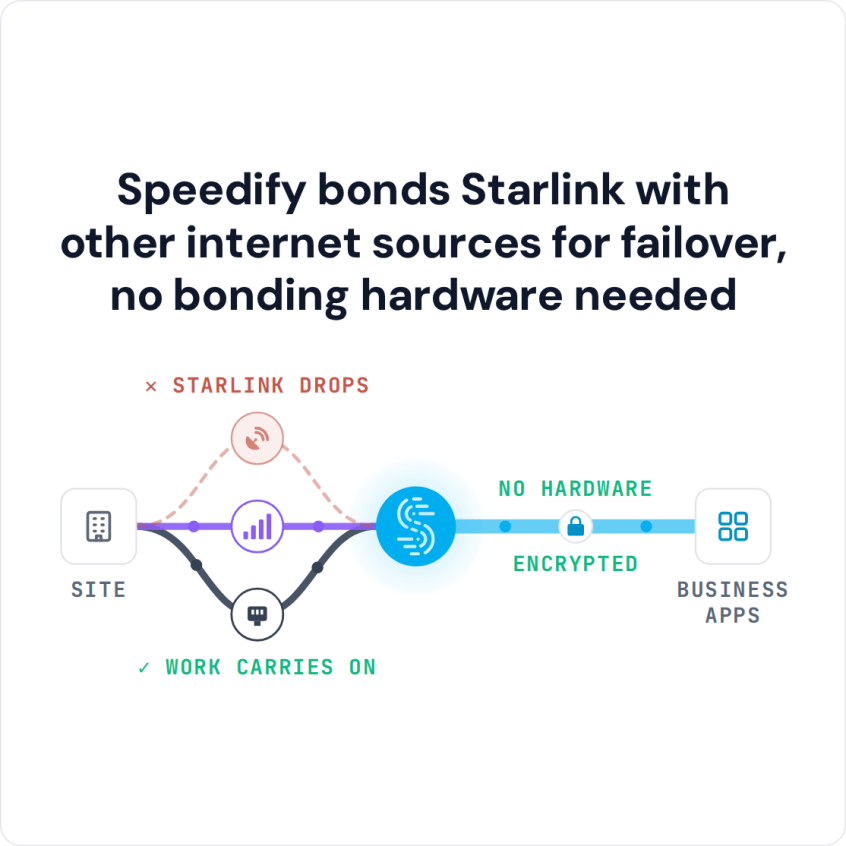
Speedify bonds Starlink with other internet sources for failover, no bonding hardware needed
Watch now
How Speedify's channel bonding technology works on any hardware
Get started with Speedify for your business
Speedify offers three commercial paths. They're not exclusive — most enterprise customers combine two or more.
01
Speedify Teams
Speedify on every supported OS for every team member
Centralized dashboard for billing, user provisioning, and usage analytics
CSV import/export and a RESTful management API
02
Speedify for Routers
License for supported OpenWrt routers
Powered by Speedify hardware lineup ready to deploy out of the box
Miri, GL.iNET, and other partner models
Whole-LAN bonding without per-device install
03
Embed Speedify into your product
A · DIY
Build it yourself with the Speedify SDK.
Integrate Speedify into your iOS, Android, Windows, macOS, Linux, or QNX product. Full developer documentation, sample code, and supported integration paths. You own the build, we provide the bonding stack.
B · CUSTOM ENGINEERING
Have us build it for you.
Why Run Two Starlink Dishes at the Same Location?
One Starlink dish works well most of the time. But one Starlink dish has real limits:
- Your Starlink dish switches satellites about every 15 seconds, and each switch can cause a short drop, even on a clear day. It’s usually short, but it’s enough to freeze a video call or break a file transfer.
- Weather weakens the Starlink signal. Heavy rain, snow and thick cloud can slow your downloads or cut your Starlink internet connection for short periods.
- Uploads are slow. Starlink says uploads run 10 to 30 Mbps on most plans, so live streams and large uploads hit the limit first.
- If your Starlink dish breaks, you’re offline until a replacement arrives. In a rural area, that can take days.
- At busy times of day, more people on the Starlink network in your area means slower speeds for everyone.
A second Starlink dish removes most of these single-dish risks. Speedify makes both Starlink dishes work at the same time, instead of switching to the second one only when the first one fails.
How Speedify Uses Two Starlink Dishes at the Same Time
Speedify splits your internet traffic across both Starlink internet connections at the same time, sending each piece over whichever Starlink dish is doing better at that moment. When both Starlink dishes work, you get close to their combined upload and download speed. When one drops, Speedify moves all your traffic to the other automatically, without stopping downloads, video calls or VPN sessions.
That’s different from a normal backup setup, where your router sits on one internet connection until it fails. Speedify uses both internet connections all the time.
See how Speedify combines internet connections.
What You Need to Use Two Starlink Dishes Together with Speedify
- Two Starlink subscriptions. Each Starlink dish needs its own Starlink subscription. A Starlink account lets you add several service addresses and Starlink dishes under one login.
- A router or computer that can connect to both Starlink dishes. Each Starlink dish comes with its own Starlink router. To use both with Speedify, you need a device that connects to both at once: a laptop or desktop with two Ethernet ports, or one Ethernet port plus Wi-Fi, or a router that works with Speedify and has several internet ports.
- Speedify on that device. The Speedify app runs on Windows, macOS, iOS, Android and Linux. To cover every device in your home or office, install Speedify on a router that supports it.
How to Set Up Speedify with Two Starlink Dishes
- Connect both Starlink dishes to your computer or router. Each Starlink dish should show up as its own internet connection: two Ethernet connections, or one Ethernet and one Wi-Fi.
- Install Speedify on the device. Speedify finds every internet connection automatically.
- Open Speedify and check that both Starlink internet connections are in the list.
- Set both internet connections to Always, so Speedify uses both all the time.
- Speedify starts spreading your traffic across both Starlink dishes right away.
To set this up on a router for the whole home or office, follow the steps in Speedify’s router support pages.
Starlink Data Pooling: What It Does, and What Speedify Adds
With data pooling, a busy Starlink dish can use more of the shared data allowance, and a quiet one doesn’t waste its share. But your router still uses one Starlink dish at a time, and nothing moves your traffic to another Starlink dish when one drops.
Speedify adds that part, whatever your Starlink plan. With data pooling and Speedify together, your business gets one shared data allowance from Starlink, and all its Starlink dishes working at once from Speedify.
If your business runs two or more Starlink dishes, see how Speedify combines internet connections for business, whichever Starlink plan you’re on.
Who Gets the Most from Two Starlink Dishes with Speedify
- Remote workers. If your job depends on video calls, internet phone calls or working live with your team, a second Starlink dish with Speedify keeps your calls going when one Starlink dish is blocked or offline, and 4G/5G cellular covers the satellite switches and storms that hit both.
- Live streamers and creators. A live stream can’t pause and try again. Two Starlink dishes with Speedify give your stream close to twice the upload speed, and it keeps going if one Starlink dish drops.
- Rural homes with no cellular signal. Where there’s no reliable 4G/5G cellular coverage, a second Starlink dish is often the only realistic backup. Speedify makes both Starlink dishes work together instead of leaving one as a spare.
- Small businesses in remote places. A remote business on one internet connection is one broken Starlink dish away from a full outage. Two Starlink dishes with Speedify keep it online without relying on cellular towers.
Speedify Is Used on Millions of Devices Worldwide
Speedify has powered stronger Internet for millions of consumers since 2014
15M
Millions of Speedify downloads worldwide, and growing every day5⭐️
More than 75,000 5-star reviews for Speedify in the iOS and Android app stores82
Points of Speedify presence in datacenters around the globe500TB
Hundreds of terabytes of fast, secure data streamed every week via SpeedifySpeedify Partners
Speedify partners with these amazing organizations to deliver better internet and next-generation networking technology to their customers and employees.


Two Starlink Dishes vs. Starlink Plus 4G/5G Cellular with Speedify
Two Starlink dishes back each other up on the Starlink network. But a wide Starlink outage, like a Starlink software problem or a regional network issue, hits both Starlink dishes at the same time.
For a backup that doesn’t share the same weak spot, the stronger setup is one Starlink dish plus a 4G/5G cellular connection, used together with Speedify. The two run on completely separate networks, so a Starlink outage doesn’t touch your cellular connection, and the other way around.
If you have no reliable 4G/5G cellular coverage, two Starlink dishes with Speedify is the practical choice. If cellular is available, one Starlink dish plus 4G/5G cellular with Speedify covers more kinds of outage.
For businesses running several Starlink dishes: Speedify can use every Starlink dish at every site at the same time. Contact Us to plan the setup.
For homes, remote workers and streamers: Download Speedify and use two Starlink dishes, or Starlink and your phone’s cellular data, together.
Speedify Business Solutions
Speedify Teams
Speedify for Routers

Speedify Embedded Solutions and Integrations
Embed Speedify software into your app or hardware products and leverage the core channel bonding technology of Speedify in new and interesting ways.