

WhatsApp Not Working on Wi-Fi: Combine Wi-Fi and 4G/5G Cellular with Speedify
WhatsApp works on mobile data but not on Wi-Fi: messages sit on one grey tick and calls will not connect, even with full Wi-Fi bars. Full bars only mean your phone can hear the router. They say nothing about whether the network lets WhatsApp through.
Speedify is an app that runs your phone’s internet over Wi-Fi and 4G/5G cellular at the same time, so WhatsApp keeps working when the Wi-Fi fails. That needs two internet connections: on a single connection, Speedify works as an encrypted VPN and cannot stop that connection from dropping. Below: why Wi-Fi breaks WhatsApp, the fixes to try, and what Speedify changes.
Why WhatsApp Works on Cellular but Not on Wi-Fi
If WhatsApp sends and calls fine on 4G/5G cellular (what your phone calls mobile data), the app and WhatsApp’s servers are working. The problem sits with the Wi-Fi network. Four things on a Wi-Fi network stop WhatsApp while the Wi-Fi icon still looks normal.
- The network blocks WhatsApp. Schools, offices, hotels and some public Wi-Fi networks filter messaging apps on purpose. WhatsApp’s own help pages name office and university campus Wi-Fi as a cause of connection problems. Some Android phones then show a notice that WhatsApp is using mobile data because the current Wi-Fi network is blocking it. The blocked case has its own guide: how to use WhatsApp at school or work.
- The Wi-Fi sign-in page is not finished. Hotel, airport, café and train Wi-Fi often shows a login or “accept terms” page first. Until you complete it, the network lets almost nothing through, WhatsApp included. WhatsApp’s help center covers this in Can’t connect to a specific Wi-Fi.
- DNS problems. Before WhatsApp can connect, your phone asks a DNS server to turn WhatsApp’s server names into addresses. Wi-Fi networks hand out the router’s DNS server. When that server fails or answers slowly, WhatsApp stays on “Connecting” and websites stall on first load too.
- Weak or crowded Wi-Fi. A busy network or a distant router loses part of the data, so messages leave late or not at all. If messages do send but slowly, see how to fix slow WhatsApp and stuck messages.
How to Fix WhatsApp Not Working on Wi-Fi
Work through these in order. Each step rules out one cause.
- Confirm WhatsApp works on cellular. Switch Wi-Fi off and send a message. If WhatsApp fails on cellular too, the Wi-Fi is not the cause: update the app and check whether WhatsApp is down for everyone.
- Look for a sign-in page. Switch Wi-Fi back on, open your browser and load any website. If a login or terms page appears, complete it, then reopen WhatsApp.
- Rejoin the network. In your Wi-Fi settings, forget the network and join it again with the password. This gives your phone a fresh address from the router.
- Turn off data saving for Wi-Fi. On iPhone, tap the (i) next to the network and switch off Low Data Mode. On Android, turn off Data Saver. Both can hold back WhatsApp in the background.
- Change the DNS server. On iPhone, tap the (i) next to the network, then Configure DNS, then Manual, and add a public DNS server such as 1.1.1.1. On Android 9 and later, open Private DNS in your network settings, choose Private DNS provider hostname and enter one.one.one.one (Cloudflare) or dns.quad9.net (Quad9). The menu names differ by phone maker.
- Restart the router if the network is yours. Unplug it for 30 seconds and give it two minutes to come back.
- Update WhatsApp from Google Play or the App Store. Reinstall only as a last step, and make sure your chat history is saved before you delete the app.
If none of this helps on one particular network, that network is filtering WhatsApp or losing too much data. Changing settings on your phone will not change either.
Keep WhatsApp Working When Wi-Fi Fails with Speedify
Speedify combines your Wi-Fi and 4G/5G cellular and sends WhatsApp over both at once. When the Wi-Fi drops data or stops working, Speedify moves your messages and calls to cellular with failover that does not wait for the phone to switch networks, so a call can stay up instead of ending.
Speedify also encrypts your traffic between your phone and Speedify’s servers. A Wi-Fi network that filters apps by name sees an encrypted connection to Speedify rather than WhatsApp traffic, so a block that depends on seeing WhatsApp often stops working. Speedify sends DNS lookups through the same encrypted connection, to Quad9, Cloudflare or another DNS service you pick in Speedify’s privacy settings, so a broken router DNS stops mattering. On public Wi-Fi, the encryption keeps your traffic away from other people on the network, and Speedify keeps no record of the sites you visit.
Speedify has limits. Speedify does not skip a Wi-Fi sign-in page, so you still have to log in. Speedify’s Captive Portal Assist notices the login page and shows a notification, and opening it lets you sign in without dropping the Speedify session. Speedify does not fix a WhatsApp outage, and a network that blocks Speedify itself still leaves you on cellular alone. On a school or work network, check the rules before you get around a block.
Speedify has a free tier with 5 GB per month when you create a free account. The Individual plan is $89.99 per year and covers up to 5 devices at once. Download Speedify for iPhone or Android and send that message again.
Speedify
Get started with Speedify today.
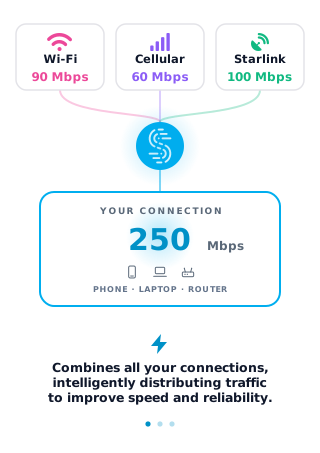
Speedify combines Wi-Fi, 4G/5G cellular, Ethernet, Starlink and satellite into one faster, more reliable internet connection. Free to try: 5 GB a month with a free account. No credit card required.
🚀 Speed
Faster uploads and downloads, because Speedify uses all your internet connections at once.
📶 Stability
If one internet connection drops, Speedify moves your traffic to the others in milliseconds.
🔒 Security
AES-256 encryption on every internet connection, on any network you join.


15M+ downloads worldwide. 75K+ five-star reviews on iOS and Android.