
Easy Troubleshoot Live Streaming Issues
OBS tells you it is dropping frames – frames the software gives up on sending, which viewers see as stutter – and if enough of them go, the streaming server cuts you off. That happens when your internet connection cannot keep up with the rate OBS is trying to send.
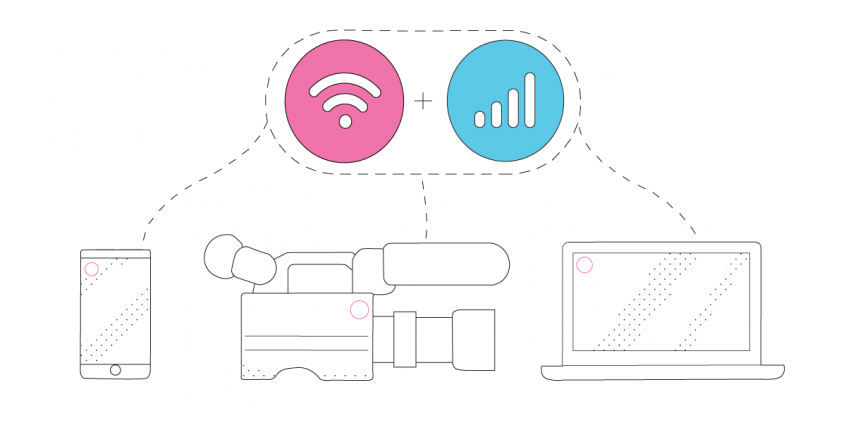
Speedify is a software app that uses Wi-Fi, wired Ethernet, Starlink and 4G/5G cellular data together at once, turning them into one steadier internet connection. Below are the most common OBS live streaming faults, five fixes to work through, and how Speedify holds your upload rate so frames stop disappearing.
- OBS Studio configuration issues
- PC or Mac not meeting the minimum or recommended hardware requirements
- Internet connection issues
Live streamers who use Open Broadcaster Software most often see the dropping frames while streaming symptom. And they wonder how many dropped frames is acceptable.
This article explains what are the most frequent OBS live streaming issues, where they originate from and how to fix them. Read below for more details.
Why OBS Live Streaming Problems Appear
Dropping frames is the most popular issue with OBS live streaming. Seeing a lot of dropped frames is not good, as they are often the root cause of many live stream playback issues. So, if you don’t want your viewers to be frustrated that they get the buffering wheel or they get disconnected, you have to understand why this happens.
As OBS themselves mention, “dropping frames” means that your connection to the server isn’t stable, or you can’t keep up with your set streaming bitrate. Because of this, the program is forced to drop / skip some of the video frames in order to compensate. If you drop too many frames, you may be disconnected from the streaming server.
Before you investigate on that, make sure you meet the minimum hardware requirements for live streaming via OBS. And that the platform ingest servers to which you’re streaming (Twitch, Mixer, YouTube, Facebook Live, etc.) are up and running without any limitations or glitches.
5 Steps to Fix OBS Live Streaming Problems
Now that we’ve determined that your Internet connection is the cause of OBS live streaming issues, below are five steps you can take to fix this in a matter of minutes.
Before you try anything:
- Make sure you live stream over a wired Ethernet connection – wireless networks like WiFi and cellular data are unstable by their nature.
- Test your Internet speed. If it’s not looking good (not even close to what you’re paying for), then contact your ISP. This will take a while…
So – here are 5 suggestions to fix your OBS live streaming problems:
- Try using another ingest server for live streaming. Even if you chose the closest server to you, this doesn’t mean that you also have the best connection to it.
Still nothing? See below. - Try lowering the live streaming bitrate. You should see a lower number for the dropped frames. Zero would be perfect.
- Try using another streaming platform temporarily. Twitch may be having a hard day sometimes. Go to Mixer / YouTube and see how streaming on those works.
- Check your router, firewall and potential software conflicts. Restarting the modem / router is always a good thing. Having the latest firmware installed is a plus.
Firewall and security software may also be interfering with open ports and communication permissions. Just make sure OBS is cleared for permissions with these. - If everything else fails… or if you don’t want to waste time going through the checklist above, just use Speedify. Speedify is a fast bonding VPN that allows you to combine multiple Internet connections at once on your computer. It’s optimized for live streaming, so you get the best Internet connection regardless the conditions.
Speedify Gets You That Fast, Stable and Secure Internet Connection for Live Streaming
When using Speedify you can be sure that it’s not your Internet connection that’s causing the OBS live streaming problems. You can configure Speedify to use all your connections together at any time, as secondary connections (for speed boosts, failovers) or just as backup connections. If you’re on metered connections (like your cell phone), you can even set caps on the data to be used, so you don’t go over your plan.
All in all, Speedify intelligently manages your connections to give you the best Internet connections for live streaming and more. Fast, stable and secure – that’s what it’s all about. No more OBS live streaming problems!
Speedify
Get started with Speedify today.
Combine Wi-Fi, 4G/5G cellular, Ethernet, Starlink, and more into one faster, steadier connection. Free to try — no credit card required.
🚀 Speed
Faster uploads and downloads by bonding all your connections at once.
📶 Stability
Automatic failover in under a second when any connection drops.
🔒 Security
AES-256 encryption on every connection, on every network you join.



15M+ downloads worldwide. 75K+ five-star reviews on iOS and Android.