

How Live Streaming Improved How We Communicate
Weddings, funerals and Sunday services all get streamed now, and each one is a single take: there is no second attempt if the picture drops out halfway through. A second internet connection to switch to is the usual advice, but switching over by hand always costs you a minute of dead air.
Speedify is an app that uses both internet connections at the same time instead, so the church Wi-Fi and a phone’s 4G/5G cellular connection share the upload and the stream does not have to pause to change over. On a single connection, Speedify works as an encrypted VPN and cannot stop that connection from dropping. Everything below covers setting up your live streaming equipment and putting that second internet connection to work through Speedify.
How to Add a Second Internet Connection to a Church Live Stream with Speedify
- Download Speedify on the streaming computer or phone (Windows, macOS, iOS or Android).
- Open Speedify and create a free account (the free tier includes 5 GB per month), or sign in.
- Give Speedify a second internet connection: keep the church Wi-Fi or Ethernet and add a phone’s 4G/5G cellular over USB tethering or Personal Hotspot. On a phone, keep Wi-Fi on and turn on cellular data.
- Connect. Speedify uses both internet connections at once and moves the stream to the working one if one drops.
- Open the streaming software or app you use (OBS Studio, YouTube or Facebook Live, for example) and go live as usual.
Live Streaming Requires Fast and Stable Internet Connection
The right audio / video equipment for streaming decides how the service looks and sounds. A recording only has to reach a memory card. A live stream has to leave the building as it happens, so it depends on one more piece of equipment: the internet connection.
The thing you need most is a fast, reliable internet connection. Whether you use a GoPro or a smartphone on a tripod, or a professional video system with several cameras, the quality of the live stream comes down to the quality of your internet connection.
So, with the equipment in place, how do you get an internet connection to match?
Always Have a Second Internet Connection Ready
Having an internet connection does not guarantee trouble-free access to the internet. Disruptive things can happen:
- Your ISP may have issues with their infrastructure
- There might be an issue with your local equipment (modem or router)
- Speed can drop at busy times, when many people on the same network or in your area are online
One obvious solution is a second internet connection to switch to when the first one fails, which is better than nothing. But what if the problem happens during a live stream? How long does it take for your camera, phone or computer to switch from one connection to the other? How will that affect your transmission? Will the streaming servers drop you for inactivity?
There’s a simpler answer: use all your internet connections (at least two) at the same time. That is called combining internet connections, and the Speedify app for Android, iOS, Windows, macOS and Linux does it.
Get More Upload and a Steadier Church Stream from Two Connections
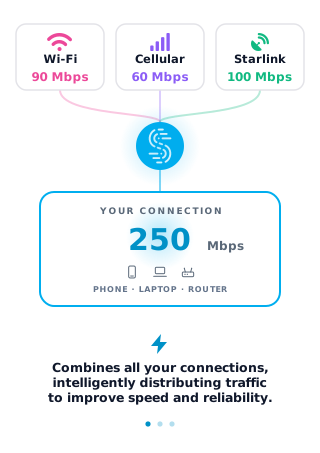
Speedify, a VPN that combines internet connections, runs on the device you use to live stream the event. Instead of using a single internet connection at a time, Speedify lets your device use multiple connections simultaneously, so you get more upload bandwidth and a more stable live stream.
That means on a smartphone you can combine the existing Wi-Fi with your 4G/5G cellular connection. On a computer, or a live streaming camera linked through a computer, you can add every available connection: Wi-Fi, Ethernet, 4G/5G cellular and more.
Speedify constantly monitors the quality of your internet connections. If the Wi-Fi becomes unreliable, for example, Speedify automatically reroutes data through other working connections until Wi-Fi is available again.
Speedify also has Streaming Mode, which is on by default. Streaming Mode identifies audio and video streams and gives them priority over other traffic (quality of service, or QoS), so web browsing and software updates do not slow down your calls and live streams.
Try Speedify as part of your church live stream setup for free: the free tier includes 5 GB per month with a free account.
Speedify
Get started with Speedify today.
Speedify combines Wi-Fi, 4G/5G cellular, Ethernet, Starlink and satellite into one faster, more reliable internet connection. Free to try: 5 GB a month with a free account. No credit card required.
🚀 Speed
Faster uploads and downloads, because Speedify uses all your internet connections at once.
📶 Stability
If one internet connection drops, Speedify moves your traffic to the others in milliseconds.
🔒 Security
AES-256 encryption on every internet connection, on any network you join.


15M+ downloads worldwide. 75K+ five-star reviews on iOS and Android.