
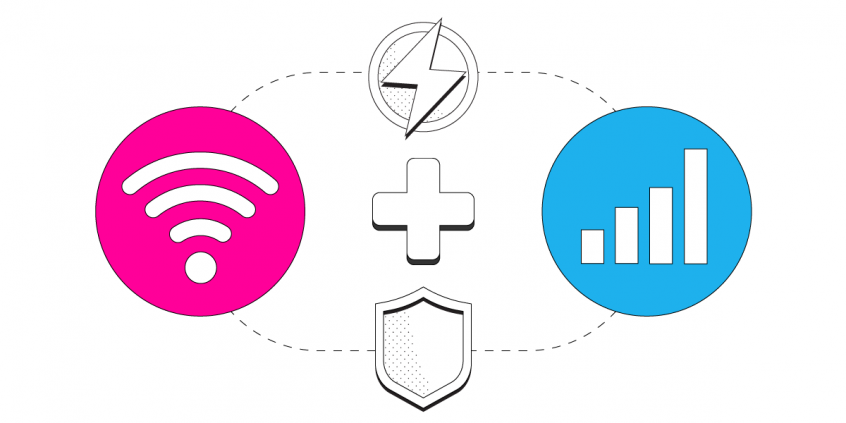
Use Both WiFi and Cellular at the Same Time on Your iPhone and iPad
Want faster upload and download speeds and more reliable internet on your iPhone? Run Wi-Fi and 4G/5G cellular at the same time.
Speedify is an app that combines two or more internet connections at once – such as Wi-Fi and cellular data – so you get faster uploads and downloads and stay online if one connection drops out.
With Speedify, your internet stays on when one connection fails.
When one of your connections drops, Speedify automatically routes your traffic to your remaining connections — so calls don't cut out and downloads don't stall.
How do I use WiFi and 4G/5G cellular at the same time with Speedify?

Pick your two internet connections and your device below and we'll take you to the step-by-step setup guide.


Speedify Feature · Pair & Share
Cellular sharing that works better than a mobile hotspot.
Speedify Pair & Share: share cellular between your devices, both ways
Most hotspots give. Speedify's Pair & Share gives and takes. Two devices running Speedify pair up and each uses the other's cellular connection simultaneously, so you both get faster uploads, faster downloads, and a steadier connection. No extra hardware, no new data plans, no setup beyond a tap.
Learn how Speedify's Pair & Share works ›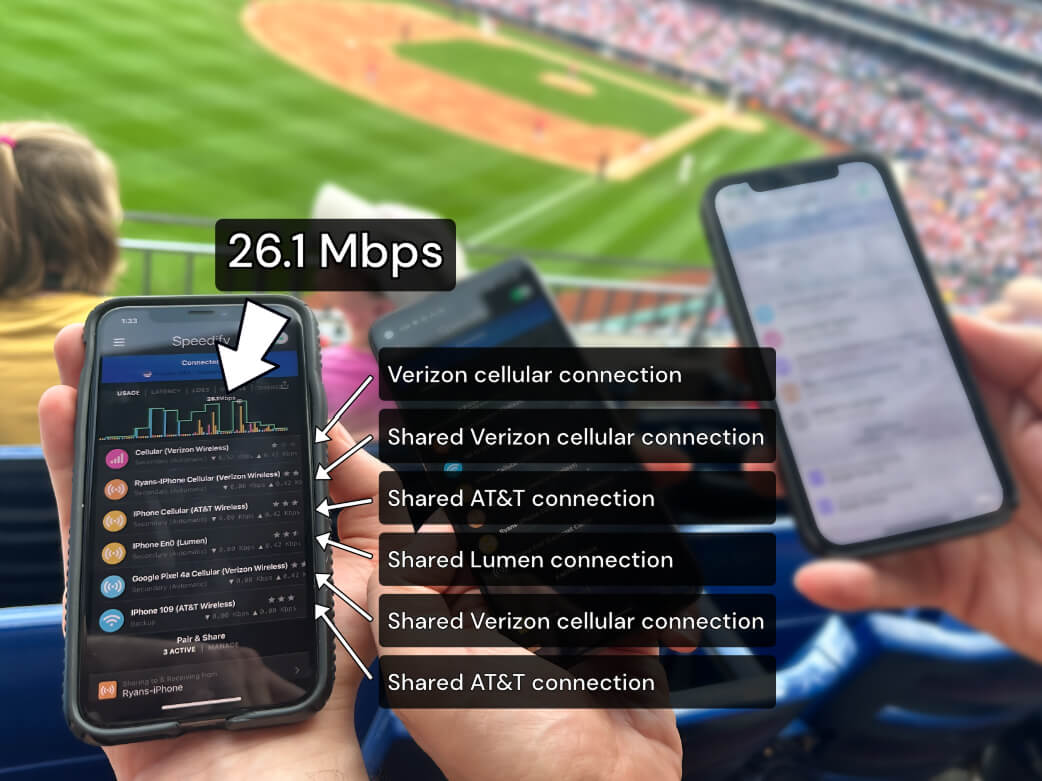
More speed
Every device you pair with adds its cellular to yours, and yours to theirs.
Stays connected
If a paired device drops out, Speedify keeps you online on the remaining links.
Always private
Every shared connection runs through AES-256 encryption. Your traffic is yours.
No new gear
Runs on devices already running Speedify, over your local network. Pair once, reconnects automatically.
How to Combine Wi-Fi and Cellular Connections on Your iOS Device
Speedify can bond any number or combination of Internet connections and will intelligently distribute your online traffic among them for optimal performance. Plus, if you get disconnected from one of your connections in the middle of an important video call or file transfer, Speedify will seamlessly failover to your other working Internet connection(s) without skipping a beat.
NOTE: For best results, use Internet connections from different sources. In general, joining the same upstream network multiple times (such as the same router via Ethernet and Wi-Fi) will not improve performance.
Here’s what you have to do to combine connections on iOS:
- Make sure your cellular data connection is on and working. Verify that you have an active mobile data connection on your iPhone or iPad, and that you have your data turned on. Go to Settings > Cellular and flip the switch to on.
- Connect to a Wi-Fi network. Verify that your Wi-Fi is enabled on your iPhone or iPad and connected to a network. Go to Settings > Wi-Fi and flip the switch to on. You can then select a network from the list that appears. Keep in mind, private networks may require you to enter a password before connecting. Here’s a brief guide from Apple.
- Get Speedify from the Apple Store. Once running, Speedify will automatically detect your Wi-Fi and cellular connections and combine them for increased speed, security, and stability.
Speedify Helps You Get Faster, More Reliable and Secure Internet
Speedify is a fast bonding VPN that gets you a fast, stable and secure Internet connection on your iOS mobile device. It achieves this with channel bonding technology that uses your Wi-Fi and cellular connections on your iPhone / iPad instead of switching between them.
You get more bandwidth, which allows all of your apps to run faster. Speedify runs in the background, proactively monitoring the quality of your connections. It is equipped with auto failover so when your Wi-Fi connection drops, it routes all the data through the cellular connection (if available) until the Wi-Fi connection is restored. All of this activity is automated. You don’t have to do anything, and you most likely won’t even notice anything different is happening.
As a VPN, Speedify provides advanced encryption, without forcing you to sacrifice speed or reliability. Speedify works best on all iPhones and iPads running iOS 12 and later. That includes iOS 12, iOS 13 and the new iOS 14. It also runs on iPadOS 13 and iPadOS 14.
Please check the updated system requirements on our download page.
Speedify is also available in the App Store. It only takes a few minutes to setup and requires no advanced technical skills or knowledge to use.
Speedify
Get started with Speedify today.
Combine Wi-Fi, 4G/5G cellular, Ethernet, Starlink, and more into one faster, steadier connection. Free to try — no credit card required.
🚀 Speed
Faster uploads and downloads by bonding all your connections at once.
📶 Stability
Automatic failover in under a second when any connection drops.
🔒 Security
AES-256 encryption on every connection, on every network you join.



15M+ downloads worldwide. 75K+ five-star reviews on iOS and Android.