
Get Fast and Reliable Internet Connectivity for Your OBS Studio Live Streaming
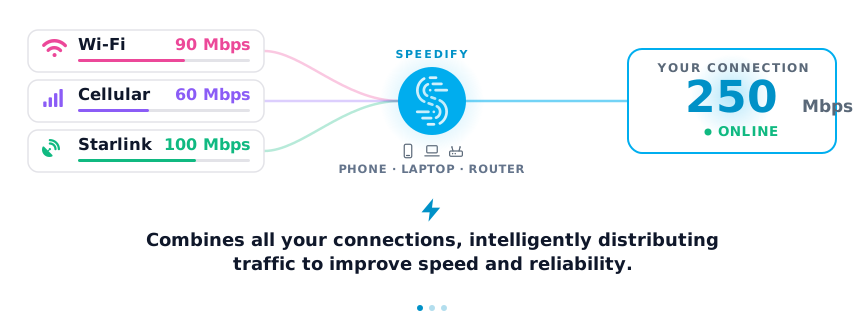
OBS Studio needs internet only to stream live: it records to your computer offline, but a live stream is uploaded as you broadcast, so it stays online only while the upload speed holds steady. OBS Studio (Open Broadcaster Software) is the free app streamers use to record and broadcast live video. Speedify is an app that combines Wi-Fi, 4G/5G cellular, Ethernet, Starlink and satellite internet connections into one faster, more reliable connection, so OBS keeps streaming if one connection drops.
If your OBS stream drops frames or disconnects when your Wi-Fi slows down, you are not the only one. Here is what internet OBS needs and how to use OBS Studio together with Speedify in three steps.
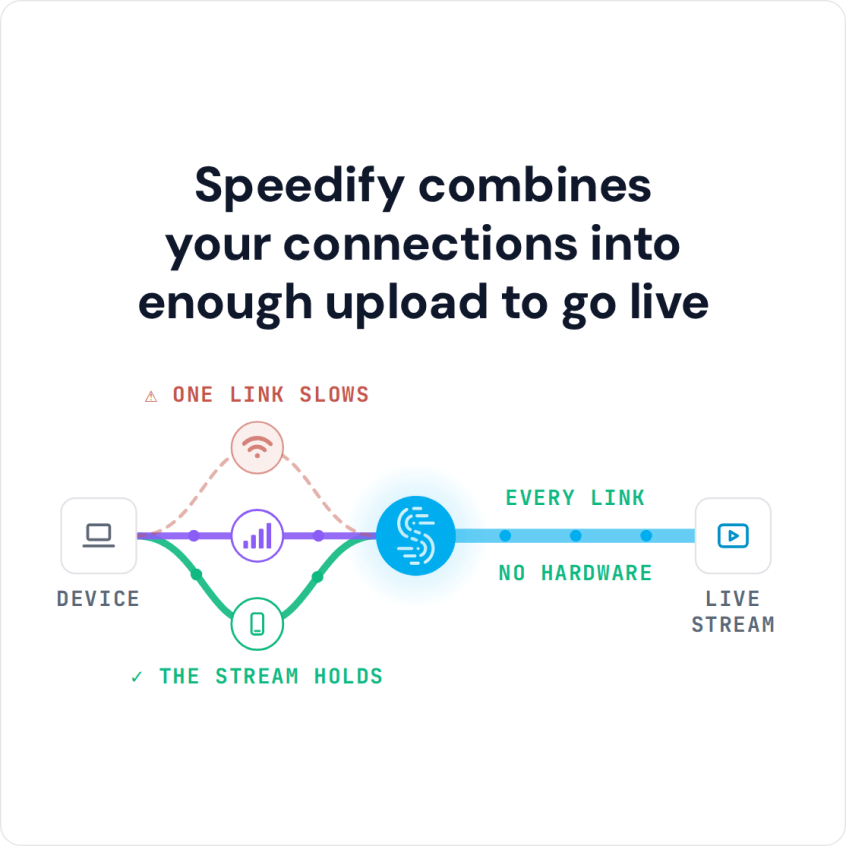
Speedify combines your connections into enough upload to go live
How do I use WiFi and 4G/5G cellular at the same time with Speedify?
Pick your two internet connections and your device below and we'll take you to the step-by-step setup guide.


How Speedify Helps Improve OBS Studio Live Streams
To stream, OBS Studio works over Ethernet, Wi-Fi or 4G/5G cellular, as long as the upload speed stays above your stream’s bitrate. A single connection, however good, can slow down or drop in the middle of a stream, so the safer setup is to use all your available Internet sources at once.
Speedify lets you use any mix of the following internet connections at the same time:
- one or multiple wired Ethernet connections;
- one or multiple Wi-Fi networks, such as your own and public hotspots nearby;
- one or multiple 4G/5G cellular connections from tethered smartphones, external USB 4G/5G adapters or MiFi devices.
For best results, every connection should come from a different provider, so you can keep live streaming if one internet provider has an outage.
3 Steps to Use OBS Studio with Speedify
Step 1: Connect All Available Internet Sources to Your Streaming Device
Use one or multiple of the following on your PC, Mac or Linux computer:
- wired Ethernet connection
- Wi-Fi hotspot
- tethered smartphone
- external USB 5G / 4G LTE cellular adapter
>> Here are the instructions to do that for Windows, macOS and Linux.
Step 2: Start Speedify and Connect to a Server
If you don’t have Speedify yet, get it from the Speedify website store. A free account includes 5 GB per month (Linux needs a paid plan).
Run Speedify and log into your account. All the active Internet sources you connected at step 1 should be recognized by Speedify.
All you have to do now is choose a server to connect to:
- if you have a dedicated server, connect to that. You will get the best performance Speedify can offer for live streaming.
- fastest server, which connects you to the server that should deliver the best performance;
- you can also choose a server yourself, in a location near the ingest servers of the platforms you stream to, such as Twitch or YouTube.
Step 3: Configure OBS Studio and Start Live Streaming
Follow the quick start instructions on the OBS website to get started for live streaming.
For OBS settings that work well with Speedify, see this article on improving streaming with OBS Studio.
When you’re ready, start the live stream. Speedify gives the stream the combined upload of all your connections plus failover, which helps prevent low quality, choppy and laggy video, buffering and disconnects from the streaming server.
Troubleshooting OBS Studio Live Streams with Speedify
Check out this article to troubleshoot potential issues.
If the problem continues, contact Speedify support for help with your live stream.
Speedify Settings and Test Results for OBS Studio Live Streaming
Speedify’s default settings automatically prioritize live streams over other traffic, so you do not need to change any Speedify setting for OBS Studio.
In Speedify’s latest tests on live streaming with OBS Studio on Twitch, Speedify raised the average bitrate of a slow and spotty Wi-Fi connection by up to 2.4 times, and failover protection kept the stream running without interruptions.
Keep Speedify running whenever you go live with OBS Studio, and also when you work remotely or play games online.
Speedify
Get started with Speedify today.
Combine Wi-Fi, 4G/5G cellular, Ethernet, Starlink, and more into one faster, steadier connection. Free to try — no credit card required.
🚀 Speed
Faster uploads and downloads by bonding all your connections at once.
📶 Stability
Automatic failover in under a second when any connection drops.
🔒 Security
AES-256 encryption on every connection, on every network you join.



15M+ downloads worldwide. 75K+ five-star reviews on iOS and Android.