
Stop OBS Dropped Frames when Streaming on Fluctuating Bitrate
Streaming to Twitch through OBS at a bitrate your internet connection cannot always sustain (bitrate meaning how much video data you send every second) is what produces OBS dropped frames, and enough of them will disconnect you from the streaming server outright.
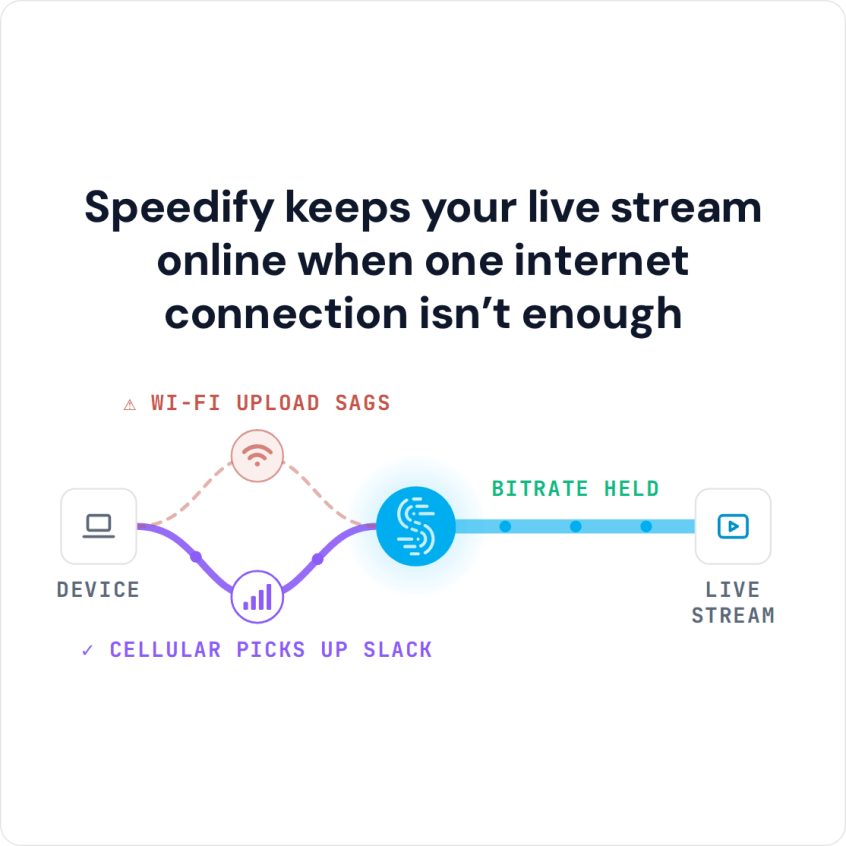
Speedify is an app that combines Wi-Fi, 4G/5G cellular, wired Ethernet, Starlink and other internet connections into a single, steadier upload. That needs two or more internet connections: on a single connection, Speedify works as an encrypted VPN and cannot stop that connection from dropping. Keep reading to see which settings on the streaming platform’s end are worth changing, and how using Speedify protects an OBS broadcast to Twitch even when your upload speed already tests well.
More on how Speedify keeps a Twitch broadcast up: Speedify for Twitch.
Why OBS Drops Frames Even When Your Internet Is Fine
The only reason you’re seeing OBS dropped frames is the connectivity you have to the streaming platform’s ingest server. Otherwise put, streaming platforms do not drop frames for any other reason than network congestion: read more technical details of what frame drops are here on Github.
Finding a solution to network congestion (be it on the part of the server you stream to, or on your side) will solve the OBS dropped frames issues.
The Three Places OBS Problems Come From
Dropped frames are frames OBS gives up on sending, and viewers see them as stutter. Let enough of them go and the ingest server drops you entirely. It happens when your connection cannot sustain the rate OBS is trying to push.
Faults fall into three groups: OBS Studio configuration, hardware that does not meet the requirements for what you are encoding, and the internet connection. The first two are worth eliminating quickly, because the third is the one that produces dropped frames specifically.
On the OBS side, check the bitrate first. If your upload speed test is close to the video bitrate set in Settings > Output, lower the bitrate until it sits comfortably below what your connection sustains, and lower the resolution with it if the picture suffers. Under Settings > Advanced > Network, OBS can also lower the bitrate on its own when the connection struggles (“Dynamically change bitrate to manage congestion”), trading some picture quality for fewer dropped frames.
How to Solve OBS Dropped Frames on the Server Side
There are a couple of things you can do to diagnose and fix the server side network congestion when you’re seeing dropped frames in OBS:
- Change the ingest server you’re streaming to: switching to another server sometimes solves this. Remember: the “closest” or “lowest ping” server isn’t always the most reliable. If you’re live streaming on Twitch, use TwitchTest to find the server you have the best bandwidth to and the maximum bit rate you can stream. It’s recommended to choose a server with a quality score of at least 80 for a stable live streaming experience.
- Try another streaming service and see if you get the same “dropped frames” issues. If it’s Twitch that gives headaches, try streaming on YouTube; if OBS is still dropping frames, then the culprit is most probably your Internet connection. If you stream with XSplit, see how to fix XSplit dropping frames.
Still seeing OBS dropped frames?
- You can go through this extensive checklist on dropped frames and connection issues and try everything, or…
- Add Speedify, which combines two or more internet connections, so a dip on one connection does not drop your frames.
Speedify Stops OBS Dropped Frames, Even If You Have a Good Upload Speed
Speedify is a mobile VPN service built on connection combining: it lets you combine multiple Internet connections at the same time into one pipe for more bandwidth and reliability.
How does this help you?
- If you’re having bandwidth issues with your Internet connection, you can toss other connections in the mix (public WiFi nearby, cellular, tethered phone, etc.) and combine them with Speedify.
- If you have high latency (lag) to Twitch or YouTube servers, Speedify cannot shorten the route to a distant server. With two or more connections, Redundant Mode sends every packet over each connection and uses the first copy to arrive, so latency follows whichever connection is faster at that moment (it uses more data). Choose the Speedify server closest to you, so the extra hop adds as little lag as possible.
- If you get high packet loss or jitter, Speedify’s fast error correction features (which work even with just one Internet connection) detect when a network packet has been lost and resend it before the Internet protocol notices, preventing network congestion from building up.
So, not only will you enjoy the combined speed and stability of all your connections, but if one of them disconnects, Speedify will shift your streaming to the other working connection(s), in milliseconds according to Speedify.
Fix OBS Dropped Frames and Complete Your Live Streaming Setup with Speedify
With a very simple user interface, but powerful capabilities, Speedify can easily be used successfully by both occasional live streamers on Facebook, YouTube, Twitch and also by professional broadcasters such as vloggers, gamers, reporters in the field etc.
Speedify is made for when you’ve got access to 2 or more Internet connections while streaming on Twitch or YouTube: Wi-Fi and 4G/5G cellular on your smartphone, Wi-Fi and wired Ethernet on your computer. With its VPN core that combines connections, and the Individual plan at $89.99 per year (versus thousands of dollars on dedicated hardware for combining connections), Speedify is a future-proof way to complete your live streaming setup.
Speedify
Get started with Speedify today.
Speedify combines Wi-Fi, 4G/5G cellular, Ethernet, Starlink and satellite into one faster, more reliable internet connection. Free to try: 5 GB a month with a free account. No credit card required.
🚀 Speed
Faster uploads and downloads, because Speedify uses all your internet connections at once.
📶 Stability
If one internet connection drops, Speedify moves your traffic to the others in milliseconds.
🔒 Security
AES-256 encryption on every internet connection, on any network you join.



15M+ downloads worldwide. 75K+ five-star reviews on iOS and Android.