

Catching a Starlink problem – an obstruction, a drop, a dish going offline – usually means noticing the internet is already broken. Speedify is an app that helps you use all of your internet connections at the same time – including one or more Starlink dishes – for faster uploads and downloads and a more reliable connection. Speedify also sends real-time alerts the moment a Starlink dish has a problem. This guide explains what triggers each alert and how to act on it.
Starlink disconnects all the time for ALL Starlink users. The Speedify Starlink Index report found that Starlink connections are down for an average of ~33 min per day. Plus, all Starlink dishes experience small drops and packet loss every 15 seconds, when the moving Starlink satellites hand off the connection to the next satellite overhead.
The best way to fix Starlink's connection drops is to combine your Starlink connection with another internet connection, such as 4G/5G cellular, cable, fiber, DSL, or another Starlink connection. Speedify makes this possible with channel bonding.
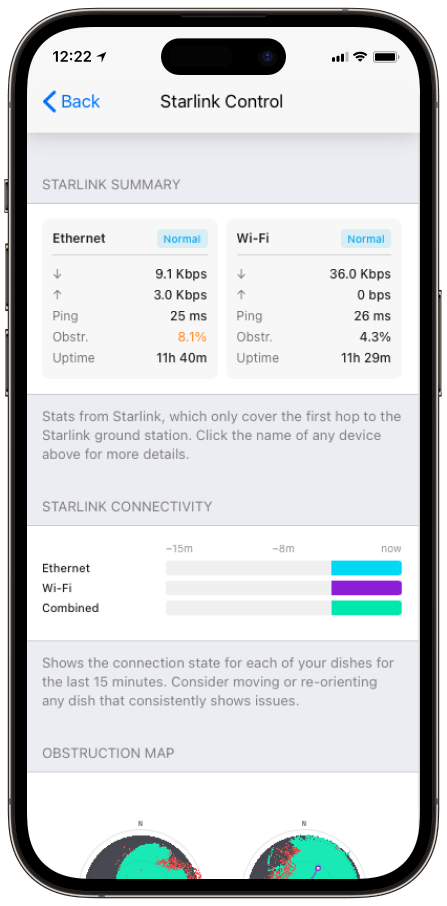
Monitor your Starlink dish performance inside Speedify.
Speedify’s built-in Starlink Control Center gives you real-time visibility into your dish’s health — without opening a separate app.
Troubleshoot Starlink Issues and Combine Starlink with 5G, 4G, DSL and Other Connections with Speedify for Better Starlink Internet
How to Troubleshoot Your Internet Connection Using the Starlink Dish Alerts
When monitoring your Starlink dish status, you may encounter various alert messages that indicate different operational conditions or issues. Understanding these alerts can help you troubleshoot problems and ensure optimal performance of your Starlink internet service.
The Starlink dish alerts can be grouped into several categories:
- Operational status alerts
- Temperature-related alerts
- Positioning and movement alerts
- Connection and performance alerts
- Maintenance alerts
- Performance metrics to monitor
You can get a full description of all the Starlink dish alerts from our dedicated knowledge base article.
What You Should Do When Getting Starlink Dish Alerts
Depending on the type of Starlink dish alerts, there are things you could do to fix the situation:
- Monitor the situation before taking action, as some alerts are temporary and resolve on their own.
- Address the environmental factors if possible, for such alerts.
- Focus on addressing the most critical alerts (like thermal shutdown or motors being stuck) before moving to performance-related issues.
- Reboot your Starlink system – unplug power for 20 seconds, then reconnect.
- Contact Starlink support for assistance, if alerts persist for more than 24 hours.
Here’s a recent feedback from one of the Speedify customers related to this new functionality:
“Hey, just like to say the new reporting on a Starlink connection is great. Trying to debug Starlink issues when they have the Wi-Fi bypassed is a a real pain. First time today i saw the “waiting for sw update” on the link status. Godsend, as we turn our connectivity off at night and so it misses the 2-4am window to install. And doesn’t seem to install on reboot unless you go into the Starlink web portal and click the reboot button from there, so something that would have driven me around the houses for few hours fixed pronto!”
Speedify Helps You Fix Slow and Unreliable Starlink
If your Starlink internet is performing sub-par sometimes, this can easily be fixed by using another connection you have available at the same time with your Starlink connection. With its channel bonding technology, Speedify allows you to do exactly that to get faster, more reliable internet, wherever you are.
Speedify
Get started with Speedify today.
Combine Wi-Fi, 4G/5G cellular, Ethernet, Starlink, and more into one faster, steadier connection. Free to try — no credit card required.
🚀 Speed
Faster uploads and downloads by bonding all your connections at once.
📶 Stability
Automatic failover in under a second when any connection drops.
🔒 Security
AES-256 encryption on every connection, on every network you join.



15M+ downloads worldwide. 75K+ five-star reviews on iOS and Android.