
Speedify Shows Your Starlink Status in Real Time and Keeps You Online When Your Starlink Internet Connection Drops Out
To check your Starlink status, open the Starlink app, or type dishy.starlink.com or 192.168.100.1 into a web browser while you’re on your Starlink Wi-Fi. Your Starlink dish’s status tells you whether it’s online, still starting up, looking for satellites, or blocked by something in its view of the sky. It’s the fastest way to find out why your internet is acting up.
Speedify, an app that uses all of your internet connections at the same time, including one or more Starlink dishes, also shows the live status of every Starlink dish you use with it. Below: where to check your Starlink status, what each status and alert means, and how Speedify keeps you online while a Starlink dish is searching or blocked. One status has its own page: what a Starlink Hardware Self Test means.
Monitor your Starlink dish performance inside Speedify.
Starlink Internet Connection Dropouts Happen to Everyone
Speedify measures thousands of Starlink users in more than 150 countries. From 29 September to 12 October 2026, fixed Starlink dishes went offline for about 37 minutes a day on average, and Starlink dishes on RVs and boats for about 61 minutes a day.
Starlink also switches each dish to a new satellite every 15 seconds, and a switch can cause a short dropout. Even a perfectly installed Starlink dish goes offline, and about 7 in 10 Starlink users on Speedify use Starlink together with a second internet connection, like 4G/5G cellular.
Where to See Your Starlink Status
- The Starlink app. The home screen shows your Starlink dish’s status at the top: online, or one of the offline statuses. Your phone has to be on your Starlink Wi-Fi for the app to reach the Starlink dish.
- A web browser. Type dishy.starlink.com or 192.168.100.1 into any web browser on your Starlink Wi-Fi to see the same status and stats.
- The Starlink router’s light. It gives a rough idea: blinking white while it searches, steady when the Starlink internet connection works, red for a hardware fault.
- Debug Data in the Starlink app. Go to Advanced, then Debug Data, for more detailed status and alerts.
What Each Starlink Status and Alert Means
The Starlink app shows a handful of statuses and alerts for your Starlink dish. Here’s what each status tells you:
- Online. Your Starlink dish is connected to the Starlink network and working normally.
- Offline: Booting. Your Starlink dish is starting up. That’s normal for a few minutes after you plug it in. If it’s still booting after 20 minutes, unplug it and plug it back in.
- Offline: Searching. Your Starlink dish is looking for satellites, usually right after a restart. Give it 5 to 20 minutes.
- Offline: No Signal Received. Your Starlink dish has power but can’t reach the satellites. A big obstruction, a hardware fault or a Starlink network problem can cause it.
- Obstructed. Something is blocking part of your Starlink dish’s view of the sky, causing short drops. Check the obstruction map.
- Disconnected. Your phone isn’t on your Starlink Wi-Fi, so the Starlink app can’t reach your Starlink dish. Reconnect to your Starlink Wi-Fi.
- Network Issue or Outage. Starlink has confirmed a problem on its side. There’s nothing to fix at home.
And here are the alerts the Starlink app can show:
- Starlink Obstructed. Something partly blocks your Starlink dish’s view of the sky, causing short drops that hit video calls and games hardest. Give it a clearer view.
- Starlink Disconnected. Your Starlink dish is unplugged or restarting. Make sure it’s plugged in all the way, or wait for the restart to finish.
- Service Outage. Starlink’s network is down in your area. There’s nothing to fix at home.
- Recent Interruptions. Your Starlink internet connection is fine now, but lost more data than normal in the last 15 minutes, usually because of weather or something briefly in the way. You don’t need to do anything.
- Starlink Overheated. Your Starlink dish got too hot and shut off to cool down. It reconnects once it cools. Give it more shade and air.
- Thermal Throttling. Your Starlink dish is hot and running slower so it doesn’t overheat. Move it somewhere cooler, or out of direct sun.
- Poor Cable Connection or Slow Ethernet. The cable between your Starlink dish and the Starlink router is running slower than it should, which points to a damaged cable or a loose plug. Unplug and replug the cable, and use a good-quality Ethernet cable (Cat5e or better).
- Poor WiFi Signal. Your device is too far from the Starlink router. Move closer, or add a Starlink Mesh Wi-Fi extender.
- Determining Location. Your Starlink dish is finding its location by GPS, which can take up to 15 minutes. Don’t unplug it, and avoid metal mounts that wrap around its base.
- Update Required. Your Starlink dish needs a software update to stay connected. Keep it plugged in, with a clear view of the sky, so it can download the update and restart.
- Unexpected Location or Too Far From Service Address. Your Starlink dish is being used away from its registered address, or where your plan doesn’t work. Go back to the address, update the address, or switch to a Roam plan.
- Starlink Moving Too Fast. Your Starlink dish is moving faster than your plan allows. Residential plans are for one fixed location. Slow down, or switch to a Roam or Priority plan.
- Actuator Motor Stuck. On Starlink dishes that aim themselves, the motor can’t move, often because of ice or debris. Clear anything in the way, and contact Starlink if it keeps happening.
- Mast Not Vertical. The pole your Starlink dish is mounted on isn’t straight up and down, which hurts how well it aims. Adjust the mount until the pole is straight. Here is how to fix the Mast Not Vertical alert.
The catch: the Starlink app shows the status of one Starlink dish at a time, and only while you’re on that Starlink dish’s Wi-Fi.
How to See Your Starlink Status Live in Speedify
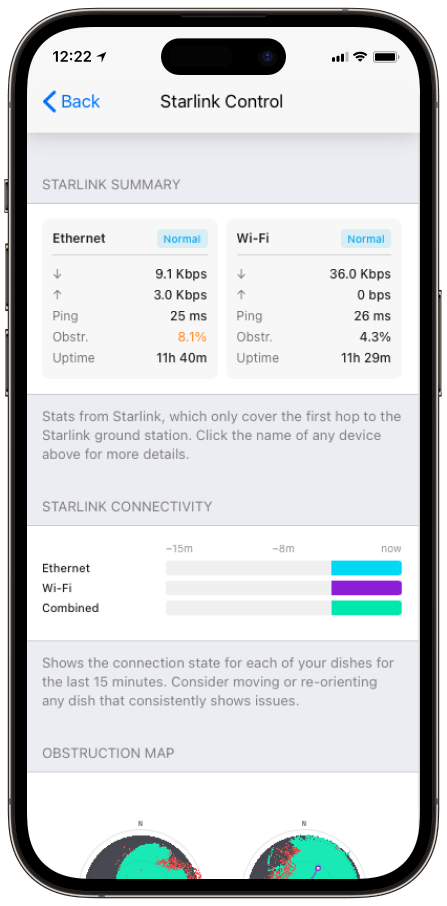
Speedify’s Starlink Control Center reads your Starlink dish’s data and shows a live Starlink Summary card: status, download and upload speed, ping, how much of the view is blocked, and how long the Starlink dish has stayed online, all updating as you watch. Speedify also shows Starlink dish alerts in the app, like a stuck motor, a pole that isn’t straight or an overheating Starlink dish, so you often see a problem coming before the status turns offline.
If you have more than one Starlink dish, Speedify shows the status of all of them at once, side by side. The Starlink app can’t, because every Starlink dish uses the same 192.168.100.1 address. If your Starlink app only shows one Starlink dish, that’s why, and there’s a fix in how to manage two Starlink dishes at once with Speedify. For more on the stats behind the status, see how to monitor Starlink stats with Speedify. To see what Starlink dish data looks like across thousands of Starlink dishes, read how Speedify measures Starlink.
How Speedify Keeps You Online When Your Starlink Status Drops
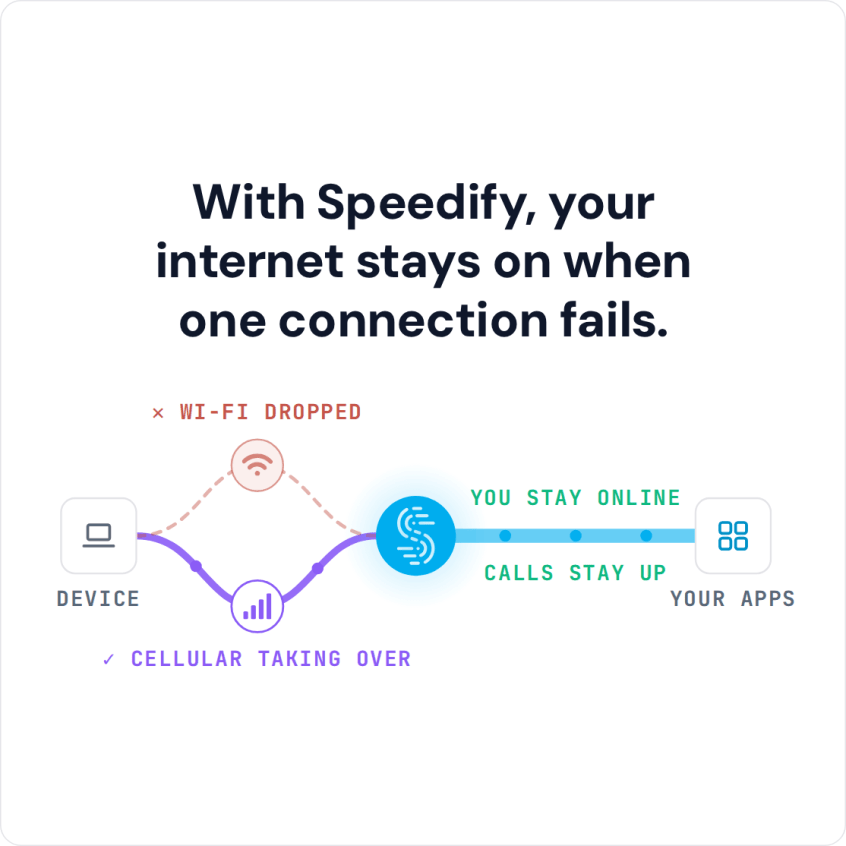
Seeing the status is useful. Staying online whatever it says is better. Your Starlink dish switches to a new satellite about every 15 seconds, and each switch, obstruction or storm can flip your status to offline for a moment. Speedify uses your Starlink dish together with a second internet connection, like 4G/5G cellular or a wired line, and sends your traffic over both at the same time. When your Starlink dish goes offline, Speedify moves everything to the other internet connection right away, so your internet stays up while the Starlink dish reconnects. A second Starlink dish helps when one dish is blocked or restarting, but not with satellite switches: every Starlink dish switches satellites on the same 15-second schedule, so cellular is what covers those. Speedify needs that second internet connection: with one Starlink dish alone, Speedify shows you the status but can’t keep you online when the dish drops. There’s more in how Speedify prevents disconnections from Starlink satellite switches.
How to Set Up Speedify to Watch Your Starlink Status
- Download Speedify for your device: Windows, macOS, iOS, Android, Linux or an OpenWrt router.
- Connect your device to your Starlink Wi-Fi or the Starlink router, so Starlink shows up as an internet connection in Speedify. To cover your whole network, use a router that works with Speedify.
- Open the Starlink Control Center in Speedify to see your Starlink dish’s live status, speed, ping, blocked view and time online.
- Add a second internet connection and set both to Primary, so Speedify keeps you online when your Starlink status drops.
Speedify
Get started with Speedify today.
Speedify combines Wi-Fi, 4G/5G cellular, Ethernet, Starlink and satellite into one faster, more reliable internet connection. Free to try: 5 GB a month with a free account. No credit card required.
🚀 Speed
Faster uploads and downloads, because Speedify uses all your internet connections at once.
📶 Stability
If one internet connection drops, Speedify moves your traffic to the others in milliseconds.
🔒 Security
AES-256 encryption on every internet connection, on any network you join.



15M+ downloads worldwide. 75K+ five-star reviews on iOS and Android.