
You Can Combine Multiple Internet Connections Together – Like Starlink, Wi-Fi, 4G, 5G, and DSL – with Speedify, to Stop Twitch Disconnects and Dropped Frames
A Twitch stream that dies mid-broadcast, a stream health bar that keeps turning red, frames dropping until the picture goes blocky: these look like three different problems and they are usually the same one. One internet connection has a bad moment, and a normal streaming setup has nothing to fall back on.
Speedify is an app that runs your broadcast over Wi-Fi, 4G/5G cellular data, wired Ethernet, Starlink and other internet connections at the same time, so losing one of them does not end the stream. Below: what actually causes disconnects and dropped frames, what to check before you change anything, and what changes once a second connection is carrying the stream with you.
Speedify covers the whole Twitch picture, broadcasting and watching, on Speedify for Twitch.
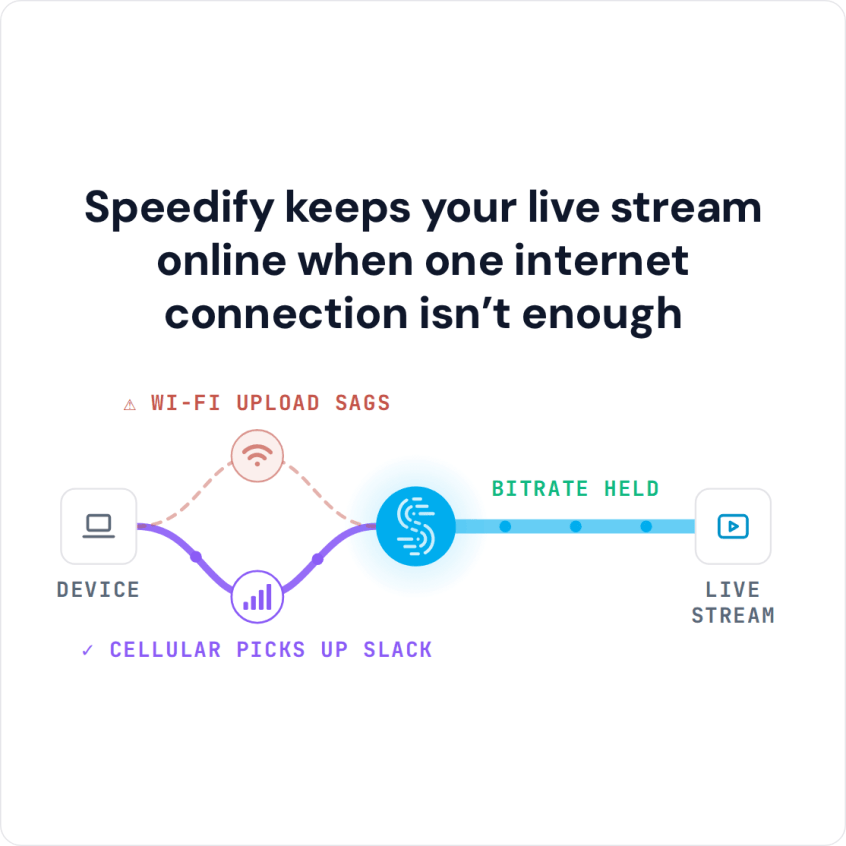
Speedify keeps your live stream online when one internet connection isn’t enough
Why Twitch Drops Your Stream or Your Frames
Leave software conflicts aside for a moment. Broadcasting to Twitch, and watching Twitch, both need a steady amount of bandwidth in a steady flow. Twitch will cut you off if the available bandwidth falls below what your bitrate needs, or if the connection disappears entirely.
Two conditions cause most of it. Your connection may simply be too slow for the bitrate you are pushing. Or it may be fast on average but unsteady, losing chunks of data along the way, which is packet loss. Both get worse when you move around, because a phone or laptop cannot hand over between Wi-Fi networks or cell towers without dropping whatever was running.
The underlying problem is that your computer, laptop, iPhone or Android phone will only use one internet connection at a time, even when it is sitting on two. Your phone has Wi-Fi and mobile data available at that exact moment and uses one of them.
Dropped Frames Are Almost Always the Path to the Ingest Server
If OBS or Streamlabs is reporting dropped frames, the problem is the connection between you and the Twitch ingest server. The same holds when XSplit is dropping frames. Streaming platforms do not discard frames for any other reason. Network congestion somewhere on that path is what you are looking at, and it can sit on your side or on the server side.
What to Check Before You Change Anything
Start with Twitch Inspector, which analyses your last broadcasts and separates internet problems from encoder problems. Twitch also publishes guidance on low latency video that is worth reading if your stream is unstable rather than dead.
If your streaming machine is on Wi-Fi, move it to wired Ethernet. That single change fixes a surprising share of dropped-frame complaints. After that, the honest next step is a second internet connection from a different provider, so there is something to fall back on when the first one stumbles.
A Faster Plan Does Not Mean a Stable Connection
There are cases where the most expensive plan your ISP sells still will not hold a Twitch stream. Most streamers broadcast at 1080p, though 720p at 30 fps is a reasonable target, and that needs a minimum upload of roughly 3.6 Mbps held steadily for hours.
Held steadily is the part that breaks. A connection can average well above 3.6 Mbps and still drop below it for two seconds at a time, which is all Twitch needs to cut the broadcast. Speed and stability are separate properties, and upgrading your plan only buys you the first one. Switching ISP sometimes fixes it. Often it does not, because the new line has its own bad minutes.
Chasing Packet Loss Through Your ISP Rarely Ends Well
The usual path is to run speed and latency tests, find that your bitrate fluctuates, and take it to your ISP. Congestion, ageing hardware and software bugs all produce the same symptom, and none of them are quick to resolve from a support queue. Resetting the modem, the router and your network adapters can lower the loss rate for a while. If the line itself is lossy, you end up back where you started.
How Speedify Keeps the Stream Up
Speedify uses all the internet connections your device already has, at the same time, instead of picking one. That raises the bandwidth available to your stream and gives it somewhere to go when a connection degrades. If one connection quits, Speedify moves the traffic to the others without the stream noticing, and folds the first one back in automatically once it recovers.
Speedify also helps when there is only one connection to work with. Its forward error correction spots a lost packet and resends it before the connection has registered the loss, so the slowdown never reaches your encoder. That is what keeps a single flaky line usable.
What the Packet Loss Tests Showed
In our own testing, a single connection running through Speedify is largely shielded from the damage that normally starts at around 1% packet loss. At 5% loss, throughput over Speedify was well over double that of regular TCP. Running two connections at once, Speedify’s UDP and Multi TCP modes were more reliable again, typically about 200% faster than the same setup without Speedify.
Speedify encrypts the connection at the same time, so none of this comes at the cost of your privacy.
Speedify is free to try with no email sign-up and no strings attached.
Speedify
Get started with Speedify today.
Speedify combines Wi-Fi, 4G/5G cellular, Ethernet, Starlink and satellite into one faster, more reliable internet connection. Free to try: 5 GB a month with a free account. No credit card required.
🚀 Speed
Faster uploads and downloads, because Speedify uses all your internet connections at once.
📶 Stability
If one internet connection drops, Speedify moves your traffic to the others in milliseconds.
🔒 Security
AES-256 encryption on every internet connection, on any network you join.



15M+ downloads worldwide. 75K+ five-star reviews on iOS and Android.