

How to Merge 2 Cellular Connections on Windows
Want faster upload and download speeds and more reliable internet on your Windows PC? Run two 4G/5G cellular connections at the same time.
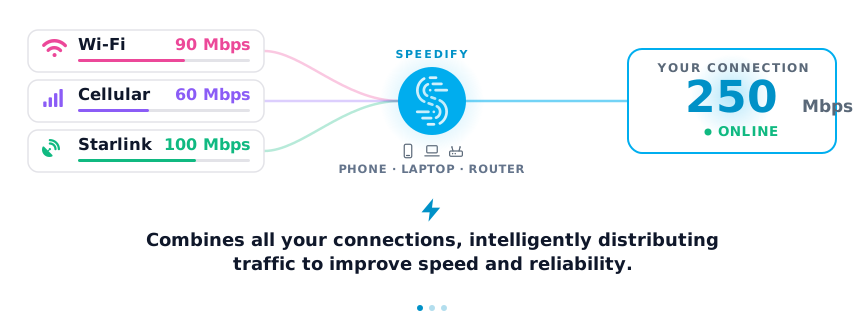
Speedify is an app that combines two or more internet connections at once – such as two 4G/5G cellular connections – so you get faster uploads and downloads and stay online if one connection drops out.
With Speedify, your internet stays on when one connection fails.
When one of your connections drops, Speedify automatically routes your traffic to your remaining connections — so calls don't cut out and downloads don't stall.
Speedify is the only app available for all major platforms - Windows, MacOS, Linux, iOS, Android and OpenWrt - that combines your Wi-Fi, 4G / 5G cellular, wired, and even your friend’s phone signals – and turns them into one ultra-fast and super secure link that keeps you all connected for the best possible live streaming, video calling, or just posting to your favorite app.
Speedify can bond any number or combination of Internet connections and will intelligently distribute your online traffic among them for optimal performance. Plus, if you get disconnected from one of your connections in the middle of an important video call or file transfer, Speedify will seamlessly failover to your other working Internet connection(s) without skipping a beat.
NOTE: For best results, use Internet connections from different sources. In general, joining the same upstream network multiple times (such as the same router via Ethernet and Wi-Fi) will not improve performance.
How do I use WiFi and 4G/5G cellular at the same time with Speedify?
Pick your two internet connections and your device below and we'll take you to the step-by-step setup guide.


Three Steps to Combine 2 Cellular Connections on Windows
Cellular connections come in various “shapes” and “sizes” when using them on your Windows PC:
- the most common way to connect to a cellular network is an external USB cellular adapter. For this setup, you will need two of those – one for each network;
- some PCs (especially laptops) may have a built-in 5G / 4G / LTE cellular adapter; in this case, you will only need one external USB cellular adapter;
- you can get cellular Internet from your tethered iPhone or Android device as well;
- you can also use a MiFi device and turn your cellular connection into a WiFi hotspot.
In this article we will assume you’re using two USB cellular adapters on your Windows PC.
Step 1: Connect Your First Cellular Connection to Your Windows PC
Connect your Cellular Adapter to a USB port on your PC. Some Cellular adapters require the use of proprietary dialer software to connect to the Internet. Be sure to follow the manufacturer's installation and operating instructions closely.
In order to verify that your cellular connection is active, click on the computer / Wi-Fi icon in the lower right area of the taskbar (systray) and check to see if a “Cellular” tile shows up.
Step 2: Connect Your Second USB Cellular Adapter to Your PC
Follow the same steps as above. You should be able to see both cellular connections active in Windows.
Step 3: Download and Install Speedify
Last but certainly not least, download and install Speedify. Once running, Speedify will automatically detect any available Internet connections and combine them for increased speed, security, and stability.
Need to keep several devices connected in areas with limited or spotty network coverage, like event venues, remote locations or when traveling? Get consistent and uninterrupted online activity for all your devices using Speedify's Pair & Share functionality, which allows you to share cellular data between multiple devices wirelessly.
By pairing devices, you can effectively distribute your cellular connection across them, improving overall performance, especially when other network options like Wi-Fi may be slow or unstable.
You can manage settings, view statistics, and even apply limits to individual connections by either clicking/tapping on them from the Dashboard or by navigating to the desired connection through the main Settings menu.
Speedify will work quietly in the background to optimize performance including prioritizing streaming web traffic to avoid stuttering, buffering and disconnects.
Whether at home, work, or on-the-go, Speedify is the only VPN that makes your online experiences faster, more reliable, and more secure.
Speedify
Get started with Speedify today.
Combine Wi-Fi, 4G/5G cellular, Ethernet, Starlink, and more into one faster, steadier connection. Free to try — no credit card required.
🚀 Speed
Faster uploads and downloads by bonding all your connections at once.
📶 Stability
Automatic failover in under a second when any connection drops.
🔒 Security
AES-256 encryption on every connection, on every network you join.



15M+ downloads worldwide. 75K+ five-star reviews on iOS and Android.