
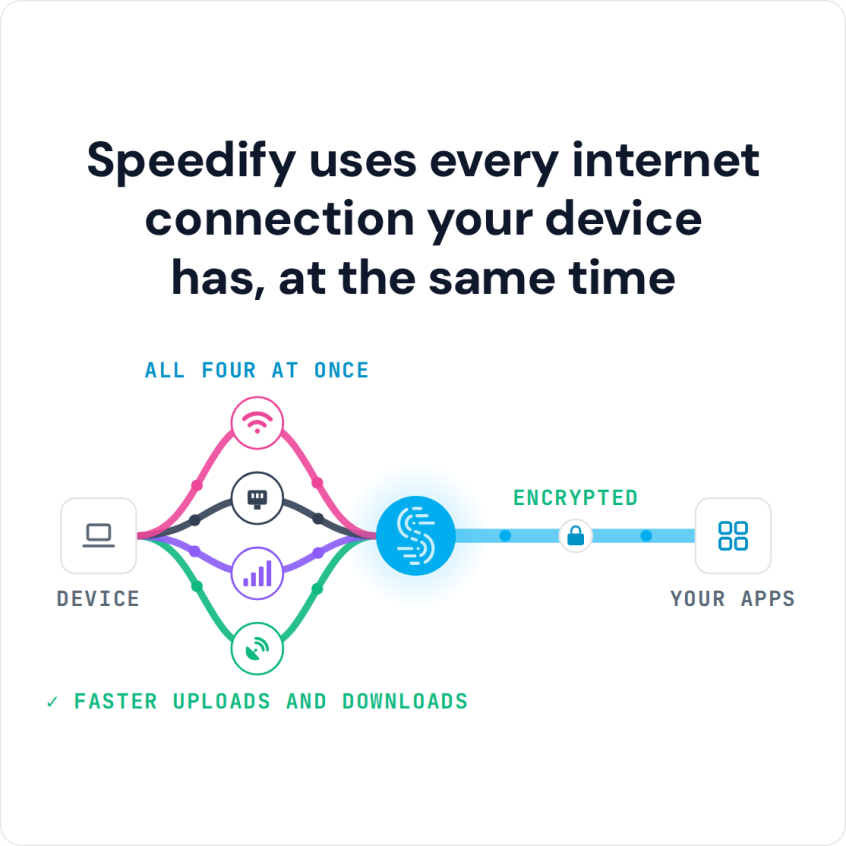
How to Use Wi-Fi, 4G/5G Cellular, Ethernet, Starlink and Other Connections at Once Anywhere with Speedify

Better Internet, Anywhere & Anytime!

With just a single connection Speedify can help improve packet loss and allow you to access region locked content. However, to get the full benefits of Speedify you need access to multiple Internet connections. On mobile this is easy since smartphones have their own built in cellular data connections that can be bonded with Wi-Fi.

Things are more complicated with computers, both due to differences in hardware and, most of all, the availability of different kinds of Internet connections. If we’re talking about laptops, all of them have internal Wi-Fi adapters. And some of them have internal Ethernet and/or cellular adapters. With desktop computers, you usually get the built-in Ethernet adapter and sometimes a Wi-Fi adapter.

The important thing is to realize that it’s almost impossible you don’t have access to at least 2 Internet sources. That’s why we aggregated this information into a handy guide on the most common Internet connections that you can find depending on where you are.

Speedify · Connection Reliability

<1 sec

failover when a connection drops

With Speedify, your internet stays on when one connection fails.

When one of your internet connections drops, Speedify shifts your traffic to your remaining connections in under a second — so calls don’t cut out and downloads don’t stall.

Speedify · channel bonding & automatic failover Try Speedify for free ›

Should you have a backup 4G, 5G, Starlink, or cable internet connection?

Yes — every internet connection goes down, including Starlink, which drops for ~34 minutes a day on average. A backup connection from a different provider means one outage never takes you fully offline. The most common options are a 4G/5G cellular hotspot, a cable or DSL line, or a second satellite dish.

Speedify bonds any two connections into one — automatic failover, more speed, no dropped calls.

Try Speedify free →

How do I use Wi-Fi and 4G/5G cellular at the same time with Speedify?
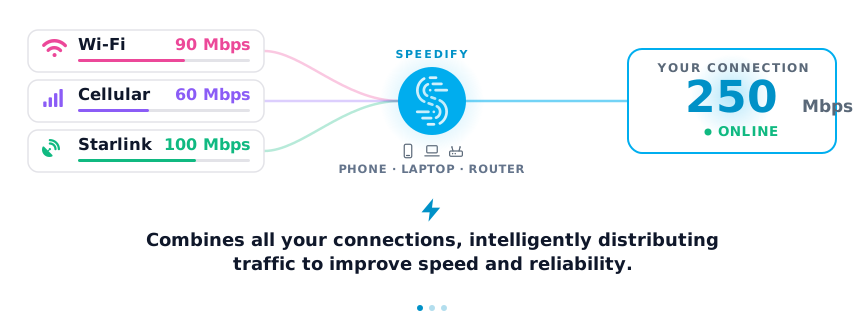
Pick your two internet connections and your device below and we'll take you to the step-by-step setup guide.

I want to combine

Use the selectors below to find the setup guide for your exact combination of connections.

Or view articles for

Get started with Speedify today

Free to try on every device. No credit card required.

15M+ downloads worldwide · 75K+ five-star reviews · 500TB+ bonded per week
Your location Primary connection Secondary connection Additional Networking Hardware Required
Home – Suburban/Rural

Wi-Fi / wired via broadband router

e.g. DSL, Cable, Satellite, Fiber

Cellular 4G/5G
  • None, if using Pair & Share or tethered phone via USB
  • Cellular 4G/5G modem / USB dongle from your mobile carrier
Cellular 4G/5G Cellular 4G/5G from another carrier
  • None, if your computer has an internal cellular network adapter
  • 1 x Cellular 4G/5G modem / USB dongle from the other carrier, if using a USB tethered phone
  • 2 x Cellular 4G/5G modems / USB dongles, one from each mobile carriers
Home – Urban

Wi-Fi / wired via broadband router

e.g. DSL, Cable, Satellite, Fiber

Public Wi-Fi / from a restaurant or cafe
  • None, if you’re using the wired connection from your broadband router
  • 1 x Wi-Fi USB dongle to connect to the public Wi-Fi network
Cellular 4G/5G
  • None, if using Pair & Share or a USB tethered smartphone
  • Cellular 4G/5G modem / USB dongle from your mobile carrier
Office Wired / Wi-Fi connection, often secured

Cellular 4G/5G

  • None, if using Pair & Share or a tethered phone via USB
  • Cellular 4G/5G modem / USB dongle from your mobile carrier
Around Town – Restaurant, Cafe, or Conference Center Public Wi-Fi Cellular 4G/5G
  • None, if using Pair & Share or tethered phone via USB
  • Cellular 4G/5G modem / USB dongle from your mobile carrier
Traveling – Airports/Railway stations Public Wi-Fi Cellular 4G/5G
  • None, if using Pair & Share or tethered phone via USB
  • Cellular 4G/5G modem / USB dongle from your mobile carrier
Hotel public Wi-Fi

Hotel public Wi-Fi

Wired connection in room

Other public Wi-Fi
  • None, if using the wired connection in your room
  • 1 x Wi-Fi USB dongle to connect to the other network
Cellular 4G/5G
  • None, if using Pair & Share or tethered phone via USB
  • Cellular 4G/5G modem / USB dongle from your mobile carrier
Camping or Outdoors Cellular 4G/5G Cellular 4G/5G from another carrier
  • 1 x Cellular 4G/5G modem / USB dongle from the other carrier, if using a tethered phone via USB
  • 2 x Cellular 4G/5G modems / USB dongles, one from each mobile carriers

In addition, for all of the above cases involving a cellular connection, you can use the Pair & Share feature. This will allow you to wirelessly tether to the cellular connections shared by other devices running Speedify on the same local network.

So many Internet connections, so little time.

As you can see, there’s Internet everywhere if you just know where to look! You just need a channel bonding service like Speedify to be able to use them all at the same time.

Make sure you have the latest version of Speedify running and let us know your thoughts on Twitter or Facebook.

Speedify

Get started with Speedify today.

Combine Wi-Fi, 4G/5G cellular, Ethernet, Starlink, and more into one faster, steadier connection. Free to try — no credit card required.

🚀 Speed

Faster uploads and downloads by bonding all your connections at once.

📶 Stability

Automatic failover in under a second when any connection drops.

🔒 Security

AES-256 encryption on every connection, on every network you join.

15M+ downloads worldwide. 75K+ five-star reviews on iOS and Android.

Alex and the Speedify team are always exploring the latest in networking and security technology—like 5G, 6G, WiFi 7, laser and satellite internet—and sharing it in new discussion content across YouTube, TikTok, Instagram, and LinkedIn every week.

Got a tech question? Let's go deeper! Pop into Speedify Office Hours live every Wednesday at 10 AM Eastern. Speedify CEO Alex Gizis and our network engineers are standing by to break down your questions about networks, tech updates, and Speedify features.

Image

