
Give Your Starlink Internet a Boost: Join It Together with a Tethered Android Phone on Your PC
Joining two Internet connections may seem like rocket science, but it’s actually quite simple if you have the right channel bonding app like Speedify.
In this guide we'll show you how you can use your Starlink satellite Internet connection via Wi-Fi together with a tethered Android smartphone and then use Speedify to join them.
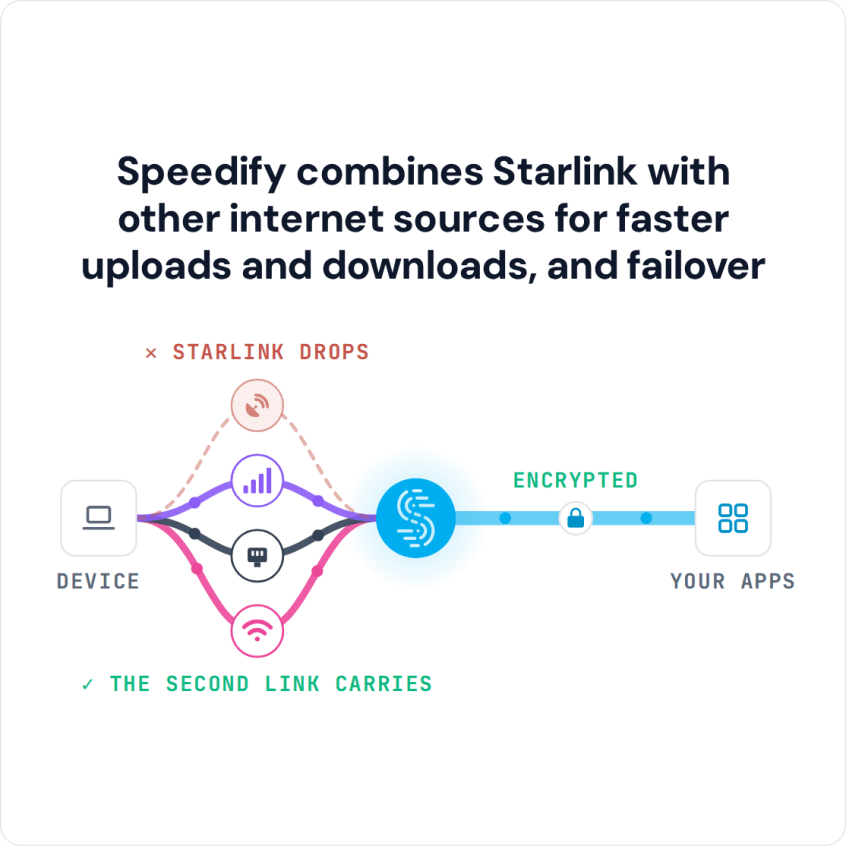
You can get a secondary Internet connection through the same or via a different ISP. Examples include another Starlink, DSL, cable, or 4G / 5G cellular connections. Speedify is the only app available for all major platforms - Windows, MacOS, Linux, iOS, Android and OpenWrt - that can join your Starlink satellite connection together with any number or combination of other Internet connections and will intelligently distribute your online traffic among them for optimal performance. Plus, if you get disconnected from Starlink in the middle of an important video call or file transfer, Speedify will seamlessly failover to your other working Internet connection(s) without skipping a beat.
NOTE: For best results, use Internet connections from different sources. In general, joining the same upstream network multiple times (such as the same router via Ethernet and Wi-Fi) will not improve performance.
Quick answer
Should you get a backup connection for Starlink?
Yes. Starlink goes down every day — an always-on dish averages about 34 minutes of downtime daily from routine satellite handoffs. A second connection keeps you online when Starlink drops.
What’s the best backup connection for Starlink?
A 4G/5G cellular hotspot or SIM is the most practical backup for most Starlink users — it works anywhere Starlink works, requires no installation, and uses a different network so outages rarely overlap. Cable or DSL broadband is a strong option if you have it at a fixed location. A second Starlink dish is also possible if you need maximum throughput.
How do you use two internet connections at once with Starlink?
Speedify combines Starlink with any other connection — cellular, cable, Wi-Fi, or a second dish — into one bonded connection. Speedify runs on your phone, laptop, or router. When Starlink drops, Speedify moves your traffic to the backup instantly, so calls don’t cut out and downloads don’t stall. Speedify is free to try.
71% of Speedify’s Starlink users already run a second connection. The data below shows why.
Try Speedify free →Speedify Starlink Index — real-world performance from 6,209 Starlink users: 2.4% downtime, about 34 minutes a day for always-on connections
Starlink goes down every day.
Here’s what that actually looks like.
Speedify passively monitors every connection it bonds. These figures come from 6,209 Starlink users over 14 days — compared in real time against the other connections on the same devices. No speed tests, no lab conditions.
Daily downtime
~34 min
2.4% of connected time unreachable
Median latency
60 ms
p90 spikes to 257 ms
Avg packet loss
0.17%
vs 0.08% on T-Mobile
71% ran at least one other connection simultaneously — 4,381 of 6,209 users. Cellular is the most common backup.
Use Speedify to stay online during satellite handoffs every 15 seconds
Research confirms Starlink switches between satellites every 15 seconds on a fixed schedule. Each satellite handoff is a potential dropout, and on a congested network or with any obstruction, those Starlink dropouts become real interruptions.
Speedify fixes Starlink connection drops by combining your Starlink internet connection with another satellite dish, Wi-Fi, 4G/5G cellular, or wired Ethernet at the same time. When Starlink drops, Speedify keeps your traffic moving on the backup internet connection instantly.


Speedify alerts you about your Starlink dish status
Speedify software alerts you about your Starlink dish status as soon as your dish experiences an issue - e.g. when your actuator motor is stuck, the mast is not vertical or there's a thermal throttle.
Speedify's Starlink Control Center helps you monitor all your Starlink dishes, read obstruction maps, and align multiple dishes all in the Speedify app. Get a real-time view of each dish's health and optimize the position of each Starlink dish, so you get the best possible performance out of your Starlink connections.
Speedify makes your uploads and downloads faster, more reliable, and more secure.
Speedify combines Wi-Fi, 4G / 5G cellular, Ethernet, Starlink, and other satellites for faster internet uploads and downloads
Speedify is the only software app that combines Wi-Fi, 4G / 5G cellular, Ethernet, Starlink and other satellites at once for secure, faster, and more reliable internet uploads and downloads so you stay online without interruptions.
Speedify will automatically detect and start using any available Internet connections on your device while intelligently distributing your online traffic between them for optimal performance. If you need help we have quick start guides available for most common set ups.
Speedify gets you faster uploads and downloads from the devices around you
Speedify's Pair & Share feature lets you and the devices around you pair up and share 4G/5G cellular both ways, so every paired device gets faster uploads, faster downloads, and a steadier internet connection. All sides share and use each other's cellular at once, unlike a personal hotspot, where one device gives and the rest take.
Speedify's Pair & Share feature runs over the local network between devices already running Speedify, with no extra hardware and no new data plans. Speedify creates an encrypted pool of shared 4G/5G cellular connections across all paired devices. Each device taps into that shared pool of combined connections for faster upload and download speeds and a more reliable internet connection.
See how you can use Speedify to combine different Internet connections:
3 Steps to Join Starlink and a Tethered Android Smartphone on Your Windows PC
Step 1: Connect to Your Starlink Wi-Fi Hotspot
First - make sure you setup your Starlink according to the instructions you received in the package. This includes setting up your new Starlink Wi-Fi network, along with your password.
Verify that your Wi-Fi is enabled on your PC and connected to a network.
Click on the Wi-Fi symbol in the lower right corner of the taskbar (systray). If you’re not already connected to a Wi-Fi hotspot, turn on Wi-Fi by clicking on the tile in the lower left side of the pop-up menu then select the Wi-Fi hotspot associated with your Starlink connection and enter the password to connect.
Step 2: Connect Your Android Device to Your PC and Enable USB Tethering
Connect your Android to your PC using a USB cable. A notification will show at the top of the screen on your Android device. Swipe down from the top of the screen > Touch and hold Hotspot > Turn on USB tethering.
Alternatively, you can go to Settings > Connections > Mobile Hotspot and Tethering to enable USB tethering.
In order to verify that your tethered connection is active, click on the computer / Wi-Fi icon in the lower right area of the taskbar (systray). Tethered devices will be recognized and treated like wired (ethernet) connections. You should see a wired connection named “Network #” which should now be connected. That is your tethered Android phone.
Please note that when USB tethering an Android phone, if that phone is connected to Wi-Fi, the tethering will share the Wi-Fi connection and not the cellular connection. In order to use the cellular connection from your Android phone into the mix, enable mobile data and turn off Wi-Fi on your smartphone.
NOTE: Some mobile carriers limit or charge extra for tethering. We recommend checking with your carrier. Additionally, Some of these steps work only on Android 9 and up. Learn how to check your Android version.
Step 3: Download and Install Speedify
Last but certainly not least, download and install Speedify. Once running, Speedify will automatically detect your Starlink connection and any other available Internet connections and join them together for increased speed, security, and stability.
Need to keep several devices connected in areas with limited or spotty network coverage, like event venues, remote locations or when traveling? Get consistent and uninterrupted online activity for all your devices using Speedify's Pair & Share functionality, which allows you to share cellular data between multiple devices wirelessly.
By pairing devices, you can effectively distribute your cellular connection across them, improving overall performance, especially when other network options like Wi-Fi may be slow or unstable.
You can manage settings, view statistics, and even apply limits to individual connections by either clicking/tapping on them from the Dashboard or by navigating to the desired connection through the main Settings menu.
Speedify will work quietly in the background to optimize performance including prioritizing streaming web traffic to avoid stuttering, buffering and disconnects.
When using Starlink Internet, Speedify is the only VPN that makes your online experiences faster, more reliable, and more secure.

Get started with Speedify today!
With Speedify you can combine Wi-Fi, 4G / 5G cellular, Ethernet, Starlink and other satellites into one bonded super-connection to improve livestreaming, video calling, gaming, web browsing, and everything else you do online.
Speed
Stability
Security
Speedify engineers love talking tech on YouTube, Tiktok, and Instagram!
Alex Gizis and the Speedify engineers discuss and explain technology including Starlink satellites, Wi-Fi 7 routers, Apple networking features, fiber optics, broadband internet, 5G mobile networks, AI, networking protocols, and much more. Follow Speedify on YouTube, TikTok, Instagram, and LinkedIn!
Alex and the Speedify team are always exploring the latest in networking and security technology—like 5G, 6G, WiFi 7, laser and satellite internet—and sharing it in new discussion content across YouTube, TikTok, Instagram, and LinkedIn every week.
Got a tech question? Let's go deeper! Pop into Speedify Office Hours live every Wednesday at 10 AM Eastern. Speedify CEO Alex Gizis and our network engineers are standing by to break down your questions about networks, tech updates, and Speedify features.



