
Two Tethered Phones Are Better Than One for Fast, More Reliable Internet
Want faster upload and download speeds and more reliable internet on your Windows PC, even with no Wi-Fi around? Run a tethered Android phone and a tethered iPhone at the same time.
Speedify is an app that combines two or more internet connections at once, such as an Android phone and an iPhone, each tethered to the PC with a USB cable, so you get faster uploads and downloads and stay online if one connection drops out.
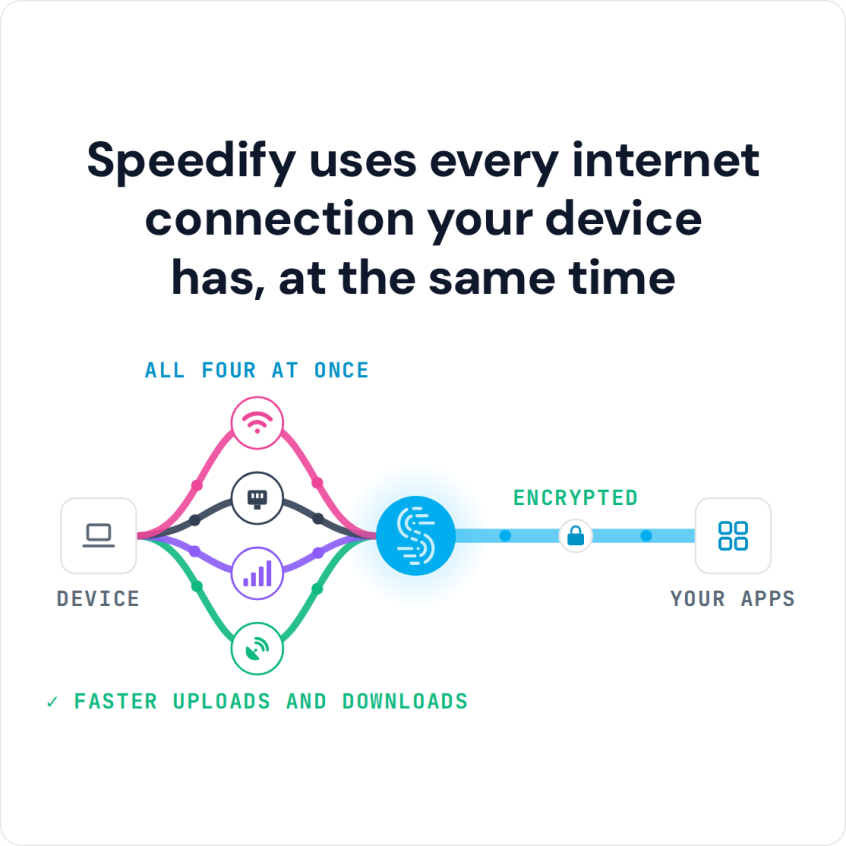
Speedify uses every internet connection your device has, at the same time
Speedify is the only app that joins together your Starlink, Wi-Fi, 4G / 5G cellular, wired, and even your friend’s phone signals – and turns them into one ultra-fast and super secure link that keeps you all connected for the best possible live streaming, video calling, or just posting to your favorite app.
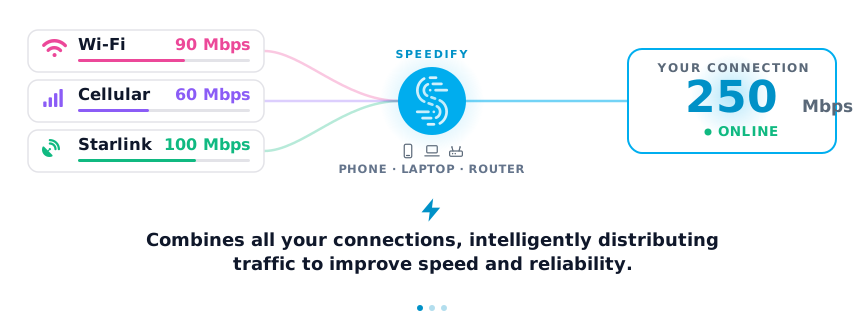
Speedify can join any number or combination of Internet connections and will intelligently distribute your online traffic among them for optimal performance. Plus, if you get disconnected from one of your connections in the middle of an important video call or file transfer, Speedify will seamlessly failover to your other working Internet connection(s) without skipping a beat.
NOTE: For best results, use Internet connections from different sources. In general, joining the same upstream network multiple times (such as the same router via Ethernet and Wi-Fi) will not improve performance.
How do I use WiFi and 4G/5G cellular at the same time with Speedify?
Pick your two internet connections and your device below and we'll take you to the step-by-step setup guide.

4 Steps to Join 2 Tethered Smartphones on Your PC: an Android and an iPhone
Step 1: Enable Personal Hotspot on your iOS device
Personal Hotspot shares the 4G/5G cellular connection of your iPhone or iPad with other devices over Wi-Fi, USB, or Bluetooth.
Open Settings, then tap Personal Hotspot (or Cellular > Personal Hotspot), and turn on Allow Others to Join. This screen also shows the Wi-Fi password. The Wi-Fi network name is the name of your iPhone or iPad.
Note: If you don't see Personal Hotspot, contact your carrier to make sure your plan includes it.
Step 2: Connect your iPhone to your PC via USB
First, install Apple Devices or iTunes for Windows from the Microsoft Store. Windows needs one of them to use your iPhone or iPad for USB tethering.
Connect your iPhone or iPad to your PC with a USB cable. If your iPhone or iPad asks "Trust This Computer?", tap Trust.
Check that your iPhone or iPad shows up in the Apple Devices app (or in iTunes). If Windows does not recognize it, try a different USB cable.
Your iPhone now shares its 4G/5G cellular with your PC. Windows lists it as a wired (Ethernet) connection. To check, open Settings > Network & internet on your PC.
Step 3: Connect your Android device to your PC and enable USB tethering
Connect your Android phone to your PC with a USB cable. A notification shows at the top of your phone's screen. Swipe down from the top of the screen, touch and hold Hotspot, and turn on USB tethering.
You can also turn it on in Settings: Connections > Mobile Hotspot and Tethering > USB tethering on a Samsung Galaxy, or Network & internet > Hotspot & tethering > USB tethering on a Google Pixel.
To check that the tethered connection is active, open Settings > Network & internet on your PC. Windows treats a tethered Android phone as a wired connection, so it shows up there as an additional Ethernet connection.
Note: If your Android phone is also connected to Wi-Fi, USB tethering shares that Wi-Fi connection, not its 4G/5G cellular. To share 4G/5G cellular, turn on Mobile data and turn off Wi-Fi on your phone.
Note: Some mobile carriers limit tethering or charge extra for it, so check with your carrier. Some of these steps only work on Android 14 and up. Learn how to check your Android version.
Step 4: Download and Install Speedify
Last but certainly not least, download and install Speedify. Once running, Speedify will automatically detect any available Internet connections and join them together for increased speed, security, and stability.
Need to keep several devices connected in areas with limited or spotty network coverage, like event venues, remote locations or when traveling? Get consistent and uninterrupted online activity for all your devices using Speedify's cellular sharing functionality, which allows you to share cellular data between multiple devices wirelessly.
By pairing devices, you can effectively distribute your cellular connection across them, improving overall performance, especially when other network options like Wi-Fi may be slow or unstable.
You can manage settings, view statistics, and even apply limits to individual connections by either clicking/tapping on them from the Dashboard or by navigating to the desired connection through the main Settings menu.
Speedify will work quietly in the background to optimize performance including prioritizing streaming web traffic to avoid stuttering, buffering and disconnects.
Whether at home, work, or on-the-go, Speedify is the only VPN that makes your online experiences faster, more reliable, and more secure.
Alternative: Join Tethered iPhone and Tethered Android on PC Easier
Want an even easier (and wireless) way of bonding 4G / 5G cellular connections? Use the Speedify's cellular sharing feature!
- Install Speedify on all devices
- Join the same Wi-Fi or local network
- Pull up the Pair & Share cellular sharing settings in Speedify and tap on the desired device to send an invitation to pair
- Tap accept on the other device
Once paired, both devices can share AND receive each other’s connections simultaneously. The more devices you pair with, the more connections you’ll have access to!
Traffic between devices is fully encrypted, and you always maintain full control over which devices can do what - set permissions, limits, or unpair from other devices at any time.
Speedify
Get started with Speedify today.
Speedify combines Wi-Fi, 4G/5G cellular, Ethernet, Starlink and satellite into one faster, more reliable internet connection. Free to try: 5 GB a month with a free account. No credit card required.
🚀 Speed
Faster uploads and downloads, because Speedify uses all your internet connections at once.
📶 Stability
If one internet connection drops, Speedify moves your traffic to the others in milliseconds.
🔒 Security
AES-256 encryption on every internet connection, on any network you join.



15M+ downloads worldwide. 75K+ five-star reviews on iOS and Android.