
Benefit from Windows 10 Channel Bonding with Speedify
Combining two or more internet connections on a Windows 11 PC gets you faster uploads and downloads and a connection that stays up if one drops, without the complex NIC teaming or link aggregation setups that often fail. The simplest way to do it is Speedify, an app that combines Wi-Fi, 4G/5G cellular, Ethernet, Starlink and satellite internet connections at the same time, with automatic failover built in. With only one internet connection, Speedify works as an encrypted VPN and cannot make that connection faster or stop it from dropping. If Windows 11 is slow before you add anything, start with fixes for slow internet on Windows 11.
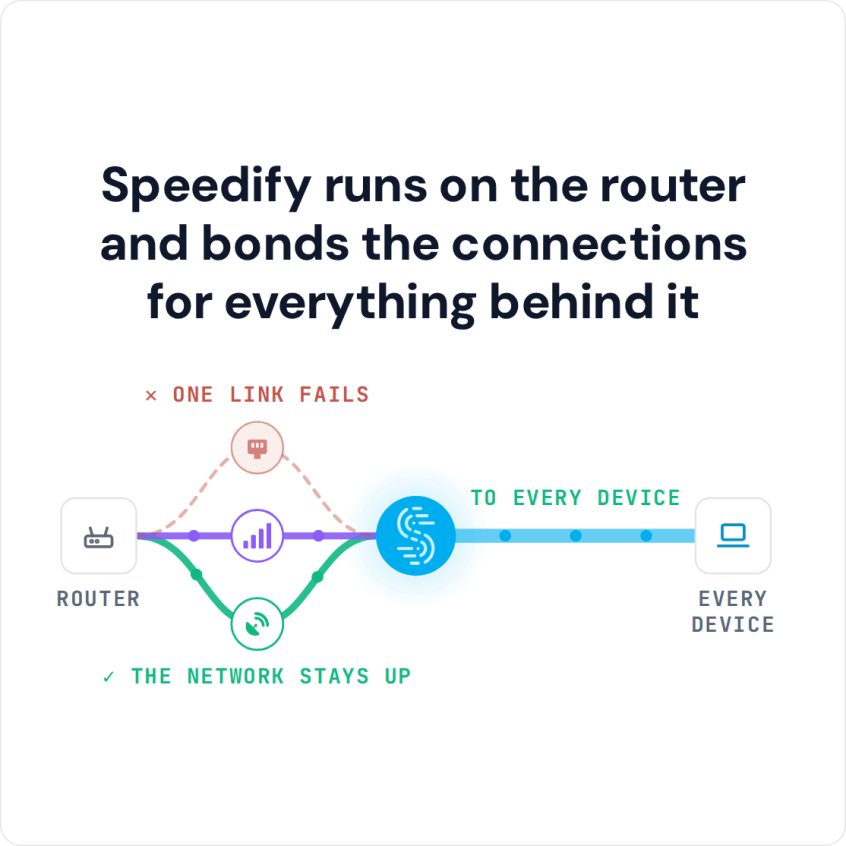
Speedify runs on the router and bonds the connections for everything behind it
This guide explains what Windows 11 supports for link aggregation, why it does not combine two internet connections, and how to combine yours with Speedify in a few minutes. The steps are the same on Windows 10.
How do I use WiFi and 4G/5G cellular at the same time with Speedify?
Pick your two internet connections and your device below and we'll take you to the step-by-step setup guide.


How Combining Internet Connections Works on Windows 11
Here’s your typical Internet connection: imagine yourself driving for a weekend getaway on a one-lane street. And many others like you on the road. Too many cars means that the traffic is slow. Plus, if there were an incident on the road, everybody would have to stop, so nobody would reach the destination in due time.
When you combine 2 or more Internet connections, it’s like having multiple roads that lead to the same destination. You would be able to switch from one road to another if one gets congested and you’ll be sure you’ll get there in time, if not even faster!
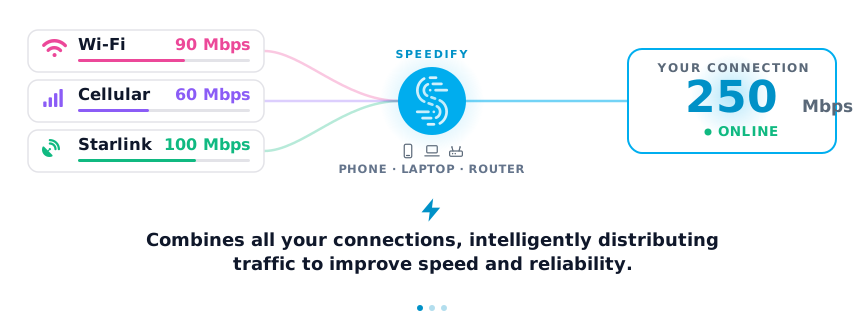
This is what combining internet connections does: Speedify splits your traffic across multiple internet connections packet by packet, so data moves faster, and if one connection drops, traffic keeps flowing over the others.
Windows 11 Link Aggregation and LACP: What Windows Supports
Link aggregation, also called NIC teaming (LACP is its standard protocol), joins two or more network ports into one link between a computer and a single switch. Microsoft supports NIC teaming on Windows Server; Windows 11 has no NIC teaming option in its network settings, and LACP also needs a switch that supports it. Even where teaming works, it only joins links to the same switch and router, so it cannot add a second internet provider or a 4G/5G cellular connection to your Windows 11 PC. Speedify does that in software, with any mix of Wi-Fi, Ethernet, 4G/5G cellular, Starlink and satellite.
How to Combine Internet Connections on Windows 11 with Speedify
- Download Speedify for Windows (it runs on Windows 10 or later) and install it.
- Connect your Windows 11 PC to each internet connection: for example, an Ethernet cable plus Wi-Fi, Wi-Fi plus a phone tethered over USB, or two Wi-Fi networks using a USB Wi-Fi adapter.
- Open Speedify and create a free account (the free tier includes 5 GB per month), or sign in.
- Speedify finds each internet connection and starts combining them. Each connection appears in the Speedify window.
- Optional: to keep a metered connection such as 4G/5G cellular for emergencies, set its priority to Backup in that connection’s settings in Speedify.
How Much 4G/5G Cellular Data Link Aggregation Uses on Windows 11
Link aggregation on a PC means paying for each internet connection you add. Most home internet plans have no data cap, but a 4G/5G cellular plan often does, and Speedify sends part of your traffic over every connection it combines. Music streaming gives a sense of scale: according to Android Central, low quality audio (96 kbps) uses about 43 MB an hour, normal quality (160 kbps) about 72 MB and high quality (320 kbps) about 144 MB. Video and video calls use more, depending on the resolution.
To keep that cost down, set a data limit on the cellular connection in Speedify so a capped plan does not run into overage fees, or set its priority to Backup (step 5) so Speedify uses it only when your other connections drop. A second line from a different internet provider, or an unlimited cellular plan, lets you combine connections without counting gigabytes, and a second provider also keeps you online when one has an outage.
What Speedify Adds Beyond Standard Link Aggregation on Windows 11
Speedify’s technology for combining internet connections lets you use multiple internet connections at the same time for more bandwidth and a connection that stays up when one drops. Speedify encrypts your traffic and routes it through Speedify’s own servers, and distributes it across all available internet connections on your Windows 11 computer based on how each connection performs.
Speedify adds three things that standard link aggregation does not:
- Security and online privacy: Speedify has mobile VPN capabilities and encrypts the traffic on every internet connection it combines, so other people on public WiFi networks cannot eavesdrop on your online traffic.
- Efficiency: Most link aggregation solutions split traffic by a fixed rule, such as a “round robin” pattern like dealing cards in a card game, without checking how each connection performs. Speedify measures the capabilities of each network connection and distributes traffic to match, so you get more of their combined throughput than a fixed split gives.
- Performance: A hardware appliance that combines connections is limited by its own processor and ports. Speedify is software-based, so the limits are your Windows 11 PC, the speeds of the internet connections it has (Wi-Fi, 4G/5G cellular, Ethernet, Starlink and satellite) and the Speedify server you connect to, and it keeps working when you change your setup.
Combining Internet Connections vs. Load Balancing on Windows 11
Speedify is sometimes mistaken for a load balancing service, but it works differently.
Load balancing assigns each network connection (socket) to one internet connection, so a single download still runs over one connection. Speedify goes one step further and splits traffic into smaller pieces, network packets, so a single download or video call can use all your internet connections at once. Learn more about combining internet connections vs. load balancing.
Speedify
Get started with Speedify today.
Speedify combines Wi-Fi, 4G/5G cellular, Ethernet, Starlink and satellite into one faster, more reliable internet connection. Free to try: 5 GB a month with a free account. No credit card required.
🚀 Speed
Faster uploads and downloads, because Speedify uses all your internet connections at once.
📶 Stability
If one internet connection drops, Speedify moves your traffic to the others in milliseconds.
🔒 Security
AES-256 encryption on every internet connection, on any network you join.



15M+ downloads worldwide. 75K+ five-star reviews on iOS and Android.