
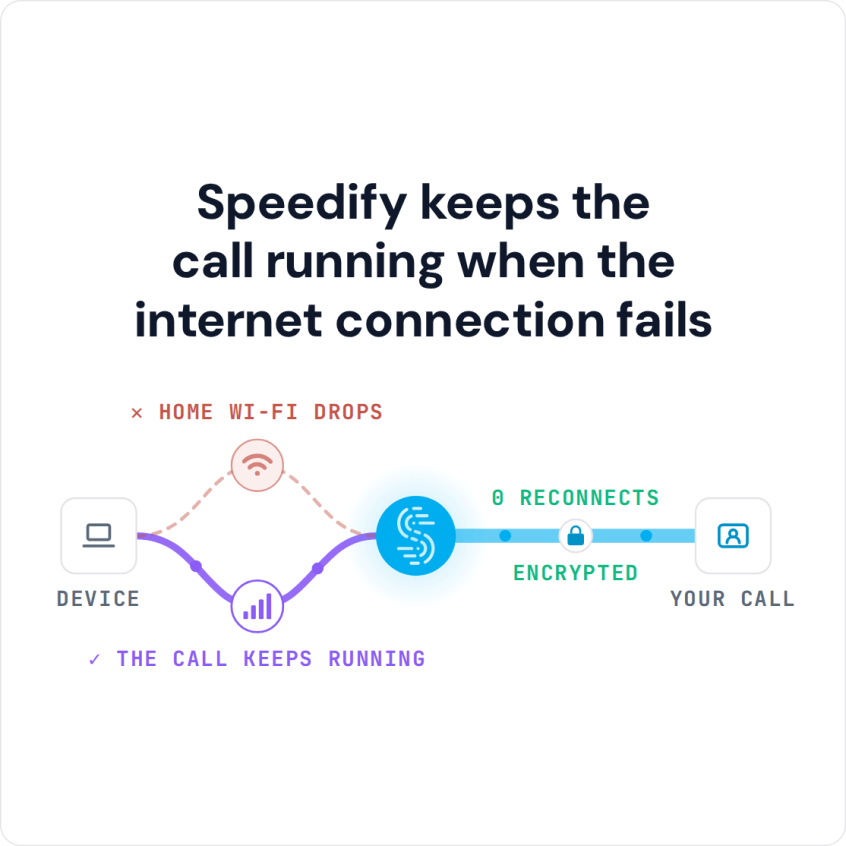
Teaching a live class online puts your internet connection in front of an audience, and if it gives out at the wrong moment the lesson stops with it. One home line, shared with everyone else using it, is the weak point.
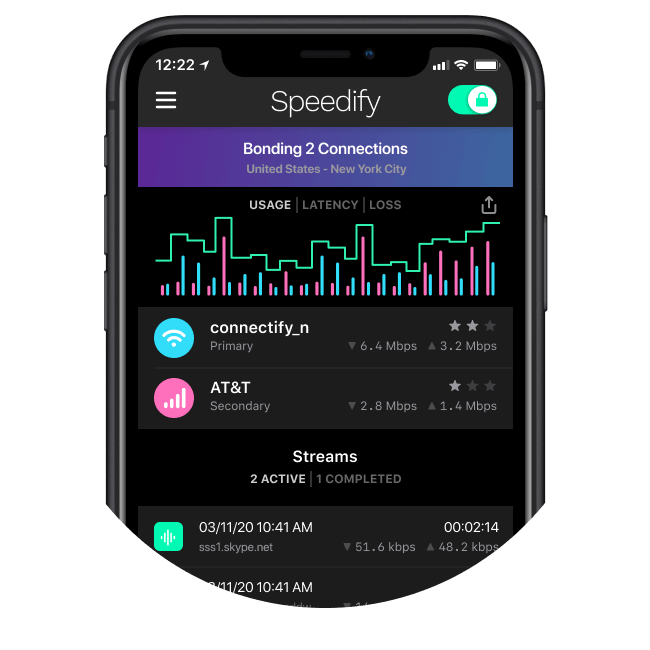
Speedify is an app that runs your internet over two or more internet connections at the same time (Wi-Fi, 4G/5G cellular, wired Ethernet and Starlink), so a dip on one does not end the class. On a single internet connection, Speedify works as an encrypted VPN and cannot stop that connection from dropping.
Six practical ways to run a smoother video class follow, from audio and software choices to using Speedify so a weak moment on the home line does not have to cut a lesson short.
1. Don’t Rely on Just One Internet Connection
Your online class might be over before it even starts if your internet connection fails. Or even worse, it could fail just as you’re reaching the most critical part of your class.
Plenty of homes don’t have great internet. Between cellular and Wi-Fi dead zones and slow home broadband, finding a reliable connection and staying connected can be hard.
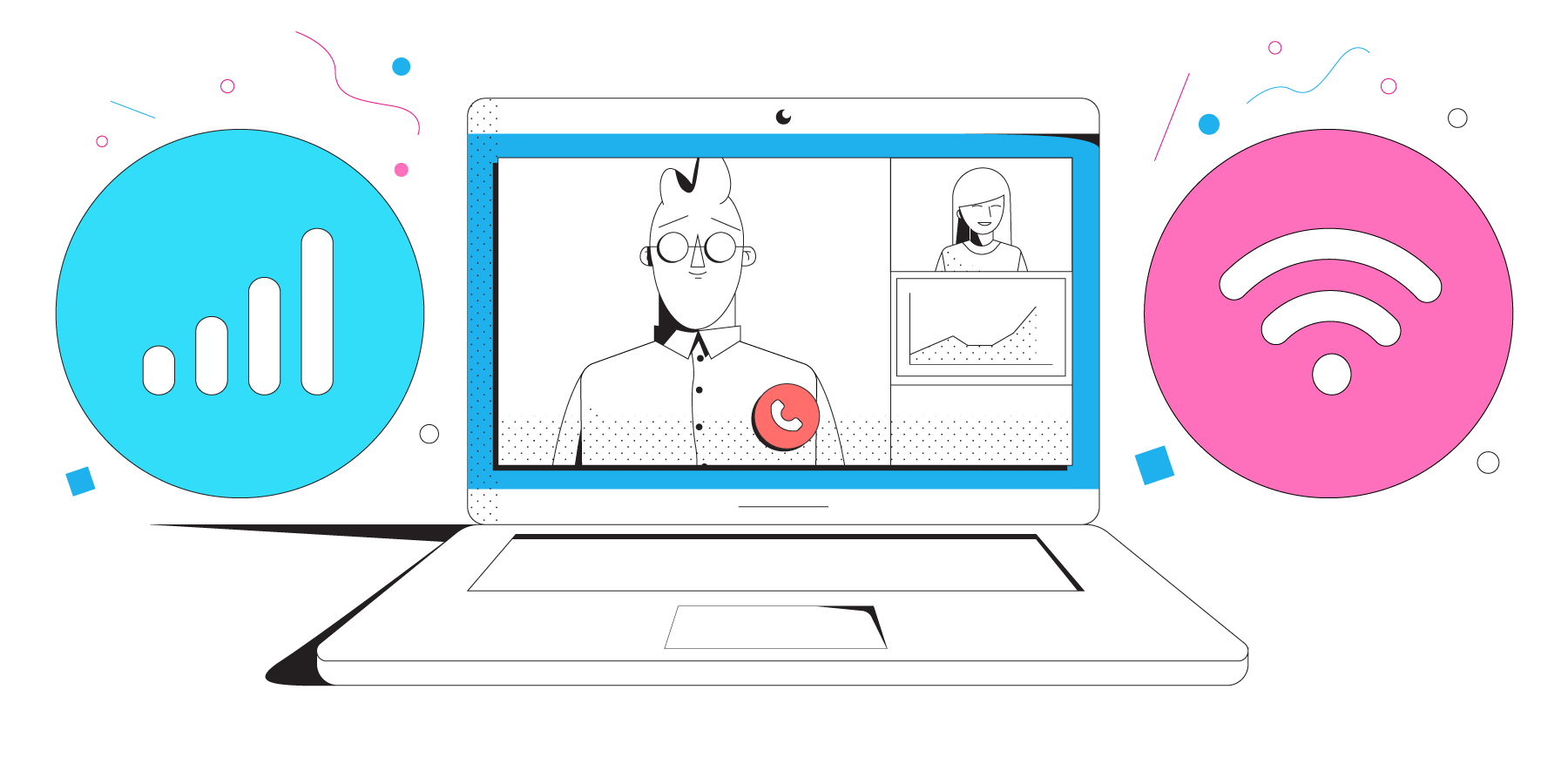
Speedify lets you use all of your available connections at once for speed, stability and security. For example, you can combine your home internet and 4G/5G cellular directly on your smartphone or tablet, or share the phone with your computer by USB tethering and combine them there. Your video gets more bandwidth, and when one connection fails, the class continues on the other. Speedify also automatically recognizes and dynamically optimizes streaming video to further improve the experience for you and your students.
This way, you can avoid connectivity problems with online classes and focus on the content itself.
Before each class, a few checks catch most internet problems in online classes: use Ethernet or sit close to the router, pause large uploads and streaming on the same home network during the lesson, restart the router if a speed test looks low, and keep your phone’s 4G/5G cellular ready as a second connection.
How to Keep an Online Class Connected with Speedify
- Download Speedify on the computer you teach from (Windows or macOS), or on the phone or tablet (iOS or Android).
- Open Speedify and create a free account (the free tier includes 5 GB per month), or sign in.
- Give it a second internet connection: on a computer, keep your home Wi-Fi and add Ethernet or a phone tethered with a USB cable (an iPhone works on Windows and Mac; an Android phone on Windows and often on a Mac); on a phone or tablet, keep Wi-Fi on and turn on cellular data.
- Connect. Speedify uses both connections at once and moves the class to the working one when one drops.
- Open Zoom, Google Meet or Microsoft Teams and start the class as usual.
2. Close Non-Essential Apps to Improve Performance
Online learning problems are not only generated by your Internet connection, but also by the performance of the device you’re using to live stream. Video streaming takes up a lot of resources on your device to process both the video and audio. So before the video starts, save your work and close any apps that you aren’t planning to use during the online class.
The last thing you want is to have blazing fast internet speeds and a perfect video setup but have your computer or mobile device freeze or crash. Having too many apps open can consume a lot of CPU power that would otherwise be put toward your video streaming.
3. Ensure You Have High-Quality Audio and Video
Have you eliminated any potential issues with online classes due to Internet connectivity? Make the most of the internet connections you have by streaming your audio and video at the highest possible quality. It doesn’t matter if you have a perfect connection when your video is blurry or audio is inaudible.
An old webcam just doesn’t cut it anymore, nor does your device’s built-in microphone if you hope to appear professional to your class. If your webcam and microphone are subpar, then now is a perfect time to upgrade.
For example, Logitech’s HD Pro Webcam C920 is a stellar webcam for streaming video, but you can also achieve good results by using a DSLR if you already have one or setting up a smartphone as a webcam if you don’t. For audio, a Blue Yeti USB mic provides clear, rich sound while eliminating background noise that would otherwise disrupt your class. You may also want to consider buying one or more LED lights depending on your room’s lighting, and many relatively inexpensive ones are available.
4. Find the Best Video Conferencing Software for Your Needs
Zoom is currently the most hyped video conferencing tool and for good reason. It often provides the highest quality video, particularly when paired with a connectivity tool like Speedify that improves your internet connection. However, it comes with a higher cost than competing solutions if your class size is large and sessions are long. It may be perfect, however, if your classes have fewer than 100 attendees and are shorter than 40 minutes.
Google Meet, on the other hand, is free for anyone with a Google account, and its quality is close to Zoom’s. A free meeting takes up to 100 people, but group calls (three or more people) on the free plan end at 60 minutes.
Microsoft Teams is a strong contender too. The free version of Teams also allows up to 100 participants and 60-minute group meetings, so larger or longer classes need a paid plan on any of the three platforms.
With a second internet connection, Speedify also helps keep Google Meet and Microsoft Teams classes connected.
5. Find a Video Hosting Provider
Learning from home comes with distractions, and any one of them can break concentration. After class ends, the lesson doesn’t need to be gone forever: you can keep the video for attendees to reference later or to use in promotional materials.
Each video conferencing provider features an option to record the meeting. You may need to download the recording to post it elsewhere, but it tends to be a quick and painless process.
If your class needs to stay private, consider Vimeo because of its advanced privacy options to ensure that non-attendees can’t see it. If you would like to make the content of your class publicly available, promote it by posting the video on YouTube. Or if you plan to gate the content to drive future business, another alternative is to use tools built to host webinars such as ON24 or Livestorm, although those options can be pricey.
6. Make It Interactive Using Online Tools
Depending on the type of online class, you can make it more interactive by going beyond video. All of the previously mentioned video conferencing tools offer screen sharing, but you can captivate your attendees by taking interactivity a step further.
For example, online whiteboarding tools like Miro or Stormboard can provide a way for everyone to brainstorm together. Or if you’re already using a learning management system (LMS), you can incorporate quick quizzes to make sure everyone is engaged.
Deeper collaboration can happen by using Google Docs that are shared between the attendees or using the collaboration features of Microsoft Teams. If you’re using Google Meet or Microsoft Teams, collaborating within those respective platforms is even easier.
By using the right tools to ensure you stay connected, have the best possible online class and preserve it, teaching online can be a positive experience. For you and students.
Connectivity Is the Key to Teaching Online
If you want to be more productive, start considering how you will achieve blazing fast internet connections with superb network quality, and find the right devices, equipment and tools that will help you collaborate, video conference and take work anywhere.
Speedify’s Next Normal series covers more tips, tricks and technologies for teaching and working from home.
Speedify
Get started with Speedify today.
Speedify combines Wi-Fi, 4G/5G cellular, Ethernet, Starlink and satellite into one faster, more reliable internet connection. Free to try: 5 GB a month with a free account. No credit card required.
🚀 Speed
Faster uploads and downloads, because Speedify uses all your internet connections at once.
📶 Stability
If one internet connection drops, Speedify moves your traffic to the others in milliseconds.
🔒 Security
AES-256 encryption on every internet connection, on any network you join.



15M+ downloads worldwide. 75K+ five-star reviews on iOS and Android.