

You Can Combine Multiple Internet Connections Together – Like Starlink, Wi-Fi, 4G, 5G, and DSL – with Speedify, to Fix WhatsApp Video Call Issues
A WhatsApp video call that turns to blocks, then freezes, then drops someone out of the group is a phone problem only in the sense that the phone has one internet connection to use. Walking out of Wi-Fi range, a weak cellular signal or a busy home network all create short gaps where the video stalls.
Speedify is an app for iPhone and Android that sends your call over Wi-Fi and 4G/5G cellular data at the same time, so one weak internet connection cannot cut you off. This post covers why WhatsApp video calling fails, plus our iPhone and Android tests of what using Speedify delivers on a real call.
Speedify keeps your call running when the connection under it fails.
Zoom, Teams, and Meet all end the call when the connection goes, and rejoining costs you the thread of the meeting. Speedify bonds your Wi-Fi with any second connection, often 4G/5G cellular, and hands the call over mid-session. Nobody has to rejoin.
Why Is Video Call Not Working on WhatsApp?
If WhatsApp works with messages and you’re only having issues with video calls, there can be 3 main reasons:
- your Internet connection is slow (poor Wi-Fi or cellular connectivity)
- you didn’t provide permissions so that WhatsApp can use the camera of your smartphone or computer
- you have an outdated version of WhatsApp.
Some common fixes include:
- checking the permissions for WhatsApp
- updating the app
- connecting to a stronger Internet source.
Unfortunately, you may not always find a good enough Internet source.
How can you fix your WhatsApp video call problems? This is where Speedify comes in, as it is the only app that can use all available connections at the same time (instead of just switching between them) to give you all the bandwidth you need to have your WhatsApp video calls without a glitch.
How Good Is Speedify when Dealing with WhatsApp Video Call Issues?
Unless they’re having issues, we all know WhatsApp performs well when you’re backed by a fast and stable Internet. But what about the real world, where most likely you don’t get that luxury?
The testing procedure consists of 2 series of tests for WhatsApp video calls:
- Without Speedify;
- Speedify on with Enhanced Streaming enabled.
In terms of devices and operating systems, we tested it on an Android smartphone and an iPhone. We combined Wi-Fi and cellular on both devices.
The evaluation is done both subjectively and objectively as follows:
- We screen capture and analyze the WhatsApp video call quality;
- We walk towards the edge of the Wi-Fi network. This helps us simulate:
- insufficient bandwidth conditions, as we get away from the Wi-Fi router;
- unreliable connectivity at the edge of Wi-Fi with dead spots and packet loss;
- disconnecting Wi-Fi internet and how quick it switches to cellular.
For the Speedify tests, we looked at the bandwidth, latency and packet loss. And, of course, how they are affected by our “course” away from Wi-Fi.
Improving WhatsApp Video Calls: Tests Are In for Enhanced Streaming Mode
As you can imagine, in the test with no Speedify running, once we get near the edge of Wi-Fi, the image starts stuttering. Then the video drops and we get the “Reconnecting” message from WhatsApp. This happens for 10+ seconds until cellular takes over. There was no notable difference between the two smartphones in terms of video quality and call behavior.
Testing Enhanced Streaming Mode on a WhatsApp Call on iPhone
So we tested WhatsApp on an iPhone while on a video call, running Speedify with Enhanced Streaming Mode. The video itself didn’t even stutter for one bit. Here’s how the bandwidth distribution looks like:
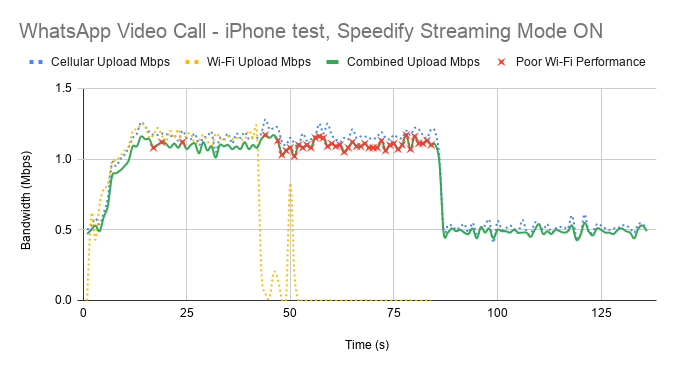
First of all, Speedify makes it possible to use both Wi-Fi and cellular at the same time. That’s why you see both connections being used together on the graph above. When Wi-Fi start failing, you notice that with the help of Speedify cellular takes over. The general bandwidth is constant, switching from 1.2 Mbps to around 500 kbps when only cellular is used.
The little red x-es above symbolize the moments when packet loss over the Wi-Fi connection was very high – over 5%. If Speedify would not have been running, then you would have ended up like in the first case – buffering and automatically ending broadcast.
What about WhatsApp with Speedify in Enhanced Streaming Mode on Android?
The Android test with Speedify Enhanced Streaming Mode was similar to the iPhone one – video was good in the sense that quality was good and it didn’t break.

As you can see, when Wi-Fi is good and strong enough, cellular stops being used. However, cellular kicks back in as soon as Speedify detects that Wi-Fi is flaky. Notice the steady bandwidth around 1 Mbps while there’s a “hint” of Wi-Fi. Then, it drops to 0.5 Mbps, as in the case of the iPhone. And Speedify keeps that fairly constant. Again – the red x-es symbolize the high Wi-Fi packet loss rate.
Here’s the raw average data from testing:
|
iOS |
Android |
|||||
|
Bandwidth (Mbps) |
Average |
Minimum |
Maximum |
Average |
Minimum |
Maximum |
|
Overall |
0.89 |
0.39 |
1.24 |
0.70 |
0.16 |
1.31 |
After looking at this table and the results above, we can conclude that Speedify was able to prevent the WhatsApp video call to drop or encounter any issues. Thanks to the intelligent dynamic traffic prioritization of its new Streaming Mode.
Test Conclusion: Speedify Enhanced Streaming Mode Solves WhatsApp Video Call Issue Related to Unreliable Internet
There you have it – when looking at how to improve WhatsApp calls, one of the must-haves is to use Speedify. Speedify’s Streaming Mode makes a huge difference for your WhatsApp calls.
To put it in context, here’s what happens under the hood of Streaming Mode. Speedify monitors statistics in real-time about how each of your Internet connections is performing. As connections change, and other apps start or stop sending data, Speedify adjusts its strategies on the fly. So, if you’re IRL streaming, you’re no longer chained around your router. Or that good public Wi-Fi hotspot you know in the city. You can walk around without dropping the stream. You don’t need to worry about it. Just start streaming: Speedify will make it happen.
To learn more about Streaming Mode and how to enable it check out the Speedify Knowledge Base article.
If you’re still wondering how to fix WhatsApp video call issues – get Speedify!
Speedify
Get started with Speedify today.
Combine Wi-Fi, 4G/5G cellular, Ethernet, Starlink, and more into one faster, steadier connection. Free to try — no credit card required.
🚀 Speed
Faster uploads and downloads by bonding all your connections at once.
📶 Stability
Automatic failover in under a second when any connection drops.
🔒 Security
AES-256 encryption on every connection, on every network you join.



15M+ downloads worldwide. 75K+ five-star reviews on iOS and Android.