

Why Your Internet Cuts Out on Video Calls, and How to Stop It
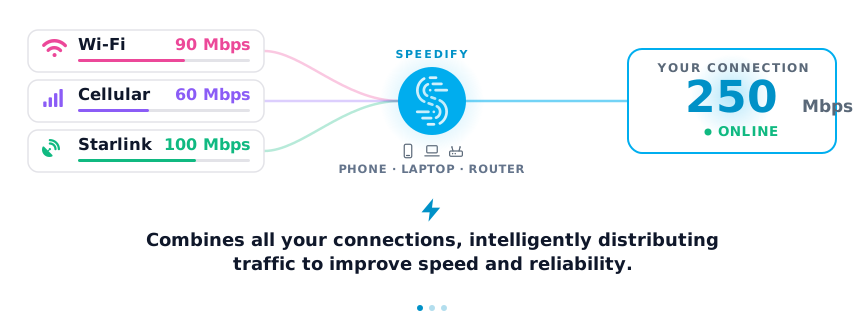
Video calls on Zoom, Teams and Google Meet cut out for the same reason: a short gap in the one internet connection the call runs on. Speedify is an app that combines Wi-Fi, 4G/5G cellular, Ethernet, Starlink and satellite internet connections into one connection, so when one connection drops for a moment, the call keeps going over the other. If Zoom freezes because your connection is simply slow, see how to stop Zoom freezing on slow internet.
A video call freezes for two seconds, the audio garbles, and then the whole meeting kicks a participant out entirely, right in the middle of a sentence that mattered. The usual suspect is packet loss, small gaps where data never arrives, which video conferencing software tolerates poorly compared to something forgiving like email or a webpage load.
Speedify keeps you working when the home connection gives out
Speedify stops that pattern by combining a primary internet connection, like Wi-Fi, with a second internet connection, like 4G/5G cellular, so a brief packet loss event or a momentary Wi-Fi handoff does not take the whole call down. Speedify’s technology for combining internet connections splits traffic across both connections packet by packet, so the second connection carries real traffic instead of waiting as a rarely used spare.
How do I use WiFi and 4G/5G cellular at the same time with Speedify?
Pick your two internet connections and your device below and we'll take you to the step-by-step setup guide.


What Drops a Video Call: Wi-Fi Handoffs, Packet Loss and ISP Micro-Outages
- Wi-Fi handoffs. A laptop moving between access points, or a router briefly reassigning channels, creates a short gap that a call cannot always absorb.
- Packet loss. Congested networks drop small percentages of packets constantly, and video calls are far more sensitive to that loss than a typical file download.
- ISP micro-outages. Short outages lasting a few seconds rarely show up on a status page, but they are long enough to disconnect a live call.
Why Rebooting the Router Does Not Fix Mid-Call Drops
Rebooting a router resets a connection that has become unstable over hours or days, but it does nothing for the packet loss or micro-outage happening in the exact minute of a call. A reboot also takes the connection fully offline for a minute or more, which guarantees a dropped call rather than preventing one. Switching providers has the same limit: a new single connection can still drop. The fix is a second internet connection that is already carrying traffic when the first one falters, the setup behind reliable internet while working from anywhere.
How Speedify Keeps Zoom, Teams and Meet Connected with Automatic Failover
Speedify measures both connections continuously during a call and moves traffic away from a connection as soon as it degrades or drops, usually before Zoom, Microsoft Teams or Google Meet notices anything. The call keeps the same encrypted connection to the Speedify server while the internet connections carrying it change, so the app does not have to reconnect.
4G/5G Cellular as a Second Internet Connection for Video Calls
The simplest upgrade for a home office is pairing existing Wi-Fi with a phone’s 4G/5G cellular hotspot or a dedicated cellular modem. Speedify combines that cellular connection with Wi-Fi, so a home ISP outage or a neighborhood slowdown does not end a call; Speedify shifts more traffic to cellular for as long as needed. That one second internet connection covers the two most common home internet failures: a Wi-Fi router problem and an outage at the ISP. On 4G/5G cellular alone, calls freeze when the signal weakens or the tower is busy, which is why cellular works best alongside Wi-Fi rather than instead of it.
Speedify Settings for Call Quality and a Checklist Before Each Meeting
Speedify has two main modes. Speed mode, the default, splits traffic across both connections for the fastest downloads and uploads. Redundant mode sends the same packets over both connections at once, so a packet lost on one arrives on the other; it uses more data, because every packet travels twice. Use Redundant mode for calls where a drop would be costly.
Speedify’s Streaming Mode, a setting that is on by default alongside Speed mode, handles the more common case: it prioritizes video and audio packets over background downloads, so a call stays smooth without Redundant mode. Before an important meeting, a short checklist keeps surprises out of it:
- Download Speedify and connect both a Wi-Fi and a cellular connection.
- Confirm Speedify shows both connections as connected and in use.
- Switch to redundant mode for high-stakes calls, or leave Streaming Mode on for routine ones.
- Join the call a few minutes early to confirm audio and video look stable.
One limit applies: combining needs at least two working internet connections to protect a call, and Speedify cannot fail over to a connection that does not exist. A home with one internet connection needs to add a second one, even a phone’s hotspot, before failover has anything to fail over to.
Video Call Drops: FAQ
Why do video calls specifically suffer from packet loss more than other apps?
Video calls send audio and video in real time, so a lost packet cannot be resent in time and shows up as a freeze or garbled audio; a file download simply resends it. Speedify covers this by sending traffic over two connections, so a packet lost on one path is covered by the other.
Does Speedify work with Zoom, Teams, and Google Meet?
Yes. Speedify runs underneath any video conferencing application, combining and protecting the connection those apps use without app-specific configuration.
What is redundant mode and when should it be used?
Speedify’s Redundant mode duplicates traffic across both connections at once. Use it for calls where a drop would be especially costly, and keep in mind that it uses more data.
Is 4G/5G cellular good enough as a second internet connection for video calls?
Yes, in most cases. Speedify combines a phone’s 4G/5G cellular hotspot with home Wi-Fi, so the phone becomes a failover path for video calls. With a weak cellular signal, expect lower video quality while the call runs on cellular.
Speedify
Get started with Speedify today.
Speedify combines Wi-Fi, 4G/5G cellular, Ethernet, Starlink and satellite into one faster, more reliable internet connection. Free to try: 5 GB a month with a free account. No credit card required.
🚀 Speed
Faster uploads and downloads, because Speedify uses all your internet connections at once.
📶 Stability
If one internet connection drops, Speedify moves your traffic to the others in milliseconds.
🔒 Security
AES-256 encryption on every internet connection, on any network you join.



15M+ downloads worldwide. 75K+ five-star reviews on iOS and Android.